
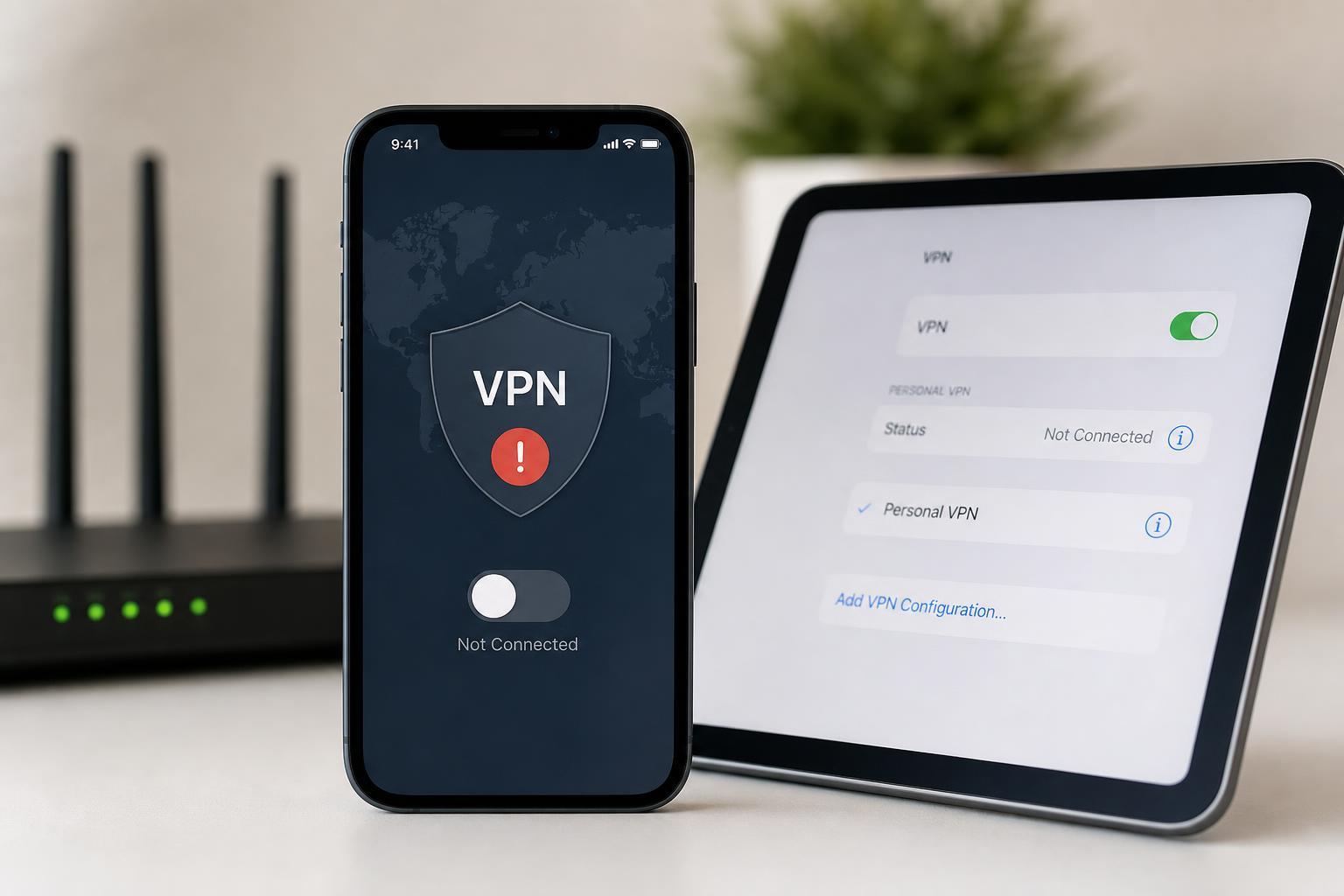
If your VPN won’t connect on an iPhone or iPad, the cause is usually a bad app setting, a network conflict, or a problem with the VPN profile itself. The good news is that most VPN issues on iOS can be narrowed down quickly with a few focused checks.
This guide walks through four practical fixes in the order that usually makes the most sense: check the VPN app and account, try a different network, remove and re-add the VPN profile, and look for iPhone or iPad settings that may be blocking the connection.
1. Check the VPN app, account, and server first
Before changing iPhone settings, make sure the VPN service itself is actually ready to connect. A lot of “VPN not working” problems come from account issues, expired subscriptions, or a server that is overloaded or temporarily offline.
- Open the VPN app and confirm that you are signed in with the correct account.
- Check whether your subscription is active if the VPN requires one.
- Try a different VPN server or location inside the app.
- Look for app messages about maintenance, authentication failure, or connection limits.
- Update the VPN app from the App Store if an update is available.
2. Switch networks to see whether the connection is being blocked
Some VPNs work on one network but fail on another. Public Wi‑Fi, school networks, work networks, and some mobile carriers can block VPN traffic or interfere with the protocol your VPN uses.
- Try connecting the VPN while on Wi‑Fi.
- If it fails, turn off Wi‑Fi and try again using cellular data.
- If you were on cellular data, try a different Wi‑Fi network instead.
- If the VPN works on one network but not another, the issue is likely with that network rather than the VPN app itself.
If the VPN connects on one network but not another, the router or network administrator may be blocking VPN traffic, or the network may not handle the VPN’s protocol well.
3. Remove the VPN profile and add it again
If the VPN app seems fine but the connection still fails, the saved VPN profile on iPhone or iPad may be corrupted or using outdated settings. Re-adding the profile often fixes authentication and connection errors.
- Open Settings on your iPhone or iPad.
- Tap General, then VPN & Device Management if that option appears.
- Find the VPN profile or configuration you are using.
- Delete the VPN profile.
- Open the VPN app again and add the profile or configuration back in, or reinstall the app if it manages the profile automatically.
- Try connecting again after the profile is recreated.
If you use a VPN app from the App Store, reinstalling the app can also clear out broken local data and rebuild the connection setup from scratch.
4. Check iPhone and iPad settings that can interfere with VPN connections
A few iOS settings can make a VPN look broken even when the app is working normally. This is especially true if the VPN connects briefly and then drops, or if it never finishes connecting at all.
- Turn off Low Data Mode if it is enabled for your Wi‑Fi or cellular connection.
- Check whether another VPN, proxy, or security app is already running and conflicting with your VPN.
- Make sure Date & Time is set correctly, since incorrect time can cause authentication problems.
- If using iCloud Private Relay, test with it turned off temporarily, because it can conflict with some VPN setups.
- Check that the VPN app has permission to add VPN configurations when prompted.
If you have a third-party security or privacy app installed, it may be installing its own network filter or VPN profile. That can prevent your main VPN from connecting properly.
How to tell which fix is most likely to work
The pattern of failure usually points to the cause. If the VPN fails immediately with an account or server error, start with the app and subscription. If it works on one network but not another, focus on network blocking. If it used to work and suddenly stopped after an update or settings change, reinstalling the profile is often the fastest fix.
- Account or subscription error: check the app, server, and login first.
- Works on one network only: the other network is likely blocking VPN traffic.
- Connects then drops: look for iOS settings, profile issues, or conflicting apps.
- Stopped after an update: remove and re-add the VPN profile or reinstall the app.
What to do if the VPN still will not connect
If none of the four fixes works, the issue may be with the VPN service itself, your network provider, or a deeper compatibility problem with the VPN protocol. At that point, contact the VPN provider’s support team and tell them exactly what happens when you try to connect, including any error message and whether the issue happens on Wi‑Fi, cellular data, or both.
You can also test the same VPN account on another device. If it fails everywhere, the problem is probably with the VPN service rather than your iPhone or iPad.





