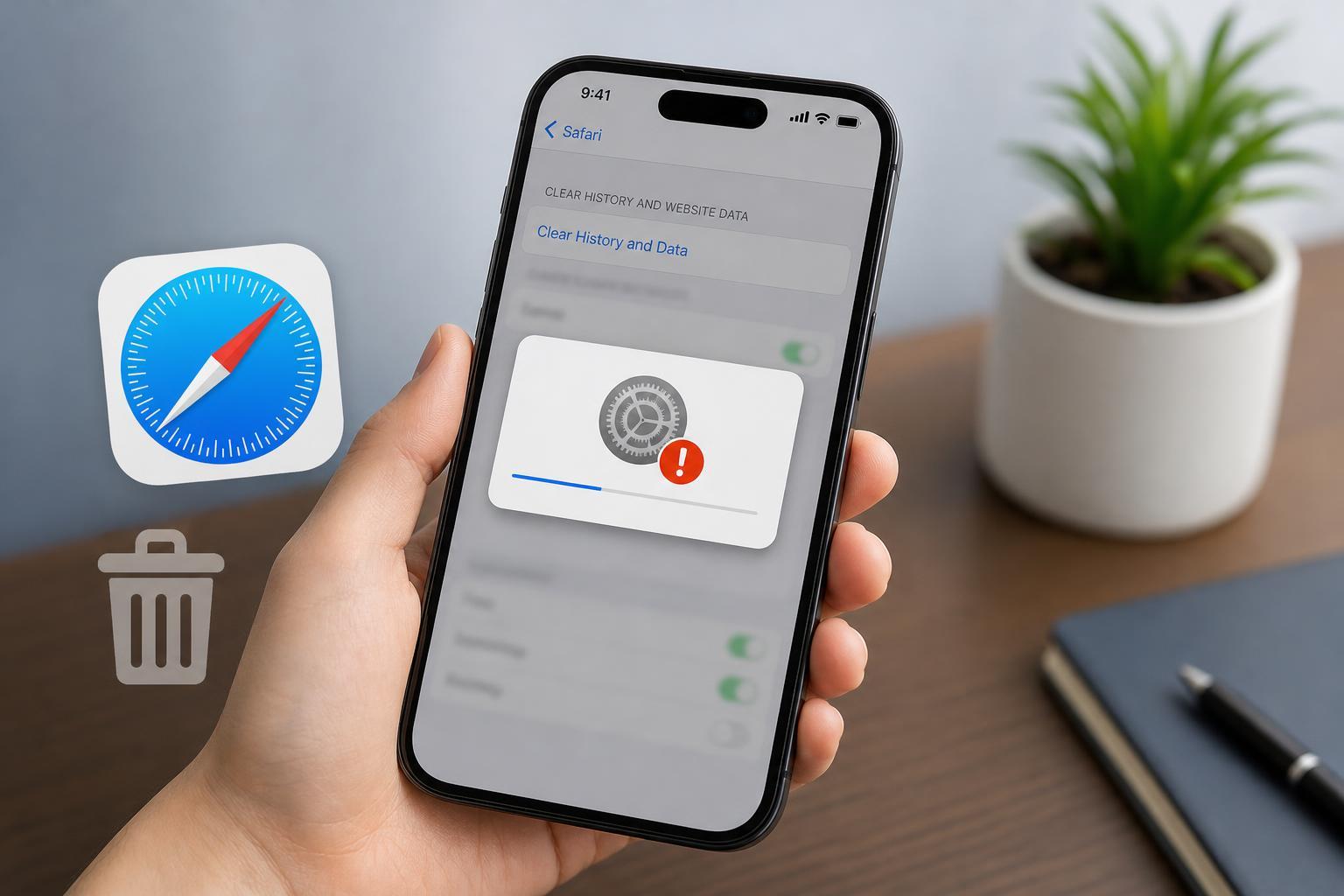
If Safari on your iPhone refuses to clear browsing history, the problem is usually tied to a setting, restriction, or sync issue rather than a broken browser. In many cases, the Clear History and Website Data option is greyed out or does nothing because something is preventing Safari from removing stored data.
The good news is that there are a few reliable ways to fix it. Start with the simplest checks first, then move to the more likely system-level causes if the issue remains.
Why Safari Won’t Let You Clear History
Safari can fail to clear history for a few common reasons. Screen Time restrictions may block changes to web content settings. iCloud sync can sometimes keep browser data tied to another device. In some cases, website data is still being used by an active session, which can make the clear option appear unavailable or ineffective.
1. Check Screen Time Restrictions
The most common reason the Clear History and Website Data option is unavailable on an iPhone is a Screen Time restriction. This can happen if content and privacy controls are enabled, especially on family-managed devices or phones with parental controls.
- Open Settings on your iPhone.
- Tap Screen Time.
- Select Content & Privacy Restrictions.
- If it is enabled, tap Content Restrictions or Web Content.
- Look for any web filtering or restriction setting that could be blocking changes to Safari history.
- If needed, temporarily turn off Content & Privacy Restrictions and try clearing Safari history again.
2. Turn Off Safari Sync in iCloud Temporarily
If Safari is syncing through iCloud, history and website data may be shared across your Apple devices. In some cases, the sync process can interfere with clearing history on one device, especially if another iPhone, iPad, or Mac is still using the same Safari data.
- Open Settings and tap your Apple ID name at the top.
- Tap iCloud.
- Find Safari in the list of apps using iCloud.
- Turn Safari off temporarily.
- Choose whether to keep or remove data from the iPhone if prompted.
- Go back to Safari settings and try clearing history again.
- Afterward, turn Safari back on if you want history to sync across devices.
3. Clear Safari Data from Settings, Not Only Inside Safari
On iPhone, the Safari app itself does not have a desktop-style browser menu with many cleanup options. The most reliable place to clear browsing data is in the iPhone Settings app. If the option inside Safari seems unavailable, use the system settings route instead.
- Open Settings.
- Scroll down and tap Safari.
- Tap Clear History and Website Data.
- Confirm the action when prompted.
If the button is still greyed out after checking Screen Time and iCloud sync, the issue is likely being caused by another restriction or a system-level settings problem rather than Safari itself.
4. Reset Network or Privacy-Related Settings if the Problem Persists
If the first three methods do not help, the iPhone may have a broader settings problem. A reset can remove configuration issues that affect Safari’s ability to manage stored website data.
This is more of a last-resort fix because it can also reset other preferences, so only use it if Safari still will not clear history after checking restrictions and sync settings.
- Open Settings.
- Tap General.
- Scroll down and tap Transfer or Reset iPhone.
- Tap Reset.
- Choose Reset All Settings if you want to keep your data but restore system settings.
- Try clearing Safari history again after the reset.
Other Things to Check
- Make sure your iPhone is updated to the latest iOS version available for your device.
- Check whether your device is supervised or managed by an organization, which may limit privacy settings.
- If Safari history appears to clear but old entries come back, another Apple device may be resyncing the data.
- If the button is missing only in one account or profile, compare Screen Time and iCloud settings for that profile.
What to Try First
For most people, the fastest fix is to check Screen Time restrictions first, then temporarily disable Safari iCloud sync, and then try clearing history from Settings > Safari. If none of that works, a settings reset is the most practical next step.
Once the restriction or sync issue is removed, Safari should let you clear browsing history and website data normally again.