
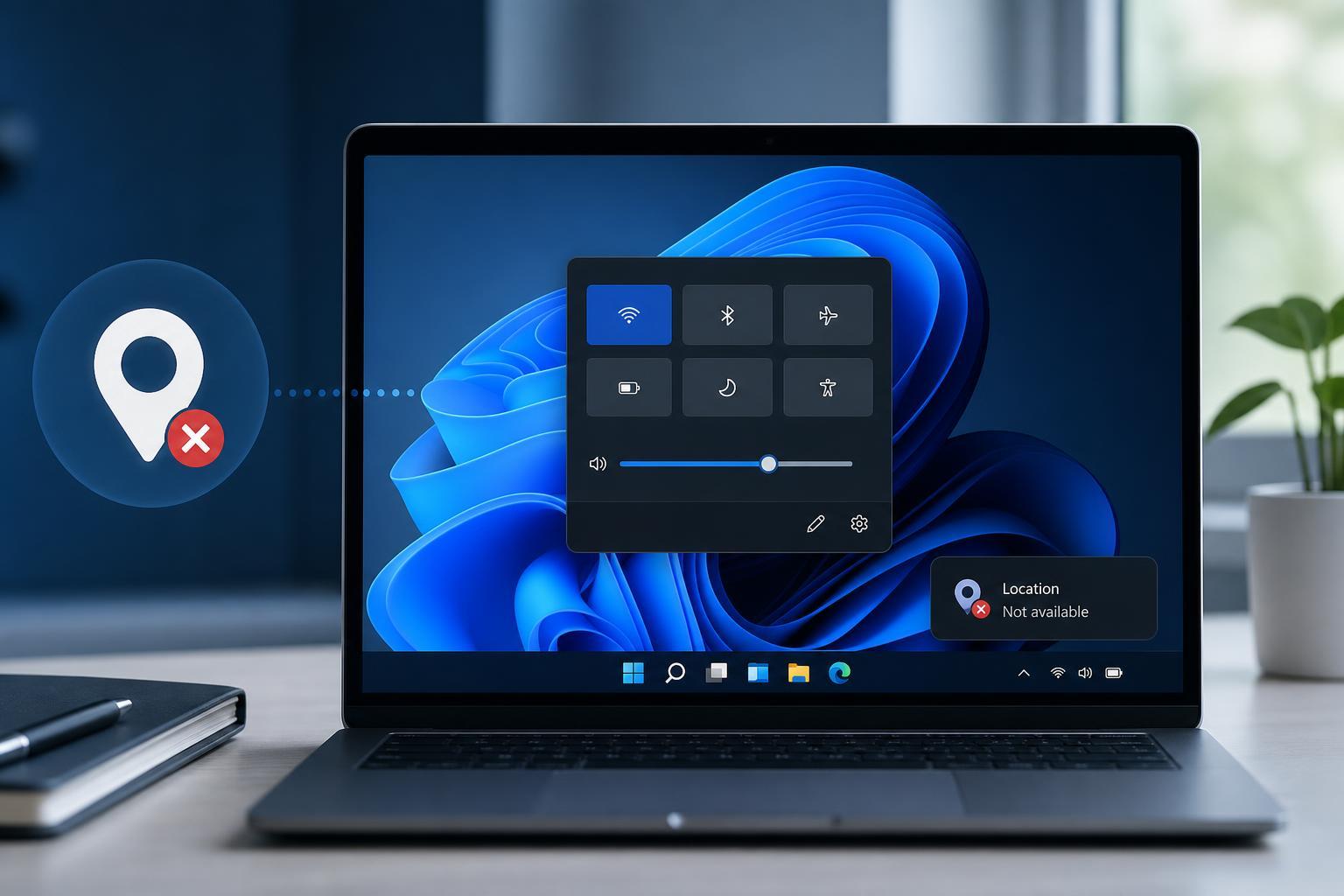
The “Location Is Not Available” error in Windows 11 usually appears when you try to open a drive, folder, or user location that Windows can no longer reach. It often points to a disconnected drive, a broken folder path, file system corruption, or a problem with permissions or storage hardware.
The good news is that you can usually narrow it down with a few targeted checks. Start with the simplest fix and move on only if the error keeps coming back.
1. Check Whether the Drive or Folder Still Exists
If Windows says a location is unavailable, the first thing to verify is whether the drive or folder is actually still there. This is especially common with external drives, USB sticks, SD cards, mapped network locations, or folders that were moved or renamed.
- Open File Explorer and look for the missing drive or folder.
- If it is an external drive, unplug it and connect it again using a different USB port if possible.
- If it is a network location, make sure the network share is still available and that you are connected to the correct network.
- If it was a folder shortcut, check whether the original folder was renamed, moved, or deleted.
- If the drive letter changed, look for the same drive under a different letter in File Explorer or Disk Management.
2. Reconnect the Drive and Check Disk Management
If the missing location is on a physical drive, Windows may not be mounting it correctly. This can happen after a loose cable connection, power issue, USB enclosure problem, or a drive letter conflict.
- Press Windows + X and open Disk Management.
- Look for the missing drive in the lower pane.
- If the drive appears but does not have a letter, right-click it and choose Change Drive Letter and Paths.
- Add a drive letter if one is missing, or change it if another device is already using the same letter.
- If the drive shows as Offline, right-click it and bring it Online.
- If the partition appears as Unallocated, the drive may have lost its partition table or become damaged.
If the drive does not appear at all in Disk Management, try another cable, another port, or another PC. If it still does not show up, the issue may be hardware-related rather than a Windows setting problem.
3. Repair File System Errors with CHKDSK
A corrupted file system can make Windows think a folder or drive is unavailable even when the hardware is still detected. Running CHKDSK can repair logical disk errors and restore access in many cases.
- Open the Start menu, type cmd, and select Run as administrator.
- Enter a command in this format: chkdsk X: /f
- Replace X with the drive letter of the unavailable location.
- If Windows says the drive is in use, allow the scan to run after a restart if prompted.
- Wait for the repair process to finish, then try opening the location again.
4. Restore or Rebuild the Broken Path
Sometimes the problem is not the drive itself but a bad path stored in a shortcut, library, profile location, or app setting. This happens often with Documents, Downloads, Desktop, and other known folders when their target locations are changed incorrectly.
- Right-click the shortcut or affected folder and check its Properties if available.
- Look at the target path and confirm it points to a valid location.
- If a known folder was redirected to another drive, make sure that drive is connected and has the same drive letter.
- If the folder was moved manually, move it back to its original location or update the shortcut to the new path.
- For user profile folders, avoid renaming or moving them directly unless you are following a documented recovery method.
When the Error Points to a User Profile or System Folder
If the message appears for Desktop, Documents, Pictures, or your user profile folder, the issue can be more serious than a broken shortcut. Windows may be looking for a profile path on a drive that is no longer available, or the profile itself may be damaged.
- Confirm that the drive containing the profile is available and has the same letter as before.
- Check whether the folder was moved to another disk or renamed during cleanup.
- If the problem started after a Windows update or a storage change, the profile path may need to be corrected in system settings or the registry by an experienced user.
- If the profile is corrupted, creating a new Windows user account may be the fastest practical fix.
How to Narrow Down the Cause
A few clues can help you identify the right fix faster:
- The error appears only for an external drive: likely a connection, letter, or hardware issue.
- The error appears for one folder shortcut: likely a broken path or moved folder.
- The error appears for multiple folders on the same drive: likely file system corruption or drive failure.
- The error appears for a user folder such as Documents or Desktop: likely a redirected path or profile problem.
What to Try First
For most people, the best order is simple: confirm the location still exists, check Disk Management, run CHKDSK if the drive is present, and then repair any broken shortcut or folder path. That sequence handles the most common causes without wasting time on unnecessary steps.





