
If Screen Time on your iPhone is blank, stuck, or not updating usage data, the problem is usually caused by a settings issue, a sync problem, or a temporary iOS bug. The good news is that in many cases you can get the reports working again without losing your device data.
This guide covers four practical fixes for Screen Time not showing data on iPhone, starting with the simplest checks and moving to more involved steps.
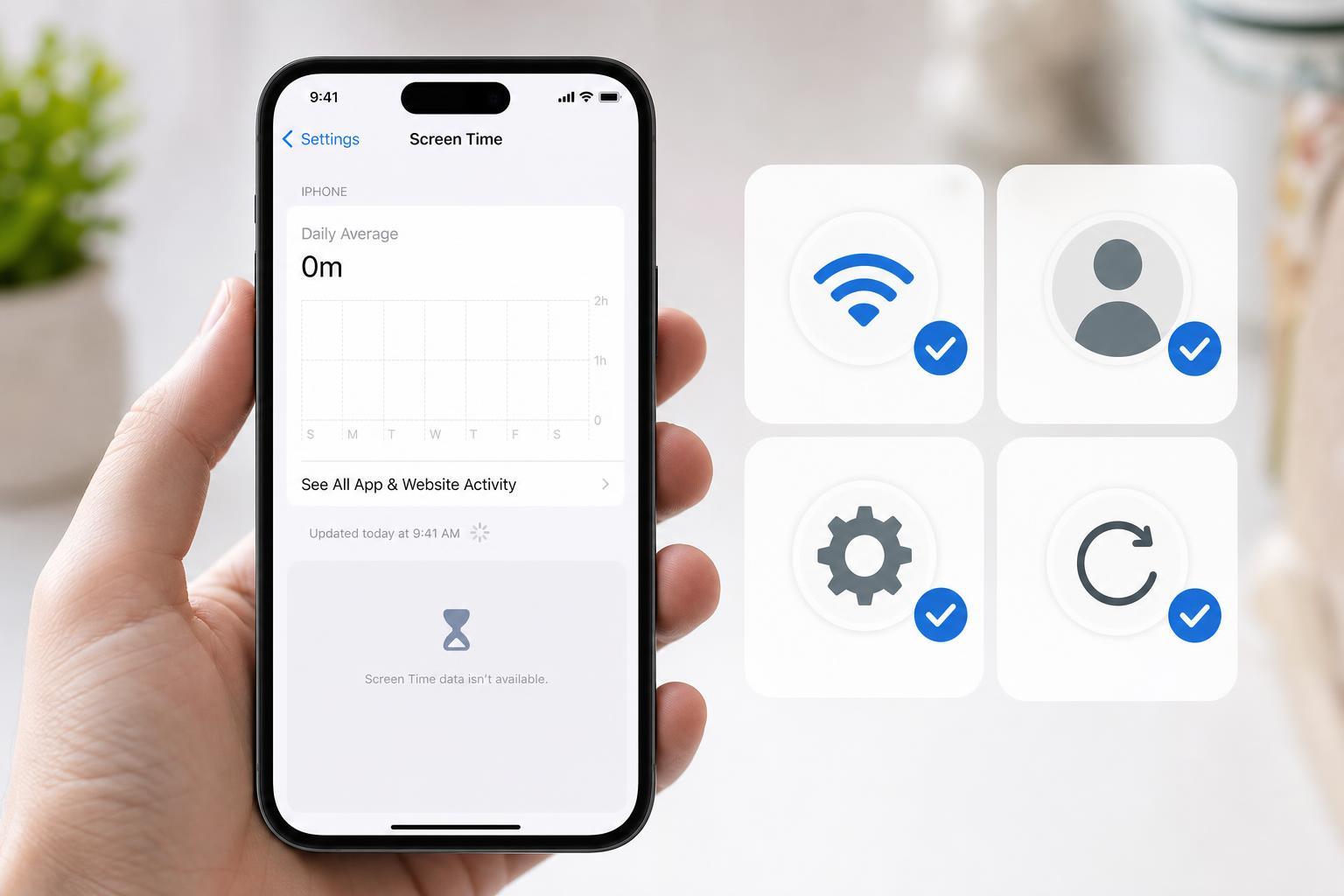
1. Make Sure Screen Time Is Turned On Correctly
The most common reason Screen Time appears empty is that it was never fully enabled, or some of its tracking options were turned off. Start by checking the Screen Time settings on the iPhone that is not showing data.
- Open Settings and tap Screen Time.
- If Screen Time is off, turn it on.
- If you use Family Sharing, make sure the correct family member’s device is selected.
- Check whether App & Website Activity is enabled, since this is what allows usage data to be recorded.
- Look through the Screen Time page for any restrictions or account-related prompts that need attention.
If Screen Time was recently turned on, it may take some time before meaningful data appears. A short delay is normal, especially right after enabling the feature.
2. Check iCloud and Family Sharing Sync
If Screen Time data is missing across more than one device, or one device shows data while another does not, the issue may be related to iCloud sync or Family Sharing rather than the iPhone itself.
- Go to Settings and open your Apple ID name at the top.
- Check that you are signed in with the correct Apple ID.
- If you use Screen Time for a child’s device, open Family Sharing and confirm that the correct child account is being managed.
- Make sure the device has an active internet connection so Screen Time can sync.
- If Screen Time is managed through Family Sharing, confirm that Share Across Devices is enabled where appropriate.
When Screen Time is supposed to sync between Apple devices, a sign-in mismatch or delayed cloud sync can leave the report looking empty. This is especially common after setting up a new iPhone, restoring from backup, or changing Apple ID settings.
3. Update iOS and Check for Temporary Software Problems
Sometimes Screen Time stops reporting properly because of a software bug in iOS. If the feature was working before and then suddenly stopped showing data, installing the latest iOS update is a sensible next step.
- Open Settings and tap General.
- Tap Software Update.
- Install any available update.
- After updating, open Screen Time again and check whether usage data starts to appear.
- If the problem started after a recent update, wait for a follow-up patch from Apple if one is available.
You can also try force-closing Settings before checking again, but that is mainly useful if the Screen Time page seems stale or unresponsive rather than truly broken.
4. Turn Screen Time Off and Back On
If the settings look correct and iOS is up to date, turning Screen Time off and back on can clear a stuck configuration. This is one of the more effective fixes when the usage report is partially broken or frozen.
- Open Settings and tap Screen Time.
- Scroll down and choose Turn Off App & Website Activity or Turn Off Screen Time, depending on what appears.
- If prompted, enter the Screen Time passcode.
- Wait a moment, then turn Screen Time back on.
- Check whether usage data begins to rebuild after the feature is re-enabled.
This step can help when Screen Time has become stuck internally and needs a clean reset. If you manage a child’s device through Family Sharing, recheck the family settings afterward to make sure restrictions are still applied correctly.
If Screen Time Still Shows No Data
If none of the four fixes works, the problem may be tied to a deeper Apple ID, backup, or iOS issue. At that point, these checks are worth trying next:
- Confirm that Date & Time is set automatically in Settings.
- Check whether Low Power Mode, Focus modes, or device usage patterns are affecting when data appears, though they usually do not stop Screen Time entirely.
- Sign out of iCloud only if you understand the impact on syncing and backups, then sign back in if necessary.
- Back up the iPhone and consider resetting all settings if Screen Time is still completely broken.
- Contact Apple Support if Screen Time data is missing on multiple devices tied to the same account.
How to Narrow Down the Cause
A few clues can help you tell whether the problem is local to the iPhone or related to your account:
- No data at all on one iPhone: usually a local settings or software issue.
- Data missing on multiple Apple devices: often a sync or Apple ID problem.
- Data disappeared after setup or restore: may be caused by a setup or migration glitch.
- Data shows but is outdated: often a refresh delay or minor iOS bug.
If you work through the fixes in order, you will usually find the cause without needing to reset the entire phone. In most cases, Screen Time starts reporting again after a settings correction, an iOS update, or a Screen Time reset.





