
Instagram’s “Something Went Wrong” error is frustrating because it often appears without explaining what failed. It can show up when you try to log in, refresh your feed, post a story, open messages, or change account settings.
The good news is that the problem is often caused by a temporary app issue, a connection problem, or an account-related glitch rather than anything serious. Here are four practical ways to narrow it down and get Instagram working again.
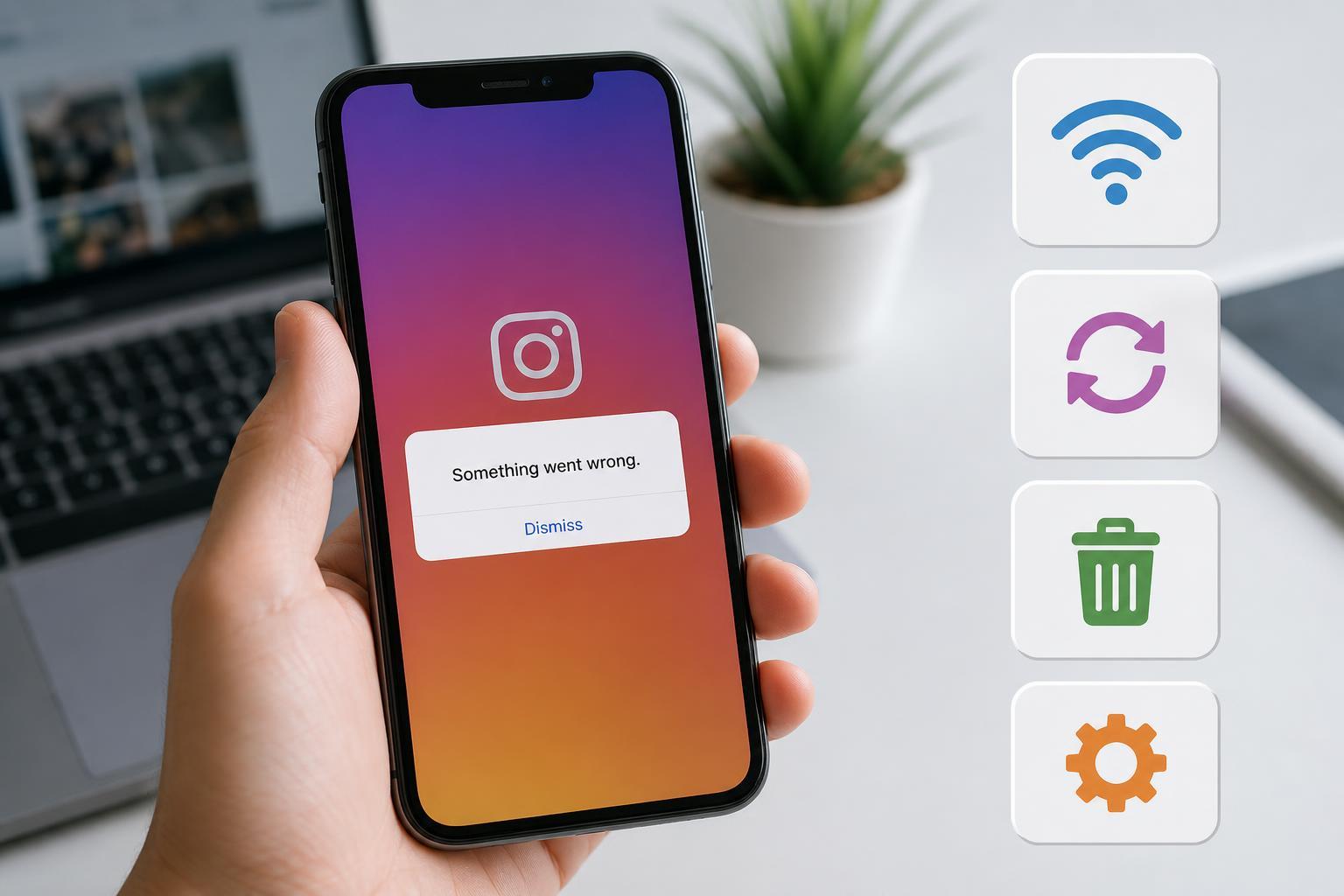
1. Check Whether Instagram Is Down or Your Connection Is the Problem
Before changing anything on your phone, figure out whether the problem is on Instagram’s side. If the app is failing for everyone, no local fix on your device will solve it immediately.
- Try opening Instagram on mobile data instead of Wi‑Fi, or vice versa.
- Check whether other apps and websites are loading normally.
- If Instagram works on one network but not another, the issue is likely with the connection you were using.
- If nothing loads in the app but Instagram works in a browser, the app itself is more likely at fault.
If Instagram is experiencing a service outage, the only real fix is to wait until the service is restored. If your internet connection is the issue, move closer to your router, switch networks, or use mobile data to see whether the error disappears.
2. Force Close Instagram and Clear the App Cache
A corrupted temporary file or a stuck app session can cause Instagram to throw a generic error. Closing the app completely and clearing its cache can remove the bad data without affecting your account itself.
- Close Instagram completely from the app switcher.
- Open your phone’s settings and find Instagram in the app list.
- On Android, tap Storage and clear the cache if that option is available.
- Reopen Instagram and try the same action again.
- If the error continues, update the app from the App Store or Google Play Store.
If you are on an iPhone, Instagram does not provide a separate cache-clearing option in the same way Android does. In that case, updating the app or reinstalling it is often the next best step if force closing does not help.
3. Sign Out, Check Your Account, or Reinstall the App
If Instagram works for other accounts but not yours, the issue may be tied to your login session or account state. Signing out and back in can refresh the connection between your device and Instagram’s servers.
- Sign out of Instagram if you can still access the app.
- Log back in and test the feature that was failing.
- If sign-out is not possible or the problem remains, uninstall Instagram and reinstall the latest version.
- After reinstalling, sign in again and check whether the error still appears.
If you recently changed your password, enabled two-factor authentication, or logged in from a new device, Instagram may temporarily flag the session and show a vague error. In that case, completing the login verification steps usually helps.
4. Remove Account Restrictions and Check Instagram’s Support Messages
Some “Something Went Wrong” errors are tied to account limits, suspicious activity checks, or actions Instagram has temporarily restricted. This is more likely if the error appears when you try to like, follow, comment, post, or change profile details.
- Look for emails from Instagram about security checks or policy issues.
- Open the app and check whether there are notifications in the Support Inbox or Account Status area.
- Wait a while if you have been doing a lot of actions in a short period of time.
- Avoid using third-party tools that automate follows, likes, or message activity, since they can trigger restrictions.
When the Error Keeps Coming Back
If none of the four fixes helps, the problem may be more specific than a simple app glitch. At that point, it is useful to narrow down when the error appears:
- If it happens only when logging in, focus on account verification and password issues.
- If it happens only on Wi‑Fi, test your router or internet service.
- If it happens only on one phone, reinstall the app or update the phone’s operating system.
- If it happens only when posting or following people, your account may be temporarily limited.
You can also try Instagram on a browser to see whether the same error appears there. If the web version works normally, the problem is more likely tied to the mobile app.
Which Fix Should You Try First?
The fastest order is usually: check your connection, force close or update the app, sign out and back in, then look for account restrictions. That sequence solves the most common causes without making unnecessary changes to your phone or account.
If the error is caused by an Instagram outage, none of the local fixes will help until the service recovers. But if it is a temporary app glitch, one of these steps will usually get you back in quickly.





