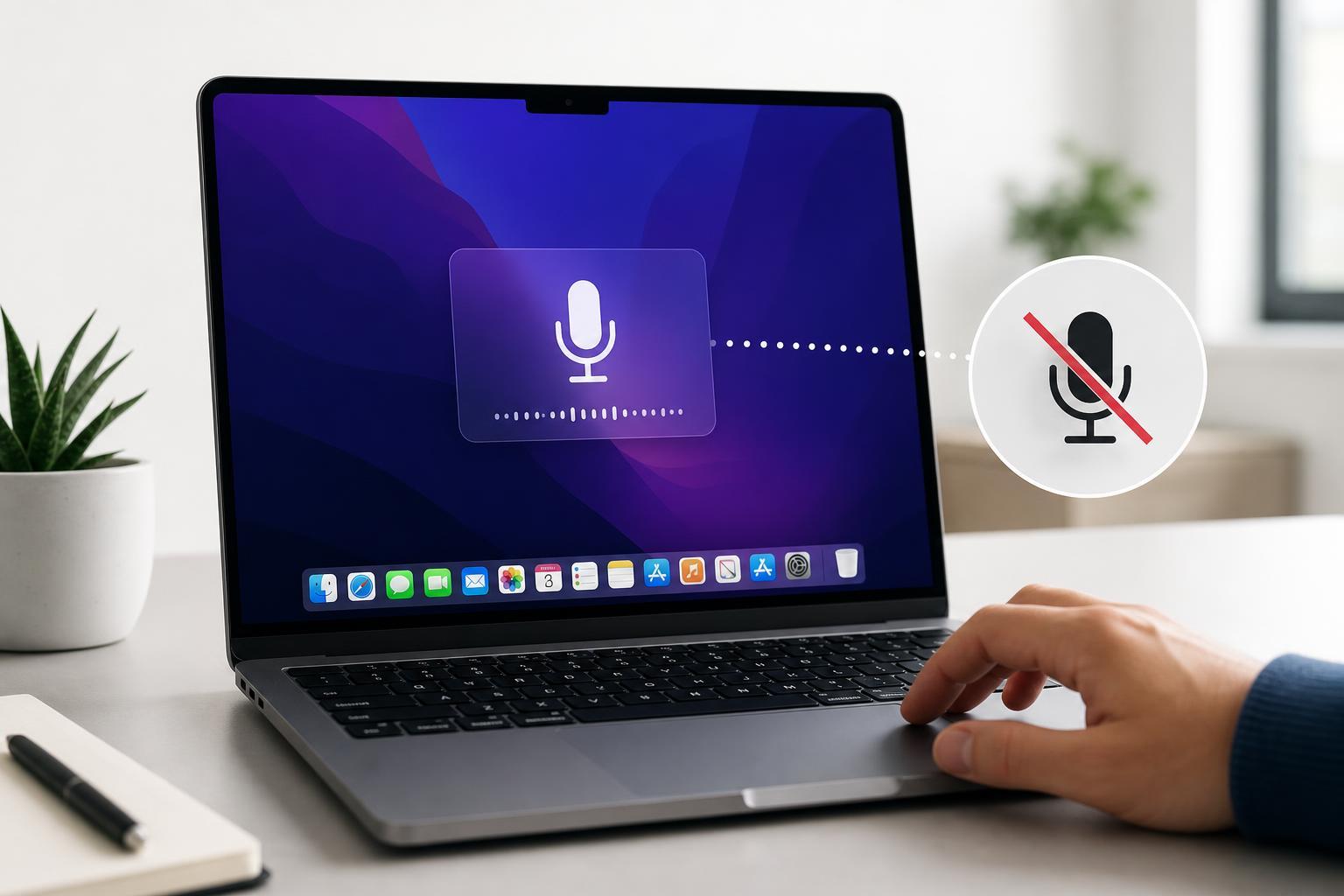
If Dictation on your Mac suddenly stops recognizing your voice, the problem is usually caused by a setting, a microphone issue, or a temporary macOS glitch. The good news is that most cases can be fixed without advanced troubleshooting.
This guide walks through four practical fixes for Dictation not working on Mac, starting with the most common causes and moving to more specific checks.
1. Check Your Microphone First
Dictation depends on a working microphone. If your Mac is using the wrong input device or the microphone is blocked, Dictation may appear to do nothing or fail to hear you clearly.
- Open System Settings and go to Sound.
- Select Input and make sure the correct microphone is selected.
- Speak normally and watch the input level meter to see if it reacts.
- If you are using an external microphone or headset, unplug it and test Dictation with the built-in microphone.
- Clean the microphone openings if they appear blocked by dust, a case, or accessories.
2. Make Sure Dictation Is Turned On
Dictation can be disabled in settings, especially after a macOS update, a privacy change, or when switching between user accounts. Check that the feature is enabled and that the correct shortcut is assigned.
- Open System Settings.
- Go to Keyboard or Dictation & Siri, depending on your macOS version.
- Find Dictation and turn it on.
- Confirm the keyboard shortcut for starting Dictation.
- If prompted, allow Apple to process audio if you want the feature to work with online speech recognition options.
3. Check Language, Region, and Siri Settings
Dictation may stop working if the language you are speaking does not match the Dictation language selected on the Mac. Siri-related settings can also affect speech features, depending on your version of macOS.
- Open System Settings and go to Keyboard or Siri settings.
- Check the Dictation language list and make sure your preferred language is selected.
- If you use multiple languages, confirm the Mac supports the one you need for Dictation.
- Make sure your region and keyboard input settings are not conflicting with the language you want to dictate in.
- If Dictation still fails, toggle Siri or Dictation off and back on again to refresh the speech service.
4. Test for Temporary macOS or Permission Problems
Sometimes Dictation fails because macOS has a temporary permission issue or a system service that needs to be refreshed. This is especially common after a software update or when Dictation is not allowed to access the microphone.
- Open System Settings and check Privacy & Security.
- Select Microphone and confirm that the app you are using has permission to access it.
- If Dictation is used in a browser or app, make sure that app can access the microphone.
- Quit the app you are using and open it again after changing permissions.
- If the problem affects every app, check for macOS updates and install any available update.
When to Look Deeper
If none of these fixes work, the issue may be related to the microphone hardware, a stuck input service, or a broader macOS problem. At that point, it is worth testing Dictation with another user account, another microphone, or Apple’s built-in diagnostics if available.
- Test Dictation in a different app
- Try a different microphone or headset
- Check whether the problem started after a recent macOS update
- See if Dictation works in another user account
- Run Apple Diagnostics if you suspect a hardware issue