
If the Compass app on your iPhone is showing the wrong direction, spinning wildly, or not responding at all, the cause is usually something simple like calibration, location access, or magnetic interference. In most cases, you can get it working again without any advanced troubleshooting.
This guide walks through four effective fixes, starting with the most common ones first.
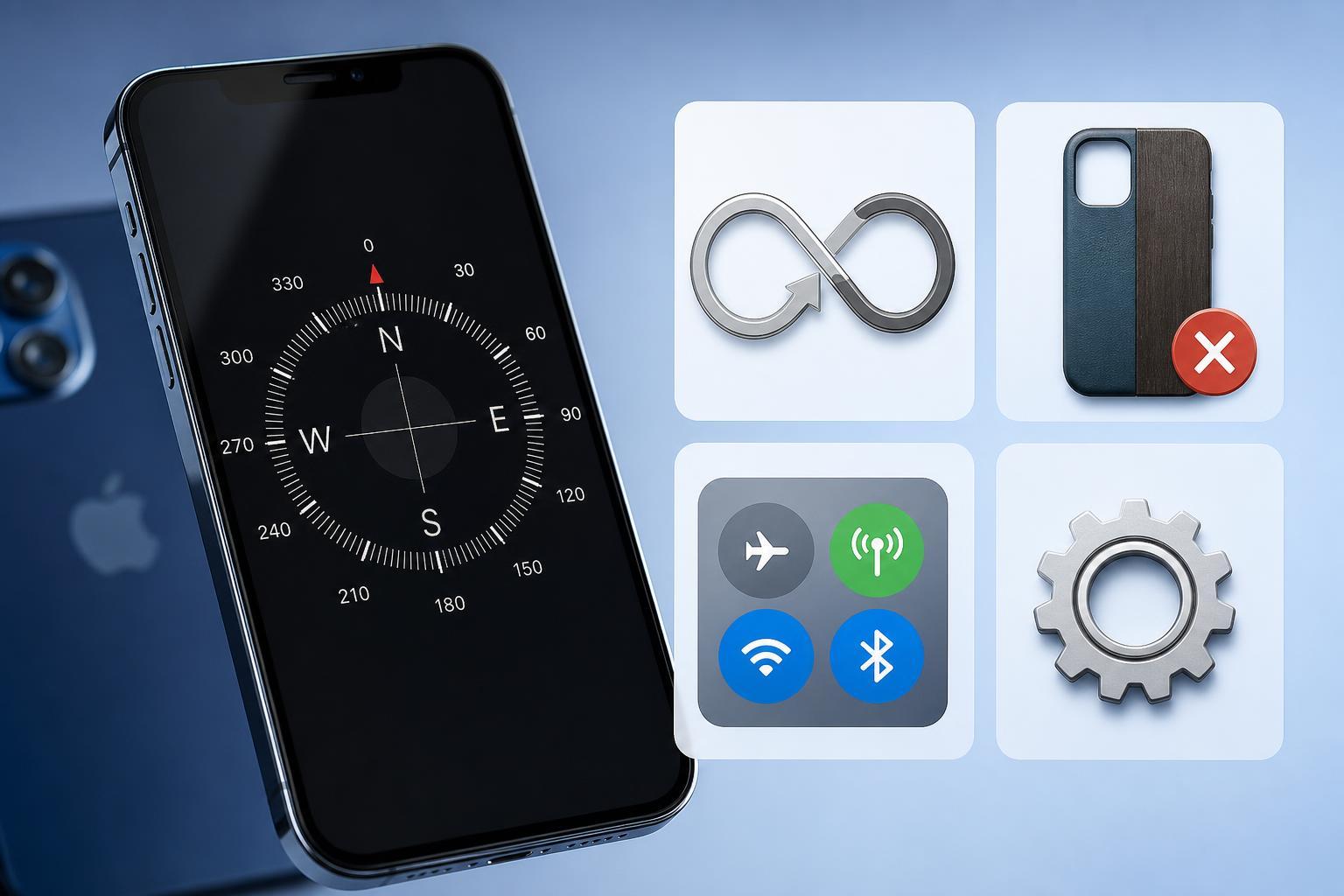
1. Calibrate the Compass by Moving Your iPhone in a Figure Eight
The Compass app depends on the iPhone’s built-in sensors, and those sensors sometimes need a fresh calibration. A figure-eight motion helps the phone relearn its orientation and can quickly fix inaccurate readings.
- Open the Compass app on your iPhone.
- Hold the phone normally and move it in a figure-eight pattern in the air.
- Keep the motion smooth for a few seconds until the compass settles.
- Check whether the direction reading becomes stable and accurate.
2. Make Sure Location Services Are Turned On
The Compass app uses location information to improve accuracy. If Location Services are disabled, restricted, or limited for the Compass app, the direction reading may be unreliable or unavailable.
- Open Settings.
- Tap Privacy & Security.
- Tap Location Services.
- Make sure Location Services is turned on.
- Scroll down and tap Compass.
- Choose While Using the App or Ask Next Time, if available.
3. Remove Sources of Magnetic Interference
Nearby magnets and metal accessories can confuse the compass sensor. This is one of the most common reasons the Compass app behaves erratically, especially if you use a magnetic case, car mount, wallet attachment, or MagSafe accessory.
- Magnetic phone cases or covers
- MagSafe wallets and mounts
- Speakers and headphones with strong magnets
- Car dashboards with magnetic holders
- Laptops, tablet cases, or metal desks
Take the iPhone away from these items and test the Compass app again. If the compass immediately becomes accurate, the issue is likely interference rather than a software fault.
4. Check for iPhone or App Issues
If calibration and permissions do not help, the problem may be related to iOS or the Compass app itself. A system issue, outdated software, or a temporary app glitch can affect how the compass behaves.
- Make sure your iPhone is updated to the latest iOS version available in Settings > General > Software Update.
- Close the Compass app and open it again.
- If the problem only happens in one app that uses compass data, check that app’s location permissions as well.
- Test the Compass app in a different location to rule out local interference.
If the compass is wrong in multiple places and after a software update, there may be a hardware sensor problem. At that point, the issue is more likely to need Apple support or a repair check.
How to Tell Whether It’s a Settings Problem or a Hardware Problem
- If the compass improves after calibration, it was likely a sensor alignment issue.
- If it works in one place but not another, magnetic interference is the likely cause.
- If it fails only when location access is off, the problem is permission-related.
- If it never improves, even after updates and testing away from accessories, the sensor may be faulty.
When to Get Help
If none of these fixes restore normal compass readings, contact Apple Support or visit an Apple Store or authorized service provider. A damaged sensor, internal hardware issue, or deeper iOS problem may need professional diagnosis.





