
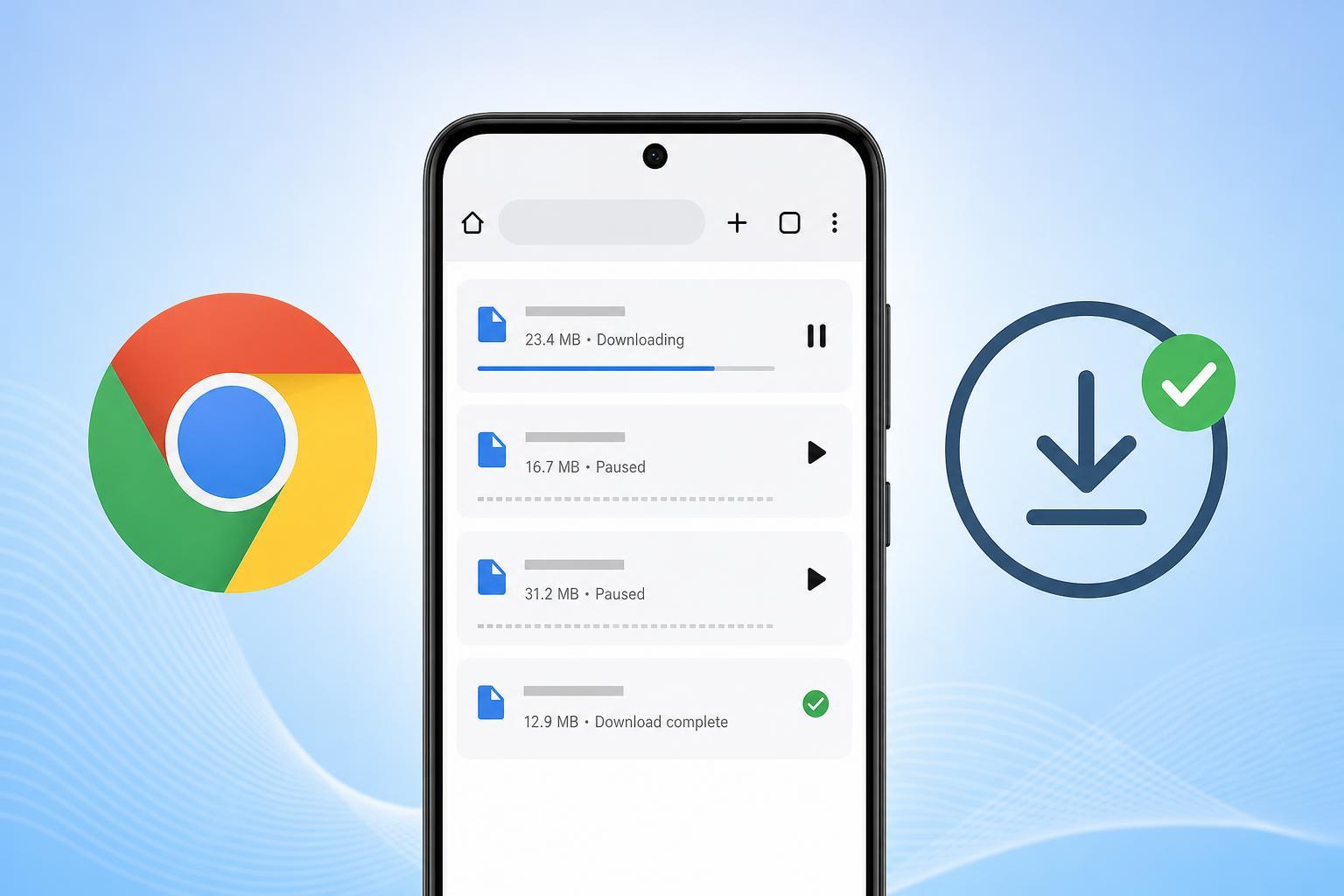
If Chrome downloads keep pausing on your Android phone, the problem is usually caused by an unstable connection, battery restrictions, low storage, or a browser issue. The good news is that most cases can be fixed without resetting your phone or reinstalling everything.
This guide walks through four practical fixes, starting with the most common causes and moving to the settings that most often interrupt downloads in the background.
1. Check Your Internet Connection First
Chrome downloads may pause if your connection briefly drops, even if the phone still appears to be online. Downloads are more sensitive than regular browsing because they need a steady connection for the full file transfer.
- Switch between Wi‑Fi and mobile data to see whether one connection is more stable.
- Move closer to the router if you are using Wi‑Fi.
- Pause other heavy network activity such as video streaming, game downloads, or large cloud backups.
- Try downloading a smaller file to see whether the pause happens only with large downloads.
2. Remove Battery and Background Restrictions
Android may restrict Chrome in the background to save battery. If the phone decides Chrome should sleep or pause its background activity, downloads can stall before they finish.
- Open Settings on your Android phone.
- Tap Apps, then find and open Chrome.
- Open Battery or Battery usage.
- Set Chrome to Unrestricted, or disable battery optimization for the app if that option is available.
- Go back and check Mobile data and Wi‑Fi permissions to make sure Chrome is allowed to use data in the background.
3. Free Up Storage Space
Downloads can pause if Android does not have enough free storage to save the file properly. This is especially common with large videos, APK files, or multiple downloads running at once.
- Open Settings and check Storage to see how much free space is left.
- Delete files you no longer need, such as old downloads, duplicate photos, or cached media from apps.
- If you use an SD card, make sure it is inserted correctly and has enough free space.
- Try downloading again after freeing up at least a little extra space.
4. Clear Chrome’s Cache or Reset the Download
If the network is fine and storage is not the issue, Chrome itself may be stuck with a bad temporary file or a corrupted download session. Clearing the app cache or starting the download again can fix this.
- Open Settings on Android.
- Go to Apps and open Chrome.
- Tap Storage and cache.
- Select Clear cache first.
- If that does not help, cancel the paused download and start it again in Chrome.
If Chrome still pauses after clearing the cache, check whether the file downloads correctly in another browser such as Firefox or Samsung Internet. If it does, the issue is likely specific to Chrome rather than the file or your connection.
When Chrome Downloads Still Keep Pausing
If none of the four fixes works, the problem may be tied to the file itself, your VPN or private DNS settings, or a broader Android system issue. In that case, try the following checks:
- Disable any VPN temporarily and try the download again.
- Turn off private DNS or ad-blocking DNS settings if you use them.
- Check whether the download is being blocked by a battery-saver mode or data-saver mode.
- Try a different browser to confirm whether the issue is limited to Chrome.
- Make sure Chrome is updated through the Google Play Store.
If downloads pause only on one website, the site may be limiting the download or serving an unstable file. If the problem happens with every file, the cause is more likely to be on the phone or network side.
Which Fix Should You Try First?
Start with the connection check, because unstable internet is the most common reason Chrome downloads pause on Android. If that does not solve it, move on to battery restrictions, then storage space, and finally Chrome cache or download resets. That order covers the most likely causes without changing settings you do not need to touch.





