
If your call recorder app can hear you but not the other person during incoming calls, the problem is usually caused by Android’s call audio restrictions, the phone app you are using, or the recorder’s access to the right audio source. The fix depends on your phone model, Android version, and whether the app is recording from the built-in dialer or a third-party calling app.
This guide walks through four practical ways to fix call recorder apps that are not recording incoming voice on Android, starting with the most common causes and moving to deeper checks when needed.
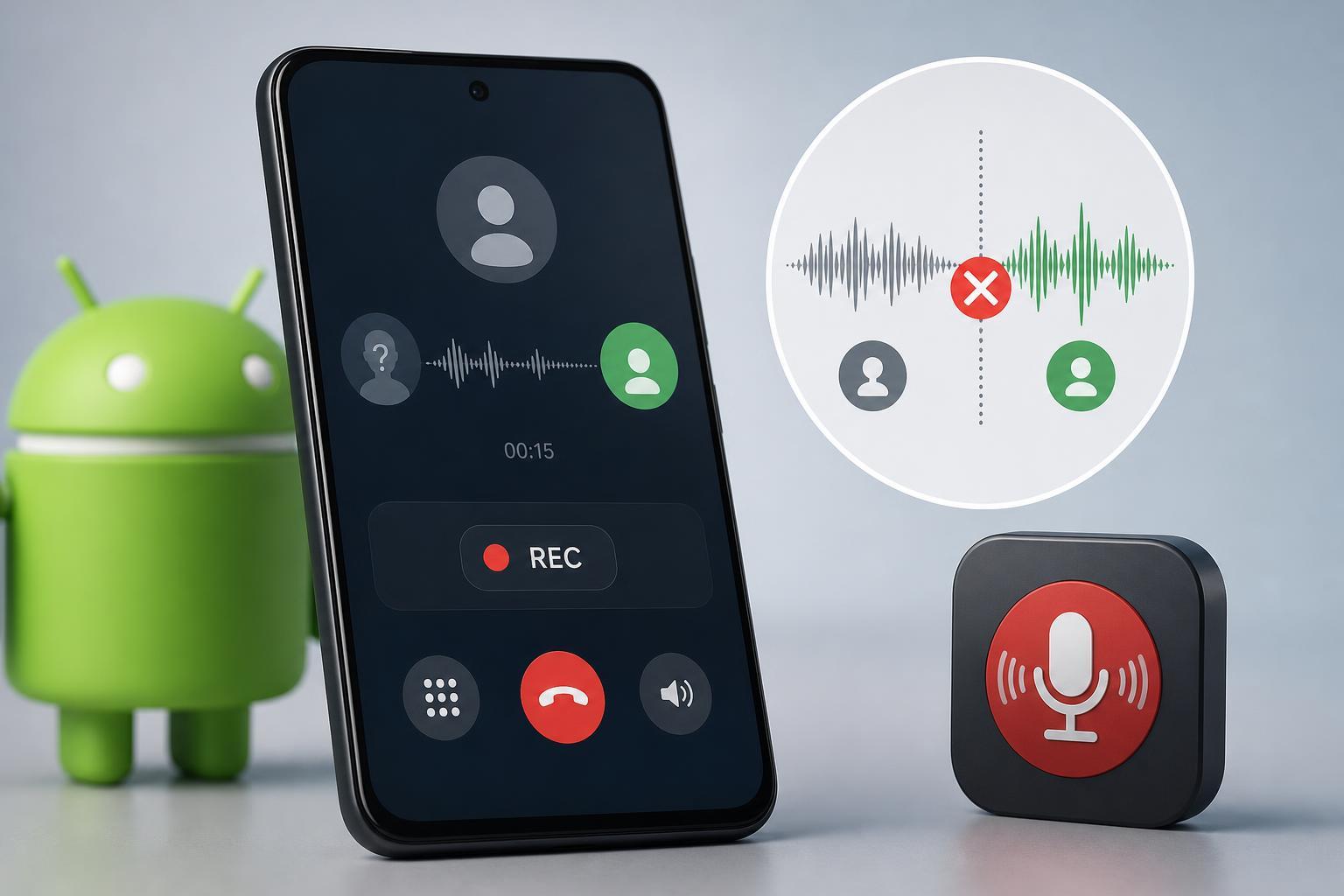
1. Check Whether Your Phone Still Allows Call Recording
On many Android phones, call recording is limited by region, carrier policy, Android version, or the manufacturer’s dialer app. Some phones support call recording only in certain countries, and some only record calls made from the built-in Phone app.
If incoming voice is missing, first confirm that your phone actually supports two-way call recording. If recording works for outgoing calls but not incoming ones, the limitation may be coming from the phone’s software rather than the app itself.
- Open the Phone app and look for a call recording option during an active call.
- Check the recorder app’s help page or settings for supported devices.
- Make sure you are using the stock dialer if the recorder depends on system call audio.
- Look for region-based restrictions if the feature worked before and then stopped after an update.
2. Give the App the Right Permissions and Audio Access
A recorder may have microphone permission but still miss incoming voice if it does not have the permissions or access it needs for call audio. Android has become stricter about which apps can listen to phone calls, so permissions that used to work may no longer be enough.
- Open Settings and go to Apps or App management.
- Select your call recorder app.
- Tap Permissions and allow any relevant permissions, especially Microphone and nearby call-related access if your phone shows it.
- Open Battery settings for the app and set it to Unrestricted or Not optimized if the app is being stopped in the background.
- If the app has its own recording source setting, choose the option recommended for your phone model.
Also check whether another app is already using the microphone or call audio. Voice assistants, screen recorders, spam blockers, and accessibility tools can interfere with how a recorder captures sound.
3. Adjust the Recorder’s Audio Source or Call Recording Mode
Many call recorder apps let you choose where the audio comes from, such as microphone, voice call, voice communication, or system audio. If the app is set to the wrong source, it may record only your voice or create a silent track for the incoming side.
This is one of the most common reasons incoming voice disappears even though the app looks like it is recording normally.
- Open the call recorder app’s settings.
- Find Audio source, Recording source, or Call recording mode.
- Switch between available options one at a time and test with a short incoming call.
- If the app has a speakerphone option, enable it only if the app recommends that method.
- Save the setting and repeat the test after each change.
4. Fix Android or App Compatibility Problems
If the recorder used to work and recently stopped capturing incoming voice, an Android update or app update may have changed how call audio is handled. This is especially common on phones from Samsung, Xiaomi, OnePlus, Oppo, and other brands that apply their own phone app and audio rules.
Try these compatibility checks:
- Update the call recorder app from the Play Store or the developer’s official source.
- Update the Phone app and system apps if your phone allows it.
- Clear the recorder app cache if the app is misbehaving after an update.
- Check whether another call recording app is installed and conflicting with the one you want to use.
- Test on Wi-Fi calling, VoLTE, and regular mobile calls separately, since behavior can differ.
If none of the above helps, the issue may be a hard limitation of your current Android version. In that case, switching to your phone maker’s built-in recorder, using a different supported app, or relying on speakerphone-based recording may be the only workable options.
How to Narrow Down the Cause Quickly
A few clues can help you tell whether the problem is with the app, the phone, or the call type:
- Your voice records but the other person is silent: audio source or call-audio restriction problem.
- Recording works on outgoing calls but not incoming calls: device or dialer limitation, or a different source is needed for incoming calls.
- Recording works for normal calls but not app-based calls: the app may not support VoIP calls.
- Recording stopped after an update: compatibility or permission changes are likely.
- No calls record at all: permissions, battery optimization, or app malfunction are the first things to check.
When You May Need a Different Solution
Some Android phones no longer allow full call recording through third-party apps because of operating system restrictions. If that is the case on your device, the most practical solution is to use the phone’s built-in call recording feature if it exists, or choose a recorder that is specifically supported for your phone model.
If you need reliable recording for business or support work, test the setup carefully before depending on it. A quick test call can save you from missing important details later.





