
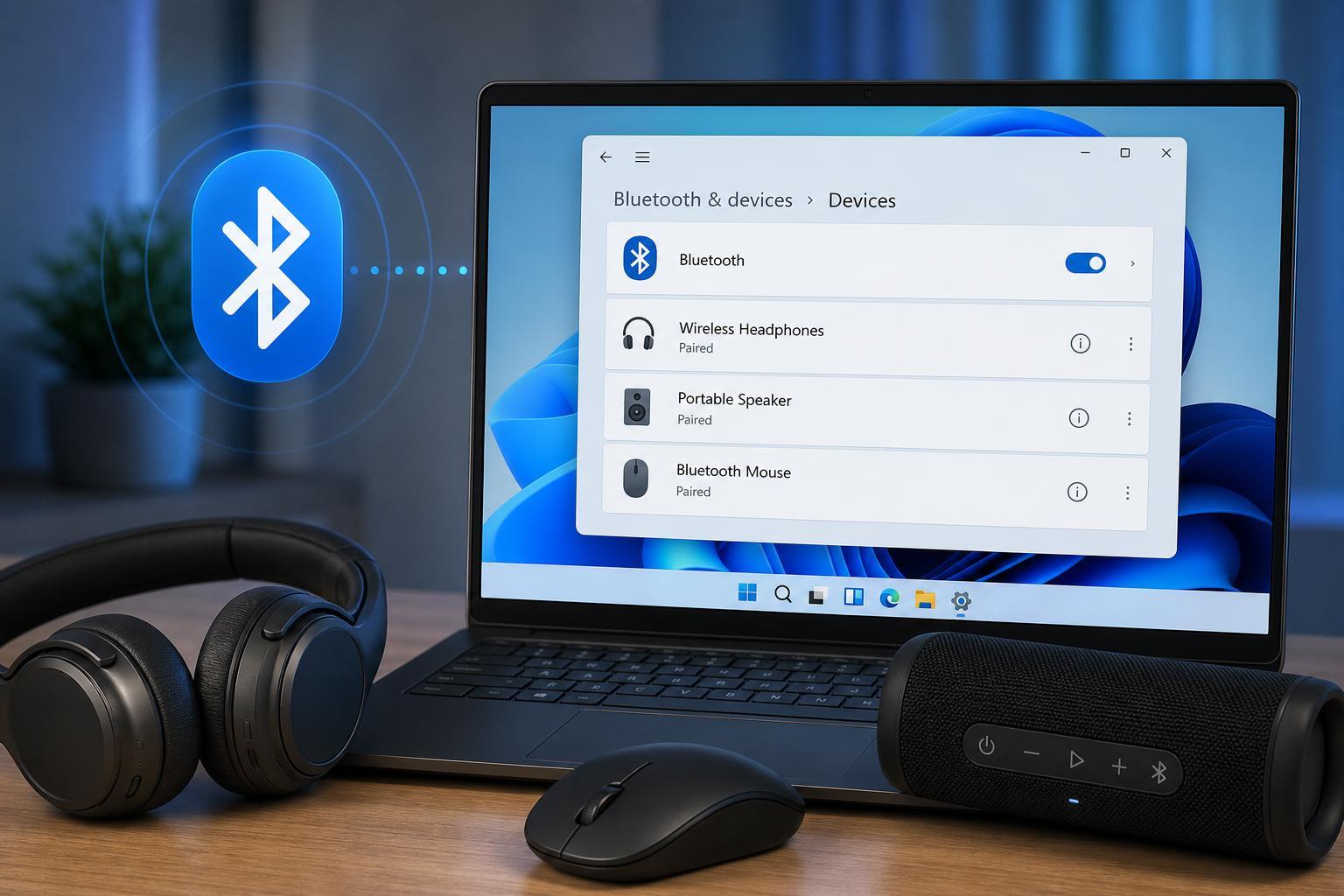
If your Bluetooth device appears as paired in Windows 11 but still refuses to connect, the pairing process probably completed successfully, but something is stopping the connection from being established. That can happen with headphones, mice, keyboards, speakers, controllers, and other Bluetooth accessories.
The good news is that this problem is usually caused by a setting, a stuck pairing record, a driver issue, or the device already being connected somewhere else. The four fixes below cover the most common causes without jumping straight to unnecessary advanced troubleshooting.
1. Make Sure the Device Is Actually Ready to Connect
Before changing anything in Windows, confirm that the Bluetooth device itself is on, charged, and in pairing mode if it requires it. Many devices will stay listed as paired in Windows even when they are not currently available to connect.
- Turn the device off and back on.
- Check the battery level or plug it in if it is rechargeable.
- Make sure it is not connected to another phone, tablet, or PC.
- If it has a pairing button, put it back into pairing mode.
- Move the device closer to the PC for the first connection attempt.
2. Remove the Pairing and Add the Device Again
If Windows saved a bad Bluetooth profile, the fastest fix is often to remove the device and pair it again from scratch. This clears the stored connection record and forces Windows to build a fresh one.
- Open Settings and go to Bluetooth & devices.
- Find the device in the list of paired devices.
- Select the three-dot menu next to it and choose Remove device.
- Turn Bluetooth off and back on if needed.
- Put the accessory back into pairing mode.
- Select Add device and pair it again.
3. Restart the Bluetooth Adapter and Update Its Driver
A Bluetooth adapter can get stuck in a bad state, especially after sleep, updates, or repeated connection attempts. Disabling and re-enabling the adapter gives Windows a chance to rebuild the connection path.
- Right-click the Start button and open Device Manager.
- Expand Bluetooth.
- Right-click your Bluetooth adapter and choose Disable device.
- Wait a few seconds, then right-click it again and choose Enable device.
- Try connecting the Bluetooth accessory again.
If that does not help, check the driver next. A damaged or outdated Bluetooth driver can cause pairing to succeed while the actual connection fails.
- In Device Manager, right-click the Bluetooth adapter.
- Choose Update driver.
- Select Search automatically for drivers.
- If the issue started after a recent driver update, open the adapter’s Properties and check for a Roll Back Driver option.
- Restarting the adapter after a driver change can help Windows apply the update properly.
4. Run the Bluetooth Troubleshooter and Check Bluetooth Services
Windows 11 includes built-in troubleshooting tools that can detect common Bluetooth problems, including service issues and adapter configuration errors. This is especially useful when multiple Bluetooth devices stop connecting, not just one.
- Open Settings and go to System.
- Select Troubleshoot, then Other troubleshooters.
- Find Bluetooth and click Run.
- Follow the prompts and apply any recommended fixes.
- If the problem continues, open Services from the Start menu and check that Bluetooth-related services are running.
If a Bluetooth service is stopped or set incorrectly, Windows may still remember the pairing but fail to complete the connection. The troubleshooter can sometimes point you directly to the problem.
Other Checks Worth Trying
If the four main fixes do not solve it, these additional checks can help narrow down the cause.
- Check whether Bluetooth is turned on in Windows 11 and in the Quick Settings panel.
- Try the accessory on another device to confirm it still works.
- Disconnect or forget the device on other nearby devices that may be stealing the connection.
- Move away from sources of wireless interference, such as USB 3.0 hubs, crowded cables, or other wireless devices.
- Install pending Windows updates, especially if the issue started after a system change.
If the Device Still Says Paired but Won’t Connect
When Windows 11 keeps showing a Bluetooth device as paired but not connected, the issue is usually caused by a stale pairing record, a connection conflict, or a Bluetooth adapter or driver problem. Start by making sure the accessory is available and not connected elsewhere, then remove and re-pair it, restart the Bluetooth adapter, and run the Bluetooth troubleshooter.
If none of those steps work, the device itself may be faulty, or your PC’s Bluetooth hardware may need a deeper driver reinstall or adapter replacement.





