
The iPhone Lock Screen clock is one of the first things you see, and on newer iOS versions it can be customized more than many people realize. You can change the look of the clock, add useful widgets around it, and make the Lock Screen feel more personal without affecting how the phone works.
If you want a cleaner look, better readability, or a Lock Screen that shows useful information at a glance, these four methods cover the most practical ways to add and customize the clock on an iPhone Lock Screen.
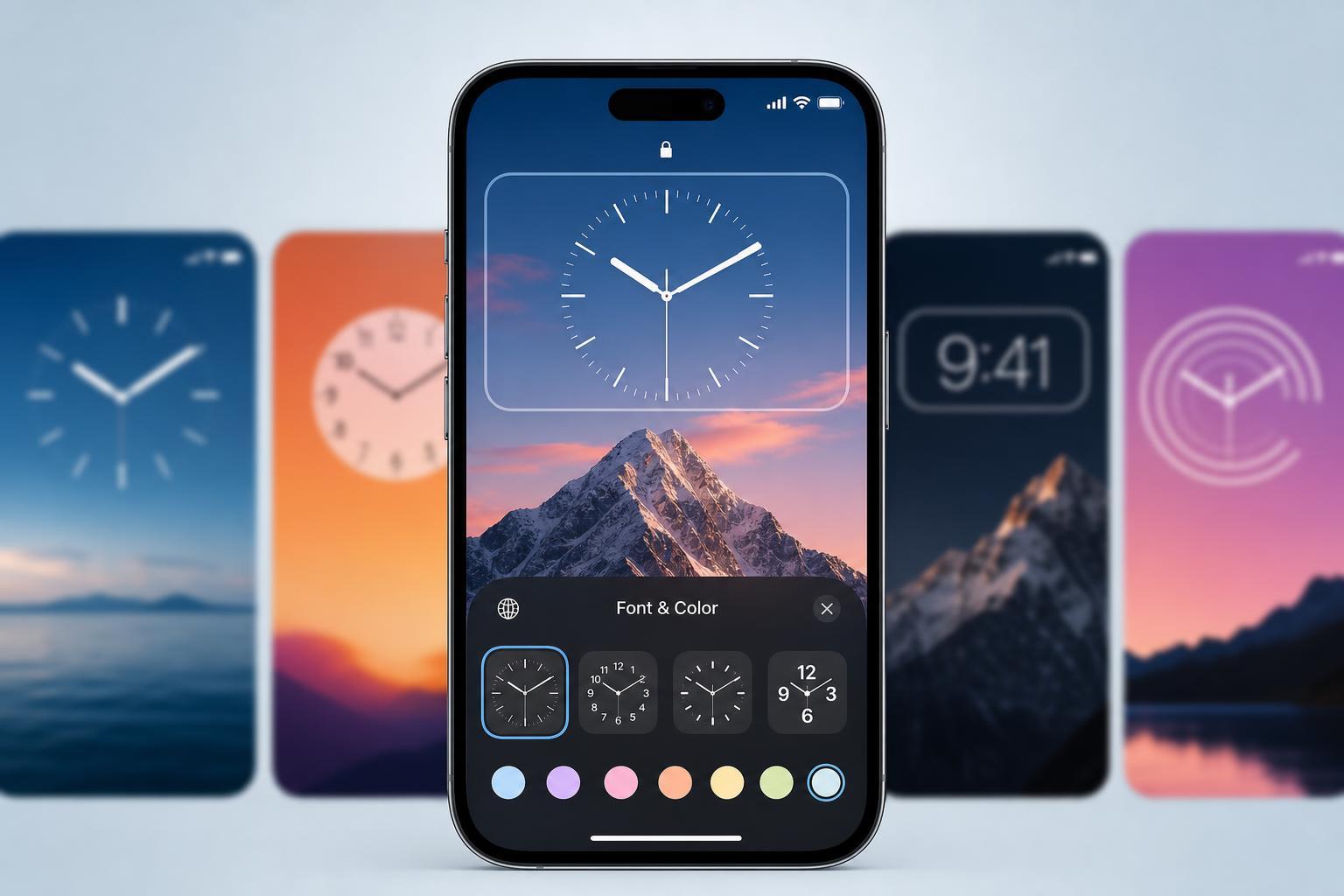
1. Change the Clock Style on the Lock Screen
On iPhone, the built-in clock at the top of the Lock Screen is part of the wallpaper customization screen. In supported iOS versions, you can adjust its font and color directly from the Lock Screen editor.
- Press and hold an empty area of the Lock Screen until the wallpaper gallery appears.
- Tap Customize, then choose Lock Screen.
- Tap the clock area at the top of the screen.
- Select a font style and pick a color for the time display.
- When you are done, tap Done to save your changes.
2. Add Widgets Under the Clock for a More Useful Lock Screen
If you want the Lock Screen clock to feel more functional, add widgets just below it. These do not change the clock itself, but they work well with it by showing weather, calendar events, battery status, reminders, and more.
- Open the Lock Screen editor by pressing and holding the Lock Screen.
- Tap Customize, then choose Lock Screen.
- Tap the widget area below the clock.
- Select widgets from the available list and place them in the widget row.
- Tap Done to save the layout.
3. Use a Wallpaper That Makes the Clock Stand Out
A clock can be hard to read if the wallpaper is too bright, too detailed, or similar in color to the text. Choosing the right background is one of the easiest ways to improve the look of the Lock Screen without changing any settings.
- Use darker wallpapers if you want the clock to stand out more clearly.
- Avoid busy backgrounds behind the top portion of the screen.
- Choose high-contrast colors if your wallpaper is light.
- Try portrait photos carefully, since subjects near the top can overlap the clock area.
4. Create Multiple Lock Screens for Different Clock Looks
You are not limited to a single Lock Screen setup. iPhone lets you create several Lock Screens, each with its own clock style, wallpaper, and widgets. This is useful if you want one look for work, another for travel, and another for personal use.
- Press and hold the Lock Screen.
- Swipe to the right and tap the plus button to create a new Lock Screen.
- Choose a wallpaper and customize the clock font, color, and widgets.
- Tap Done to save it.
- Press and hold the Lock Screen again anytime you want to switch between saved layouts.
Helpful Limits to Know
iPhone Lock Screen customization is useful, but there are a few limitations to keep in mind. The clock position is fixed, and not every part of the design can be freely moved around. Some wallpapers and widgets also work better than others depending on the amount of space they take up.
- The clock stays at the top of the Lock Screen.
- Font and color options are limited to Apple’s built-in choices.
- Widget availability depends on the app and iOS version.
- Some wallpapers may reduce readability if the clock blends into the background.
Which Method Should You Try First?
If you only want a better-looking clock, start with the font and color settings. If you want the Lock Screen to be more useful, add widgets next. And if you want the biggest visual improvement, changing the wallpaper often makes the clock easier to read right away.
For most iPhone users, the best result comes from combining all three: a readable wallpaper, a clock style that matches it, and a small set of useful widgets underneath.





