
If your Apple Pencil suddenly stops connecting or refuses to pair with your iPad, the problem is usually caused by a charging issue, Bluetooth glitch, compatibility problem, or a dirty connection point. The good news is that most cases can be fixed quickly without replacing the Pencil.
This guide covers the four most useful fixes to try first, plus a few checks that help you figure out whether the problem is with the Apple Pencil, the iPad, or the connection method itself.
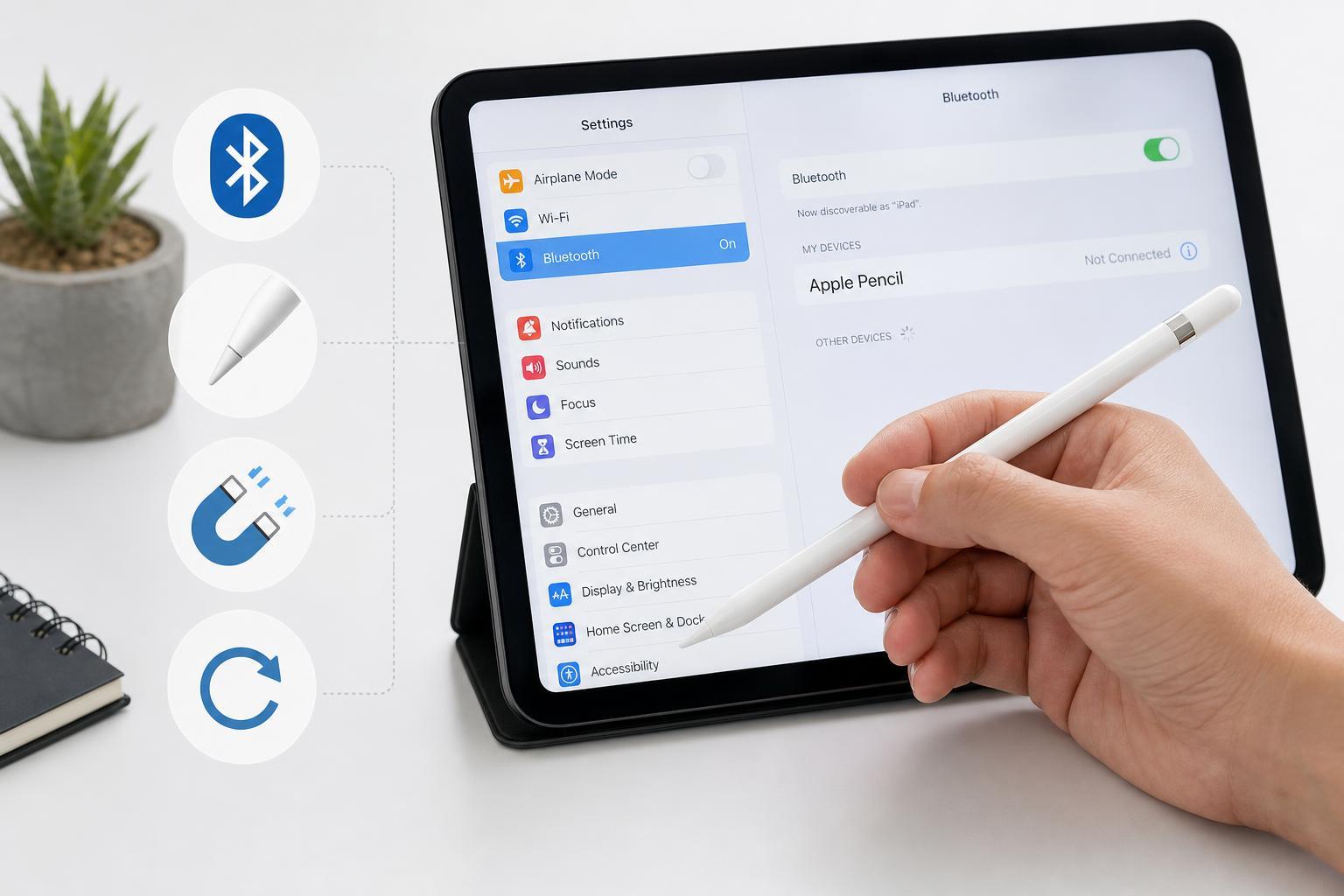
1. Make Sure Your Apple Pencil Is Charged and Connected Correctly
An Apple Pencil that has run out of battery may appear to be broken when it is really just unable to establish a connection. The first thing to check is how your Pencil charges, because the steps are different for each model.
- Apple Pencil (1st generation): plug it into the iPad’s Lightning port or use the Lightning adapter that came with it.
- Apple Pencil (2nd generation): attach it magnetically to the side of a compatible iPad.
- Apple Pencil (USB-C): connect it with a USB-C cable for charging and pairing, if your model supports that method.
Leave it connected for a few minutes if the battery is fully drained. A very low battery can take a short while before the iPad detects it again.
2. Check Bluetooth and Re-Pair the Apple Pencil
Apple Pencil uses Bluetooth to maintain its connection with the iPad, so a Bluetooth problem can stop pairing even when the Pencil is charged.
- Open Settings on your iPad and make sure Bluetooth is turned on.
- If the Apple Pencil already appears in the Bluetooth list, tap the information icon next to it and choose Forget This Device if that option is available.
- Detach the Pencil from the iPad, wait a few seconds, then reconnect it using the proper charging or magnetic method for your model.
- When the pairing prompt appears, tap Pair.
If the Pencil pairs again after being forgotten and reattached, the issue was likely a temporary connection problem rather than a hardware failure.
3. Inspect the Charging Contact and the Pencil Tip
A dirty magnetic connector, worn charging area, or loose Pencil tip can stop the iPad from recognizing the accessory properly. Even small amounts of dust or debris can interfere with the connection.
- Remove the Pencil from the iPad or charging adapter.
- Check the connector area for dust, lint, or visible damage.
- Wipe the contact area gently with a clean, dry, lint-free cloth.
- If you are using a Pencil tip, make sure it is screwed on snugly but not over-tightened.
- Try pairing again after cleaning and reseating the Pencil.
4. Confirm Your Apple Pencil and iPad Are Compatible
Not every Apple Pencil works with every iPad. If the Pencil was recently purchased, borrowed, or moved from another iPad, compatibility is one of the first things to check.
- Apple Pencil (1st generation) works only with supported iPads that use the older Lightning-style pairing or USB-C adapter setup.
- Apple Pencil (2nd generation) works only with supported iPads that have the magnetic side connector.
- Apple Pencil (USB-C) works only with compatible iPad models and pairs differently from the older models.
If the Pencil charges but never shows a pairing prompt, or if the iPad does not respond to it at all, incompatible hardware is a strong possibility.
Other Things Worth Checking
- Update iPadOS if your iPad has a pending software update.
- Test the Apple Pencil on another compatible iPad, if possible, to see whether the problem follows the Pencil or stays with the iPad.
- If the iPad’s magnetic area is dirty or has a thick case attached, remove the case and try pairing again.
- If the Pencil works briefly and then disconnects again, the battery or charging contact may be failing.
When the Apple Pencil Still Will Not Connect
If you have tried charging, Bluetooth re-pairing, cleaning the contacts, and checking compatibility, the remaining causes are more likely to be a damaged Pencil, a problem with the iPad’s connector or Bluetooth hardware, or a battery that no longer holds a charge.





