
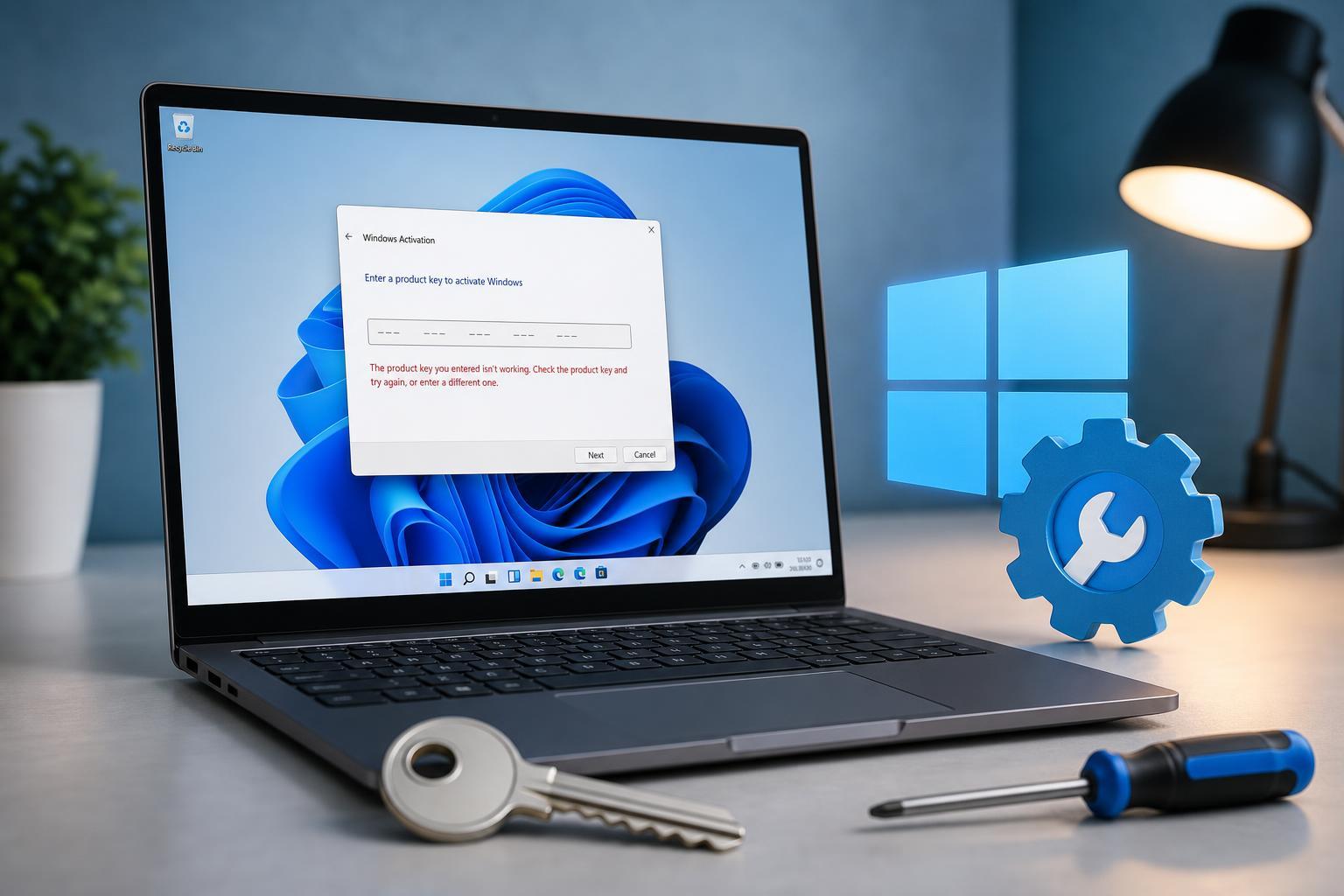
If your Windows 11 activation key is not working, the problem is often caused by a simple mismatch, an already-used key, or an activation issue on Microsoft’s side. The good news is that many activation failures can be fixed without reinstalling Windows.
This guide walks through the most useful fixes, starting with the most common causes and moving to the checks that matter when Windows still refuses to activate.
Check That the Key Matches Your Windows 11 Edition
One of the most common reasons a Windows 11 product key fails is that the key does not match the edition installed on your PC. A Home key will not activate Pro, and a Pro key will not activate Home.
- Windows 11 Home keys only activate Windows 11 Home
- Windows 11 Pro keys only activate Windows 11 Pro
- Enterprise and Education keys are usually tied to volume licensing or organization accounts
- N edition keys only work with N editions
If you are not sure which edition is installed, open Settings, go to System, then About, and check the Windows specifications section.
Make Sure the Product Key Was Entered Correctly
A key can fail simply because one character was entered incorrectly. This is easy to do when typing a long code by hand or copying it from a purchase email.
- Open Settings and go to System > Activation.
- Select Change product key.
- Re-enter the key carefully, checking each group of characters.
- Make sure you are not mixing up similar-looking characters such as 0 and O, or 1 and I.
- If you copied the key, paste it into Notepad first to verify there are no extra spaces or hidden characters before entering it into Windows.
Use the Windows Activation Troubleshooter
Windows includes a built-in activation troubleshooter that can fix licensing problems tied to hardware changes, Microsoft account activation, or temporary activation errors.
- Open Settings and select System.
- Go to Activation.
- If available, choose Troubleshoot.
- Follow the prompts and sign in with your Microsoft account if Windows asks you to.
- Select the device or license option that matches your situation, if shown.
This tool is especially useful if you replaced a motherboard, reinstalled Windows, or previously had a digital license linked to your Microsoft account.
Verify the Key Is Genuine and Still Valid
If the key still will not work, the problem may be the key itself. Windows activation can fail when a key has already been used too many times, was sold improperly, or was intended for a different licensing channel.
- Retail keys are meant to be transferred only under the license terms
- OEM keys are usually tied to the original device
- Volume license keys are meant for businesses and schools
- Suspiciously cheap keys from third-party marketplaces may be invalid or blocked later
If you are using a legitimate key that was previously activated on another PC, check the license terms. Some keys can be moved, but many cannot.
When to Contact Microsoft or the Seller
If the edition is correct, the key was entered properly, and the troubleshooter does not help, the next step is to contact support. Microsoft can help if the problem is with activation servers, license migration, or your Microsoft account. If the key came from a retailer, the seller may need to replace it.
- You get a message that the key has already been used
- Activation fails after a motherboard replacement
- Windows says the key is not valid for this edition
- The key was purchased recently but never activated successfully
What to Try First
If you want the fastest path to a fix, try these in order: confirm the Windows edition, re-enter the key carefully, run the Activation troubleshooter, and then verify the key’s source and license type. In many cases, one of those steps will identify the problem quickly.





