
If your SD card is not showing up in Windows 11, the problem is usually caused by a connection issue, a missing drive letter, or a disk that Windows can see but has not mounted properly. In some cases, the card reader itself or the SD card may be failing.
The four fixes below cover the most common causes first, then move to deeper checks if Windows still refuses to detect the card.
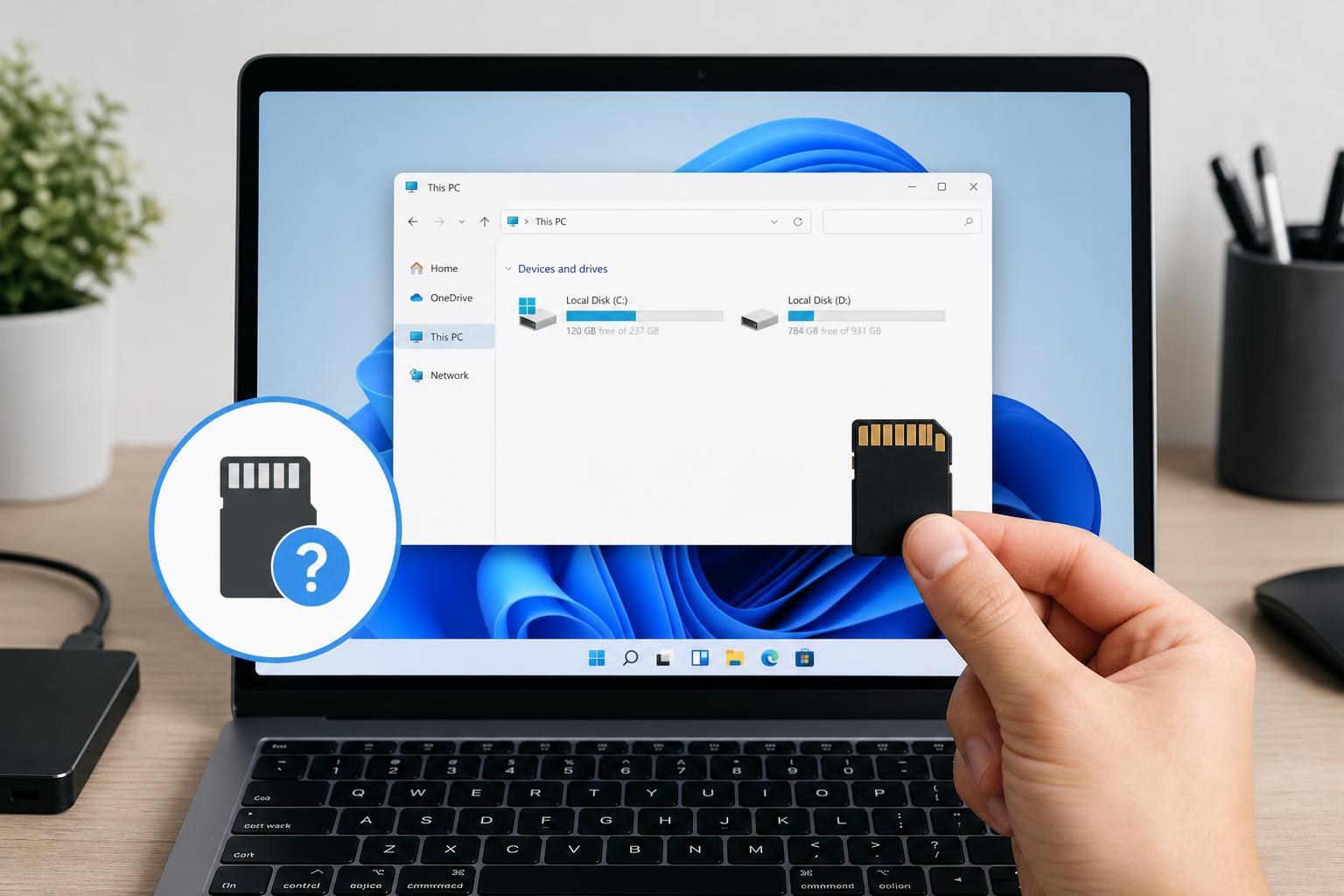
1. Check the SD Card, Adapter, and Card Reader
Before changing Windows settings, make sure the hardware path is working. A loose adapter, a dirty card, or a faulty reader can make the card appear completely missing.
- Remove the SD card and insert it again firmly.
- If you are using a microSD card in an adapter, make sure the adapter is fully seated.
- Try the SD card in another device, such as a camera, phone, or another PC, if possible.
- Try a different SD card in the same reader to see whether the reader is the problem.
- Inspect the card contacts for dust or damage.
2. Look for the SD Card in Disk Management
Windows can sometimes detect an SD card without assigning it a drive letter, which makes it seem like the card is missing even though it is connected.
- Right-click the Start button and choose Disk Management.
- Look for the SD card in the lower pane.
- Check whether it appears without a drive letter.
- If it appears as a removable disk or unallocated space, Windows is detecting it at some level.
- If the card has no letter, right-click the partition and choose Change Drive Letter and Paths.
- Click Add or Change, then assign an available drive letter.
3. Check Device Manager and Reinstall the Card Reader Driver
If the card reader driver is corrupted or disabled, Windows may fail to detect the SD card properly. Reinstalling the device often restores normal detection.
- Right-click the Start button and open Device Manager.
- Expand Disk drives and Memory technology devices, if present.
- Also check Universal Serial Bus controllers for the card reader.
- Look for warning icons or devices that seem to disappear when the card is inserted.
- Right-click the card reader or related device and choose Uninstall device.
- Restart the PC so Windows can reinstall the driver automatically.
4. Try a Different USB Port, Reader, or File System Check
For external USB card readers, the port itself may be the issue. For cards that are detected but not opening correctly, the file system may be damaged.
- Try another USB port, especially a port directly on the PC instead of a hub.
- If available, test with a different external card reader.
- Open the card in Disk Management to see whether Windows reports errors or requests formatting.
- If the card is important, do not format it before attempting recovery.
- If the card is empty or backed up, formatting it may restore usability when the file system is damaged.
How to Tell Whether the Problem Is the Card or Windows
A few simple clues can help you narrow it down quickly.
- The card works in another device but not your PC: likely a Windows, driver, or reader issue.
- No device reads the card: the SD card may be damaged.
- The reader works with one card but not another: the card is likely bad.
- The card appears in Disk Management but not File Explorer: usually a missing drive letter or partition issue.
When You May Need to Replace the Card or Reader
If the SD card is not detected anywhere, or if multiple cards fail in the same reader, hardware failure is a strong possibility. In that case, replacing the card or the reader is often faster than continued troubleshooting.
If the card contains important files and Windows still cannot see it, stop testing on the card and consider professional data recovery before formatting or repairing it.





