
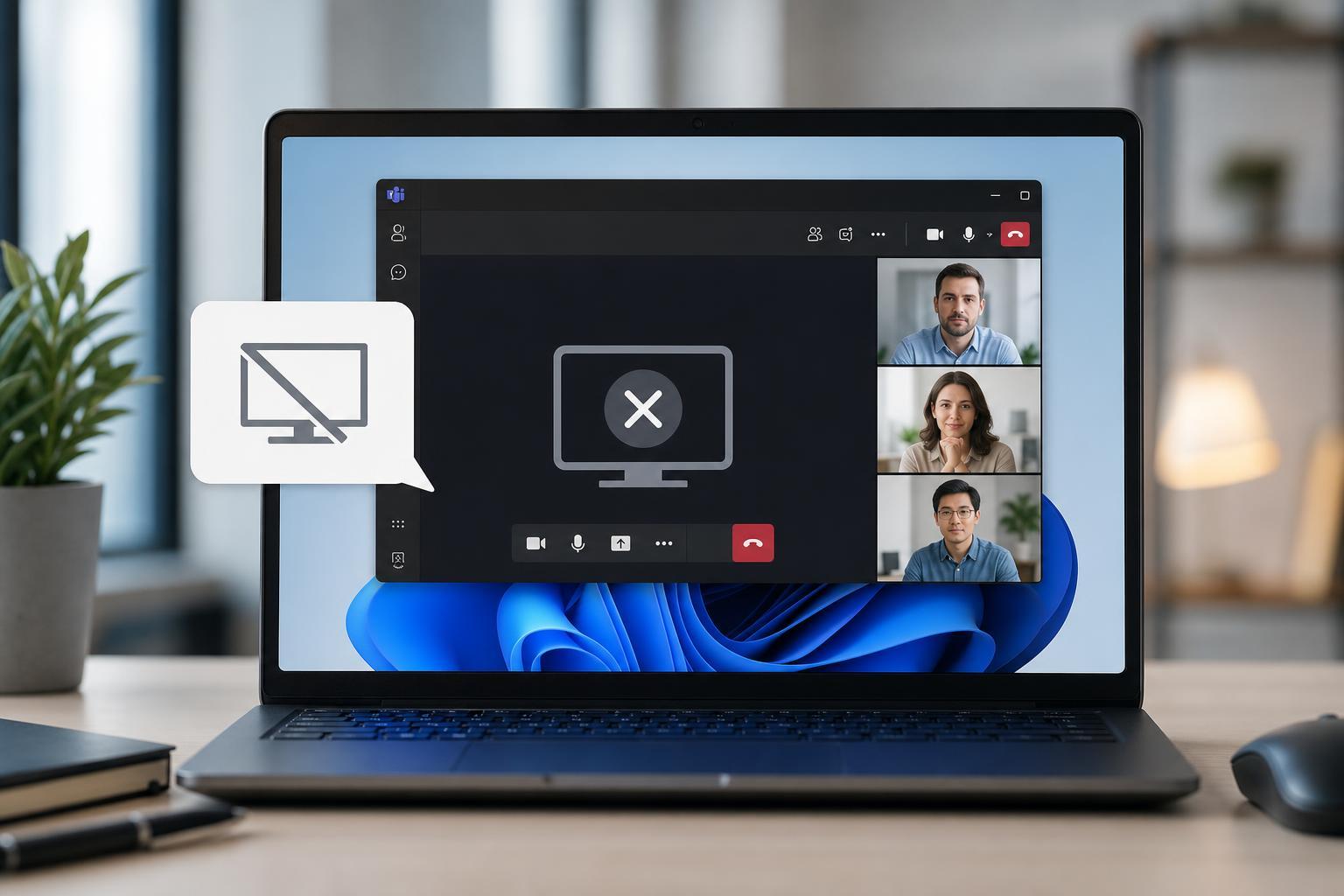
If Microsoft Teams will not share your screen on Windows 11, the cause is usually a permission issue, a Teams app problem, or a graphics-related glitch. The good news is that most screen sharing failures can be fixed without reinstalling Windows or changing complicated system settings.
This guide walks through four practical fixes, starting with the most common causes and moving to more advanced checks only when they are actually needed.
1. Make Sure Teams Has Permission to Capture Your Screen
Windows 11 can block screen capture permissions at the system level, especially after an update or when privacy settings have been tightened. If Teams cannot access the screen properly, sharing may fail completely or show a black window.
- Open Settings and go to Privacy & security.
- Check the screen recording, screen capture, and app permission settings that may apply to Teams.
- If you use the desktop app, make sure Teams is allowed to run in the background and is not being restricted by privacy settings.
- If you are using a work or school device, check whether your organization has disabled screen sharing through policy.
2. Update Teams and Windows 11
Outdated app files or a pending Windows update can cause screen sharing to fail, especially after a recent change to Teams, graphics drivers, or display handling. If the issue started recently, updating is one of the fastest things to try.
- In Teams, open the menu and check for app updates.
- Install any available Teams update, then fully close and reopen the app.
- Open Windows Update in Settings and install pending Windows 11 updates.
- Restart Teams after the update finishes so it can reload the updated components.
3. Check Your Graphics Driver and Display Setup
A faulty or outdated graphics driver can interfere with screen capture, particularly on laptops with both integrated and dedicated graphics. External monitors, docking stations, and high-refresh-rate displays can also make sharing behave unpredictably.
- Open Device Manager and expand Display adapters.
- Check whether Windows reports a warning symbol or driver problem.
- Update the graphics driver through Windows Update or your PC manufacturer’s support tool.
- If you use an external monitor or docking station, test sharing the built-in laptop display instead.
- Disconnect unnecessary displays temporarily to see whether the problem is tied to a particular monitor or adapter.
4. Reset Teams App Data or Use the Web Version as a Test
If permissions and updates are not the problem, Teams itself may be storing bad app data. Clearing the app cache or testing with Teams in a browser can help you confirm whether the desktop app is the issue.
- Sign out of Teams and close it completely.
- Clear Teams cache or reset the app from Windows 11 app settings if your version offers that option.
- Open Teams again and try sharing your screen.
- If the desktop app still fails, try the web version of Teams in a supported browser to see whether sharing works there.
How to Narrow Down the Cause Quickly
If you want to save time, use the result of each test to narrow the problem:
- Works after checking permissions: the issue was likely a Windows privacy or policy setting.
- Works after updating Teams or Windows: the problem was probably a version mismatch or bug.
- Works after changing monitors or updating graphics drivers: the issue was likely display-related.
- Works in the web version but not the desktop app: the desktop app cache or installation is the likely cause.
When to Contact IT Support
If you are on a managed work or school PC and none of these fixes help, the issue may be controlled by company policy, account restrictions, or a security setting that only IT can change. That is especially likely if screen sharing fails only in meetings with external participants or only for certain accounts.
What to Try First
For most Windows 11 users, the best order is: check permissions first, update Teams and Windows next, then look at graphics drivers and display setup, and finally reset the Teams app or test the web version. That sequence solves the most common causes without wasting time on unlikely fixes.





