
If WhatsApp Web won’t send GIFs, the problem is usually caused by a browser issue, a temporary WhatsApp Web glitch, or a problem with the file or clipboard you’re using. The good news is that this is often easy to fix without changing your account or reinstalling anything.
This guide covers four practical fixes for GIFs not sending in WhatsApp Web, starting with the most likely causes and moving to more thorough checks.
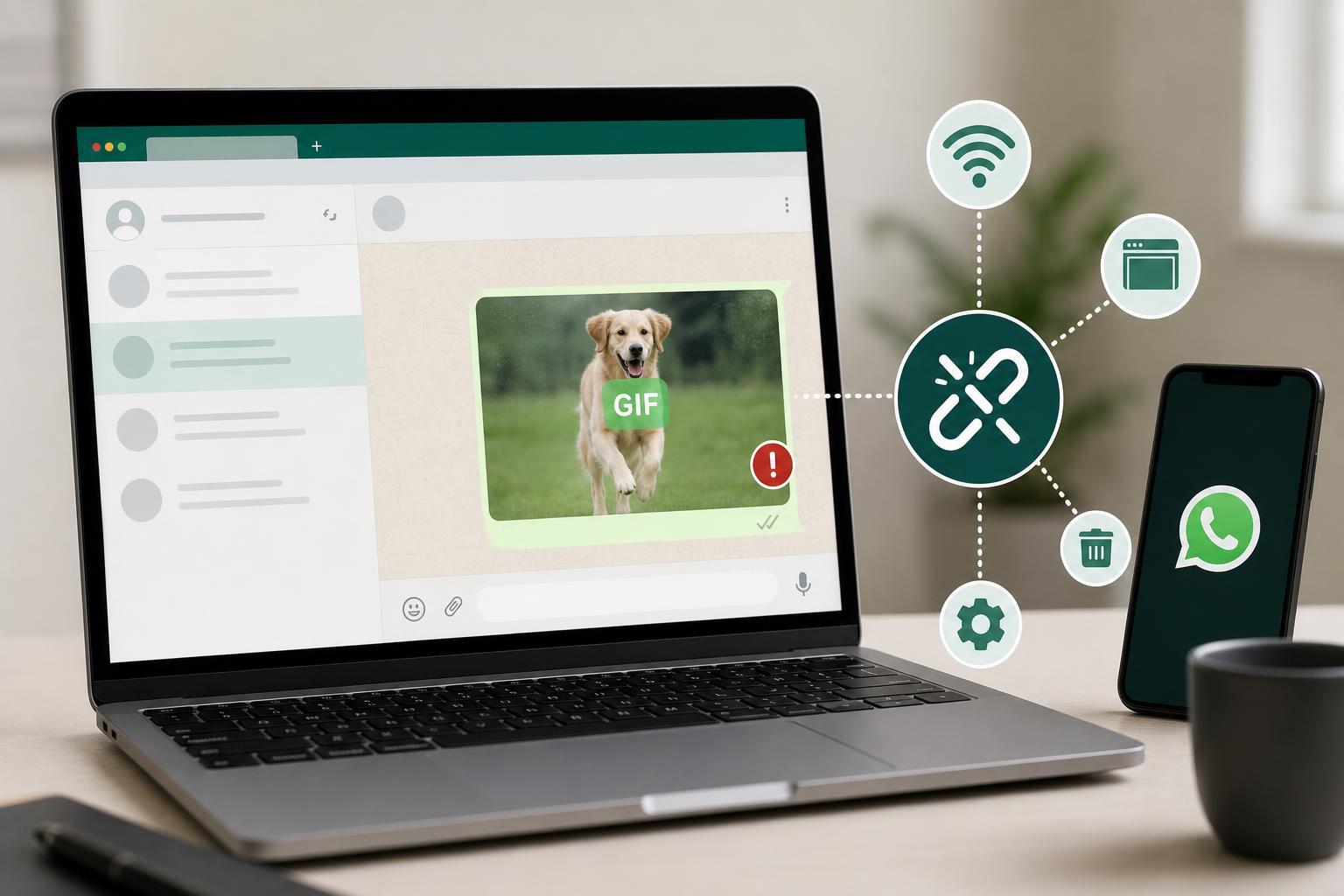
1. Check That WhatsApp Web Is Actually Connected
Before looking at file settings or the browser, make sure WhatsApp Web is fully connected to your phone. If the session is lagging, disconnected, or syncing poorly, media messages like GIFs may fail to send even when text messages still appear to work.
- Open WhatsApp Web and look for any sign that the session needs to be reconnected.
- If needed, go to WhatsApp on your phone and open Linked devices.
- Confirm that your browser session is still active.
- If the connection looks unstable, log out of WhatsApp Web and sign in again by scanning the QR code.
2. Try a Different Browser or Refresh the Current One
Browser-specific issues are one of the most common reasons GIFs do not send properly. Extensions, privacy settings, or a corrupted browser cache can interfere with WhatsApp Web’s media tools.
- Refresh the page and try sending the GIF again.
- If that does not work, close the tab and reopen WhatsApp Web.
- Try the same action in another browser, such as Chrome, Edge, Firefox, or Opera.
- If the GIF sends in one browser but not another, the problem is likely related to the original browser’s settings or extensions.
- Ad blockers
- Script-blocking extensions
- Privacy or security extensions
- Old browser versions
- Broken cached site data
3. Make Sure the GIF File or Link Is Compatible
If you are trying to send a GIF from your computer, the file itself may be the issue. Some files are renamed as .gif but are actually another format, while others may be too large, corrupted, or stored in a way that WhatsApp Web does not handle well.
- Confirm that the file really is a GIF and not a video renamed with a .gif extension.
- Try sending a different GIF to see whether the issue is limited to one file.
- If you copied the GIF from another site, download it first and then attach the saved file.
- Avoid using files that are damaged or incomplete.
4. Clear Browser Cache or Disable Problem Extensions
If WhatsApp Web still refuses to send GIFs, the browser may have stored bad data for the site. Clearing cached site data or disabling extensions can fix problems that a simple refresh will not.
- Open your browser settings and clear cached data for WhatsApp Web, or clear recent cache if you want to avoid deleting everything.
- Disable extensions one by one, especially ad blockers, privacy tools, download helpers, and script blockers.
- Reload WhatsApp Web after each change and test GIF sending again.
- If the problem disappears, turn extensions back on gradually until you find the one causing the issue.
How to Narrow Down the Cause Faster
If you want to avoid trial and error, use the result of each test to guide the next step. This makes it much easier to identify whether the problem is with WhatsApp Web, your browser, or the GIF file itself.
- Text messages work, but GIFs do not: likely a media, browser, or file issue.
- GIFs work in another browser: your original browser is the problem.
- Only one GIF fails: the file is probably corrupted or incompatible.
- Nothing sends at all: the WhatsApp Web session may need to be relinked.
If none of the four fixes work, the issue may be temporary on WhatsApp’s side or tied to your phone’s WhatsApp app rather than the browser. In that case, checking whether media sends correctly from the mobile app can help confirm where the problem starts.





