
If you need the hardware ID, device ID, or instance ID for a device in Windows 11, there are a few fast ways to find it without installing extra tools. These identifiers are useful for driver matching, troubleshooting unknown devices, and checking exactly which piece of hardware Windows is seeing.
Windows uses several similar-sounding identifiers, so it helps to know which one you actually need. In most cases, people looking for a device’s HWID are trying to find the Hardware Ids listed in Device Manager.
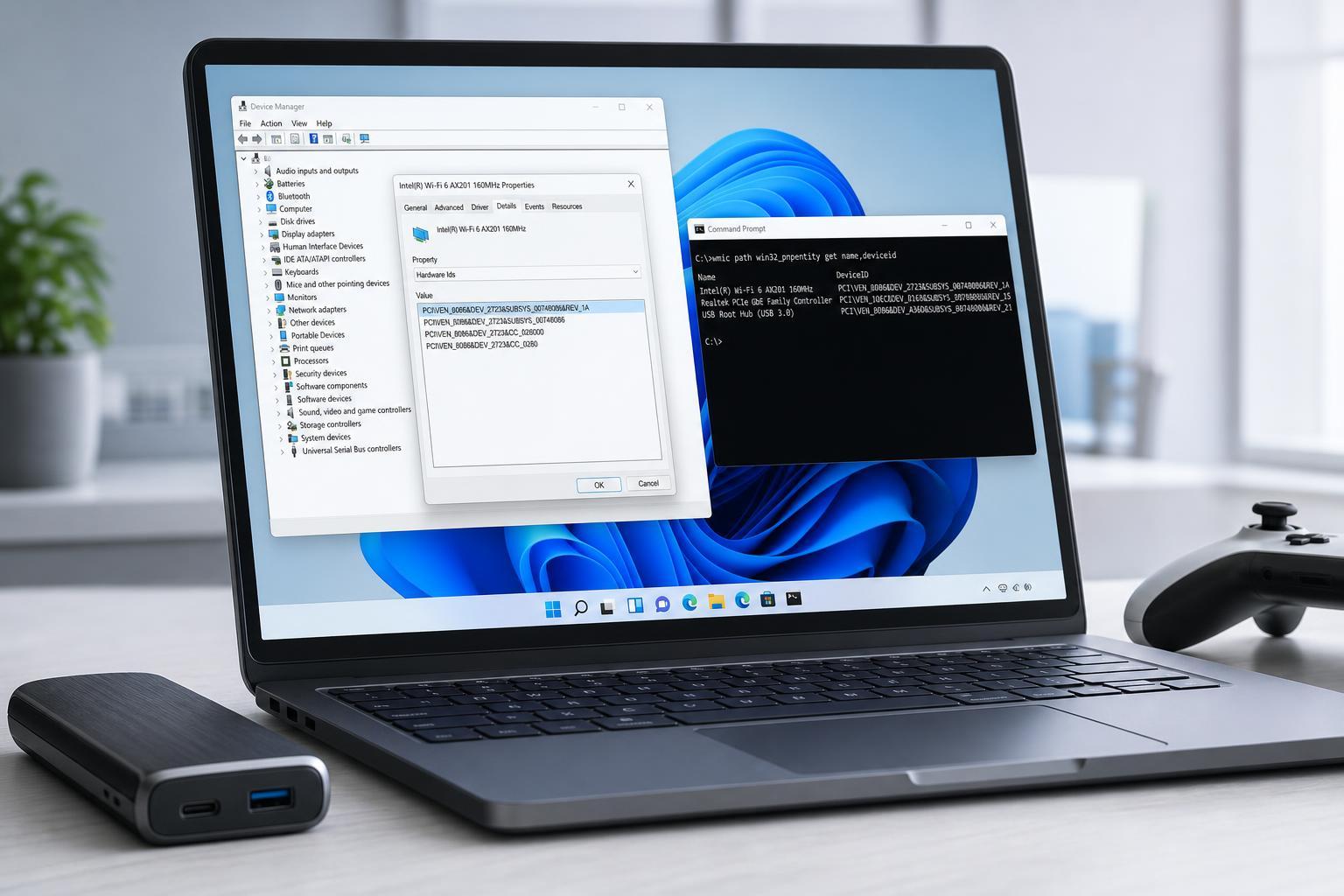
1. Check Hardware IDs in Device Manager
This is the quickest built-in method for most users. It shows the hardware ID strings Windows uses to identify the device for drivers and device matching.
- Right-click the Start button and select Device Manager.
- Expand the category for the device you want to inspect.
- Right-click the device and choose Properties.
- Open the Details tab.
- In the Property drop-down menu, select Hardware Ids.
- Look at the Value box to see one or more ID strings.
2. Use the Device Instance Path in Device Manager
If Hardware Ids is not available or you need a more specific identifier, the Device Instance Path can help. This is especially useful for USB devices and troubleshooting a particular connected device.
- Open Device Manager.
- Right-click the device and open Properties.
- Go to the Details tab.
- Choose Device instance path from the Property drop-down menu.
- Copy the full value shown in the box.
3. Find the ID with PowerShell
PowerShell is useful if you want to query device information more directly or copy the result into notes, scripts, or troubleshooting logs.
- Right-click Start and open Windows Terminal or PowerShell.
- Run the command: Get-PnpDevice | Select-Object FriendlyName, InstanceId.
- Find the device in the list and copy its InstanceId value.
- If you need more detail, use the copied instance ID in a follow-up query or compare it with the Device Manager values.
4. Check Hardware IDs Through Device Properties from a Missing Driver or Unknown Device
If Windows shows an Unknown device or a device with a warning icon, the Hardware Ids field is often the easiest way to identify it and find the correct driver.
- Open Device Manager.
- Look for the device with a yellow warning icon or under Other devices.
- Open its Properties.
- Select the Details tab.
- Choose Hardware Ids or Device instance path.
- Copy the top value and search for it online or compare it with the driver package you are trying to install.
Which ID Should You Use?
If your goal is driver matching, start with Hardware Ids. If you need to identify a specific physical connection, use Device Instance Path. If you want a more advanced lookup or need to collect data from several devices, PowerShell is usually the better option.
- Hardware Ids: best for finding the exact driver match
- Device Instance Path: best for distinguishing one physical device from another
- PowerShell InstanceId: best for scripting and bulk checks
- Unknown device properties: best for troubleshooting missing drivers
What to Do If Hardware Ids Is Missing
If you do not see Hardware Ids in the Details tab, make sure you are viewing the correct device properties. Most standard devices expose this field, but some entries may only show other identifier types depending on the device class or driver state.
- Try selecting a different device category in Device Manager
- Check whether you opened the Properties window for the device itself, not the category heading
- Use Device instance path instead, which is often available even when Hardware Ids is not
- If the device is not recognized at all, unplug and reconnect it only if doing so is safe and appropriate
A Simple Rule for Reading Hardware IDs
The first part of the ID usually identifies the manufacturer and device family, while later parts add detail such as revision, subsystem, or connection information. The more specific the ID, the better it is for matching drivers.
Quick Recap
- Use Device Manager > Properties > Details > Hardware Ids for the fastest check
- Use Device instance path if you need a more specific identifier
- Use PowerShell if you want to query multiple devices or work from the command line
- Use the ID to identify the device, then download drivers from a trusted source





