
Texting yourself on iMessage is a handy way to save quick notes, web links, photos, reminders, and messages you want to read later. You can use it as a simple personal inbox that stays synced across your Apple devices.
There are a few different ways to do it, and the best method depends on whether you want a permanent self-chat, a quick one-time message, or a setup that works well across iPhone, iPad, and Mac.
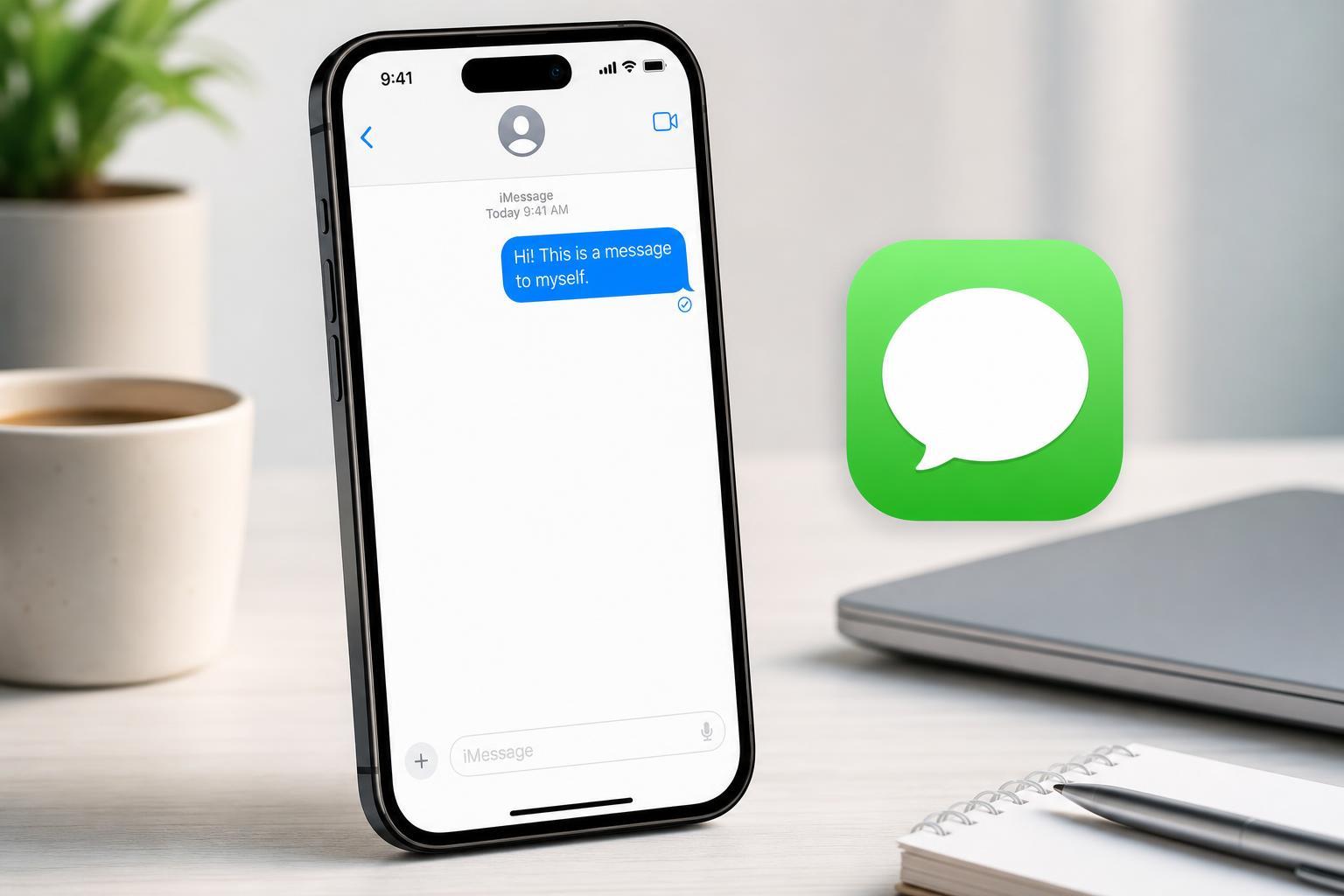
1. Message Your Own Apple ID Email Address
The most reliable way to text yourself on iMessage is to send a message to your own Apple ID email address or the contact information tied to your iMessage account. If you already use the same Apple ID on multiple devices, the message will usually appear everywhere iMessage is enabled.
- Open Messages on your iPhone, iPad, or Mac.
- Start a new message.
- In the To field, enter the email address associated with your Apple ID.
- Type your message and send it.
- If the message does not go through as iMessage, check that iMessage is enabled on your device and that the address is registered for Messages.
2. Add Your Own Number or Email as a Contact
If you want a cleaner way to start a self-chat later, save your own phone number or iMessage email address as a contact. This makes it easier to find yourself in Messages and reuse the thread whenever you need to send something to your own inbox.
- Open the Contacts app.
- Create a new contact or edit an existing one with your own phone number and email address.
- Save the contact under a clear name such as "Me" or "My Notes".
- Open Messages and search for that contact name.
- Start the conversation and send your message.
This method is especially useful if you regularly text yourself links, shopping lists, or reminders. Once the conversation is created, you can keep using the same thread instead of starting over each time.
3. Start a New Message to Yourself from Another Apple Device
If you use a Mac, iPad, or another Apple device signed into the same Apple ID, you can start a conversation with your own address from that device too. This is useful when you are working on one screen and want the message waiting on your iPhone later.
- Open Messages on your Mac or iPad.
- Create a new message.
- Enter your own Apple ID email address or your own iPhone number in the recipient field.
- Send your note, link, or file.
- Open Messages on your other Apple device to see the synced conversation.
What to Do If You Cannot Text Yourself
If your message will not send to yourself, the problem is usually one of these common issues:
- iMessage is turned off on the device
- You are trying to send to a phone number or email that is not registered with iMessage
- Your contact details in Send & Receive are incomplete
- Messages in iCloud is not syncing properly across devices
- You are sending as SMS instead of iMessage
On iPhone or iPad, open Settings > Messages and confirm that iMessage is on. Then check Send & Receive to make sure your Apple ID email address or phone number is selected.
A Few Practical Ways to Use a Self-Chat
Once you have a working self-chat, it can be surprisingly useful day to day.
- Save links you want to open later
- Send yourself photos or screenshots
- Keep a running shopping list
- Store short notes and ideas
- Move text between devices quickly
- Save addresses, codes, or details you do not want to forget
Which Method Should You Use?
If you want the simplest option, send a message to your own Apple ID email address. If you want something easier to reuse, save your own contact card first. If you switch between Apple devices often, a synced self-chat is the most convenient option.





