
If YouTube won’t let you log in on your Android phone or iPhone, the problem is usually caused by an account issue, a broken app session, or a device setting that is blocking sign-in. The good news is that most login problems can be fixed without losing your videos, subscriptions, or account data.
This guide covers three effective ways to get back into YouTube, starting with the simplest checks and moving to more advanced fixes only if needed.
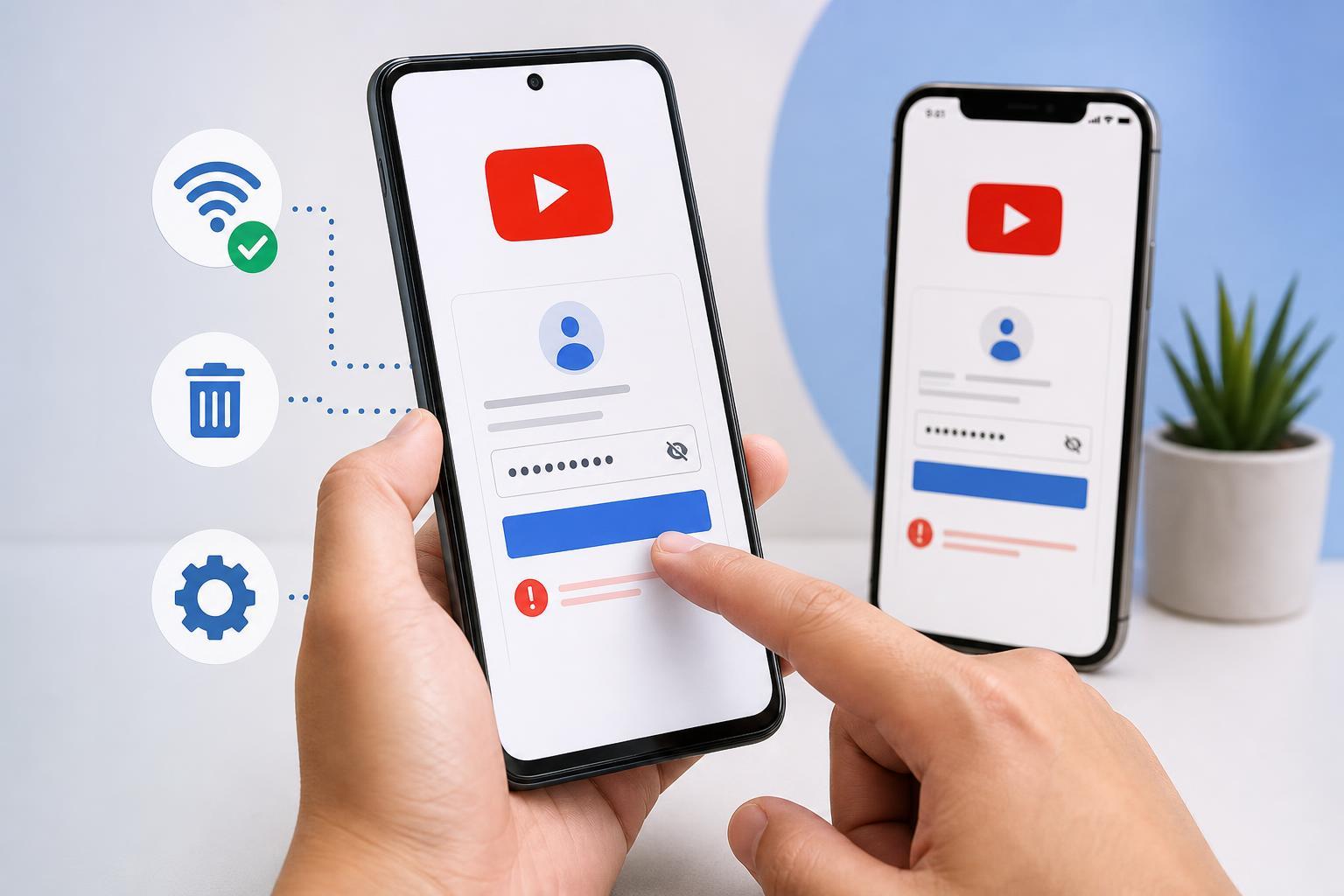
1. Make Sure the Problem Is With YouTube, Not Your Google Account
Because YouTube uses your Google account to sign in, a login problem in YouTube is often actually a Google account problem. If your password recently changed, your account was flagged for verification, or Google wants you to confirm your identity, YouTube may refuse to sign in until that is resolved.
- Try signing in to your Google account in a browser, such as Chrome, Safari, or Firefox.
- If prompted, complete any verification step, such as a code sent to your phone or email.
- Make sure you are using the correct Google account, especially if you have more than one.
- If you forgot your password, reset it first before trying YouTube again.
2. Clear the App’s Cached Data or Reinstall YouTube
A damaged app cache or a broken sign-in session can stop YouTube from accepting your login even when your account is correct. Clearing the app data or reinstalling the app removes old session files and forces YouTube to start fresh.
- On Android, open Settings, then Apps, then YouTube.
- Tap Storage or Storage & cache.
- Clear the cache first, then try signing in again.
- If that does not work, clear storage/data for the app and sign in again.
- On iPhone, delete the YouTube app, then reinstall it from the App Store.
- Open YouTube and try logging in again after reinstalling.
3. Check for Device, Network, or Google Services Problems
Sometimes the login issue is not the YouTube app at all. A weak connection, a VPN, restricted background data, or outdated Google services can prevent the app from contacting Google’s sign-in system.
- Switch between Wi-Fi and mobile data to see if one connection works better.
- Turn off any VPN, ad blocker, or private DNS service temporarily.
- Make sure Date and Time are set automatically on your phone.
- On Android, update Google Play services and the YouTube app from the Play Store.
- On iPhone, install any pending iOS updates and update YouTube from the App Store.
- Incorrect date and time can break secure login checks.
- VPNs and privacy filters may block Google sign-in requests.
- Outdated Google Play services can cause Android app login failures.
- A temporary network issue may make the app look broken even when the account is fine.
How to Narrow Down the Cause Quickly
If you want to avoid trying every fix one by one, use this shortcut: sign in through a browser first, then test the YouTube app, then check your network and device settings. That order tells you whether the issue is with your account, the app itself, or the phone.
- Browser login fails: focus on your Google account or verification issue.
- Browser works but the app fails: fix the YouTube app or clear its data.
- Only one network fails: check Wi-Fi, mobile data, VPN, or DNS settings.
What To Do If Nothing Works
If you still cannot sign in after trying all three fixes, the account may have a security hold, the device may have a software conflict, or Google may be temporarily having service issues. Try logging in from another phone or computer to see whether the problem follows your account or stays on the device.
If the account works elsewhere but not on your phone, focus on the app, device settings, and network restrictions. If it fails everywhere, the next step is usually Google account recovery or checking for account security alerts in your Google settings.





