
If WhatsApp search on your iPhone suddenly stops finding chats, messages, or contacts, the problem is usually tied to the app, iOS search indexing, or a temporary sync issue. The good news is that you can often fix it without deleting chats or reinstalling the app.
This guide walks through three effective ways to get WhatsApp search working again on iPhone, starting with the simplest checks and moving to deeper fixes.
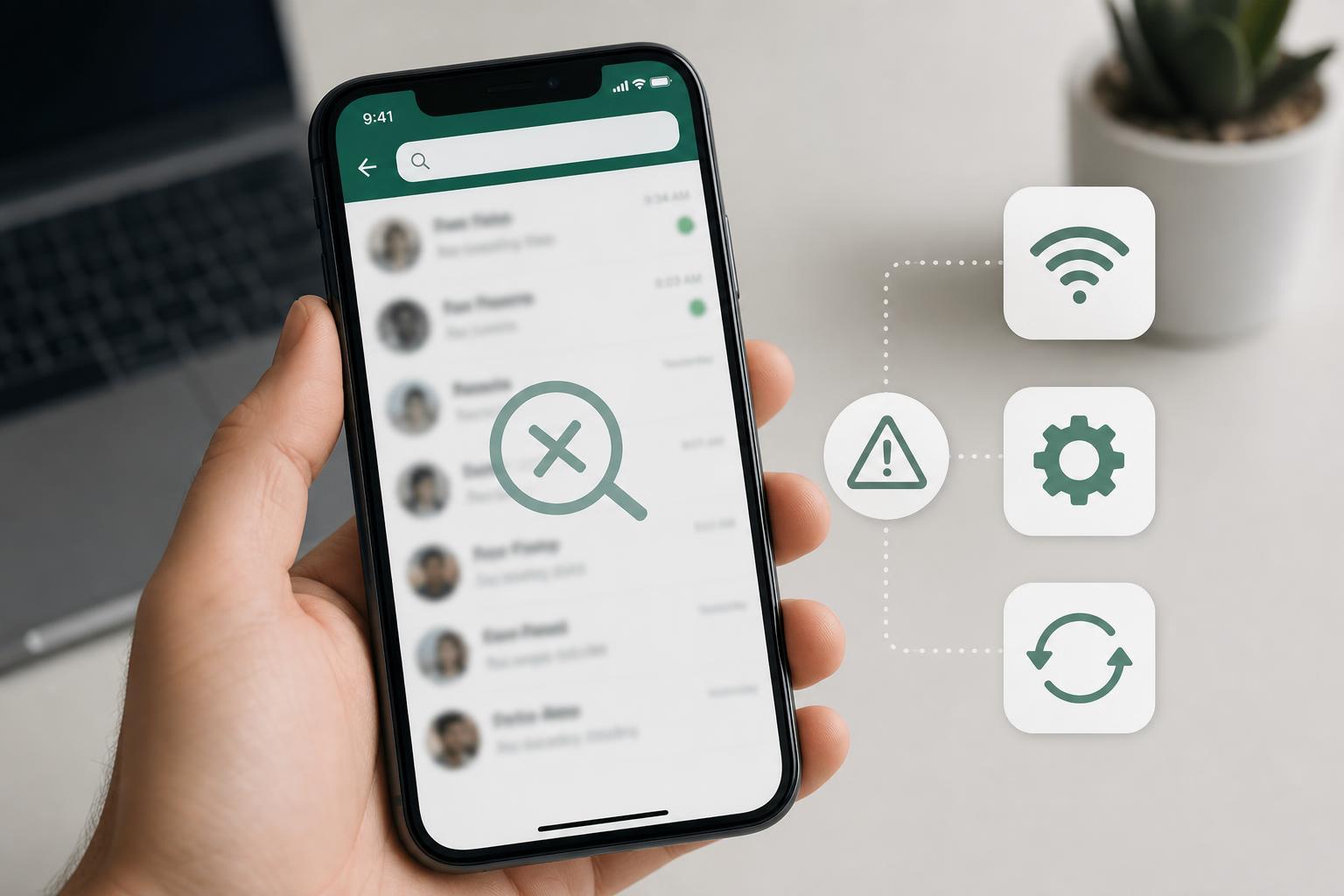
1. Check Whether WhatsApp Search Is Actually Indexed Properly
WhatsApp search depends on the app being able to read your chat database correctly. If only some chats appear, or search works for recent messages but not older ones, the issue may be with WhatsApp’s local index rather than your messages being missing.
- Open WhatsApp and go to the Chats tab.
- Pull down slightly to reveal the search bar if it is hidden.
- Try searching for a contact name, a word from a recent message, and a word from an older chat.
- If results appear for some searches but not others, note which chats are missing and whether they are archived, muted, or locked.
Archived, muted, or locked chats can still be searched, but if WhatsApp is struggling to load your local data, the results may look incomplete.
2. Update WhatsApp and iOS
Search problems are often caused by bugs that have already been fixed in a newer version of WhatsApp or iOS. Updating both is one of the most reliable ways to restore search behavior, especially after a major iPhone update.
- Open the App Store and check whether WhatsApp has an update available.
- Install the update if one appears.
- Then open Settings on your iPhone.
- Go to General, then Software Update, and install any available iOS update.
- After updating, reopen WhatsApp and test search again.
3. Force WhatsApp to Refresh Its Data Access
If WhatsApp has become stuck in a bad state, giving it a fresh start at the app level can help it rebuild its search access. This is different from simply closing the app from the app switcher, which sometimes is not enough on its own.
- Close WhatsApp from the app switcher.
- Open Settings on your iPhone.
- Check that WhatsApp has permission to use the features it needs, especially contacts access if you are searching for people by name.
- If you recently changed privacy settings, re-enable the missing permission.
- Open WhatsApp again and test search.
If search still fails after checking permissions, delete and reinstall WhatsApp only if your chat backups are current. Reinstalling can force the app to rebuild local files that may be causing the issue.
If Search Still Does Not Work
When none of the three fixes solve the problem, the issue may be tied to a damaged local database, a temporary WhatsApp service problem, or a wider iPhone software issue. At that point, the most useful next checks are to confirm your iCloud backup status, test whether other search-related features on the iPhone are working normally, and contact WhatsApp support if the problem seems limited to the app.





