
VLC subtitle delay usually happens when the subtitle file is slightly out of sync with the video, or when playback settings make the subtitles appear too early or too late. The good news is that VLC gives you a few quick ways to correct it on both desktop and mobile.
In this guide, you’ll learn three reliable ways to fix subtitle delay in VLC, plus how to tell whether the problem is with the subtitle file, the video file, or your playback settings.
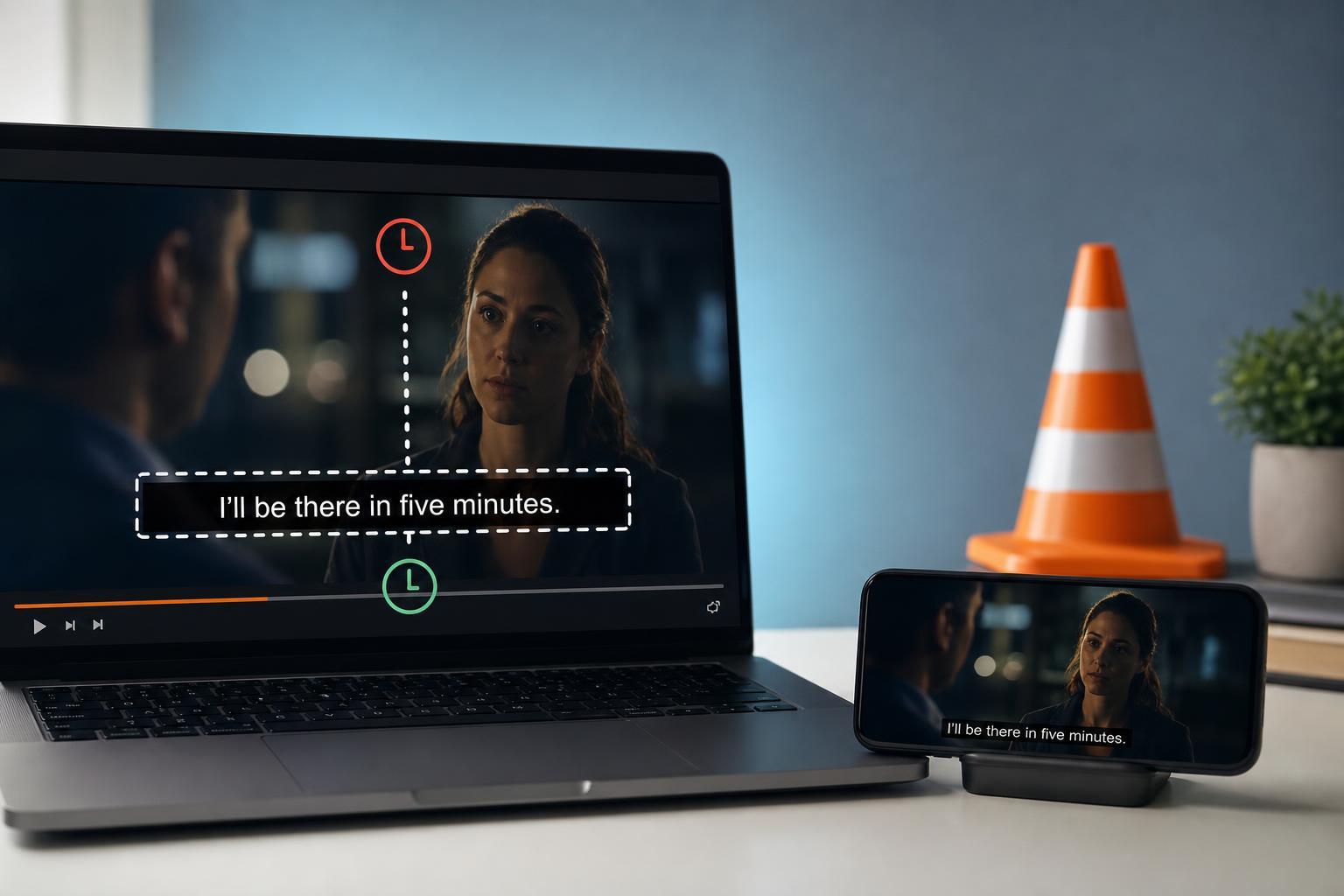
1. Adjust Subtitle Timing During Playback
The fastest fix is to change the subtitle delay while the video is playing. This is best when the subtitles are close to correct, but just a little early or late.
- Start playing the video in VLC.
- Open the subtitle delay controls. On desktop, look for subtitle timing options in the subtitle menu or playback controls. On mobile, open the player controls and find the subtitle timing setting if your version includes it.
- Move the subtitle timing forward or backward until the text matches the dialogue.
- Keep testing a few scenes with speech to confirm the sync is right.
2. Save a Subtitle Offset or Use a Better Subtitle File
If the subtitles are always off by the same amount, the subtitle file itself may be slightly out of sync. In that case, you can either keep using a corrected offset or replace the subtitle file with one that matches your video better.
- Use the same subtitle delay value every time you watch that video if VLC lets you remember the setting.
- Download a subtitle file that matches the exact release of the video, including runtime and edition.
- Check whether the subtitle file was made for a different cut, such as a theatrical version, director’s cut, or re-encoded rip.
- If the subtitles drift more and more as the video plays, the file timing may be wrong from the start or the video may have a different frame rate.
3. Reset VLC Playback or Subtitle Settings That Can Affect Sync
Sometimes the delay is caused by VLC settings rather than the subtitle file. If subtitle timing changes in strange ways, or if the problem appears only on one device, resetting playback-related settings can help.
- Check that subtitle synchronization features are not set to an extreme value.
- Make sure the subtitle track you selected is the correct one for your language and video version.
- Disable any custom subtitle rendering or advanced playback tweaks you may have changed before.
- If needed, restore VLC preferences to their default values and test the video again.
- On mobile, close the video and reopen it after changing subtitle settings so the player reloads the track cleanly.
Desktop vs Mobile: What Changes in VLC?
On desktop, VLC usually gives you more control, including easier access to subtitle delay, track selection, and advanced playback options. On mobile, the controls are often simpler, so the fix may involve changing the subtitle track, reloading the video, or using a subtitle file that matches the video more closely.
- Desktop: best for fine-tuning subtitle delay and saving adjustments.
- Android: usually supports basic subtitle timing controls, but the menu layout can vary by app version.
- iPhone and iPad: options may be more limited, so matching the correct subtitle file is often the most practical fix.
How to Tell Which Fix You Need
A little observation can save time. The pattern of the delay usually tells you what is wrong.
- Subtitles are only a little early or late: adjust subtitle delay during playback.
- Subtitles stay off by the same amount for the entire video: use a consistent offset or a better-matched subtitle file.
- Subtitles drift further out of sync over time: the subtitle file probably does not match the video version or frame rate.
- Only one device has the issue: check VLC settings or app-specific playback options on that device.
When the Problem Is Not VLC
If subtitles are delayed in every media player, the issue is probably the subtitle file itself or the video release you downloaded. In that case, VLC can only do so much. You may need a subtitle file made for your exact video version or a properly timed subtitle track from another source.
Quick Fix Order to Try
- Adjust subtitle delay during playback.
- Try a different subtitle track or download a subtitle file that matches the exact video release.
- Reset or review VLC subtitle and playback settings if the issue still appears.
- If the subtitles drift over time, replace the subtitle file rather than only changing the offset.
For most users, the first fix solves the problem immediately. If not, the real cause is usually a subtitle file mismatch, which is why checking the video version matters so much.





