
If links in Outlook do nothing, open the wrong app, or show an error when you click them, the problem is usually caused by a browser setting, a Windows association issue, or an Outlook configuration problem. The good news is that most cases can be fixed without reinstalling Outlook.
This guide walks through three practical fixes, starting with the most common cause and moving to more advanced checks if the issue continues.
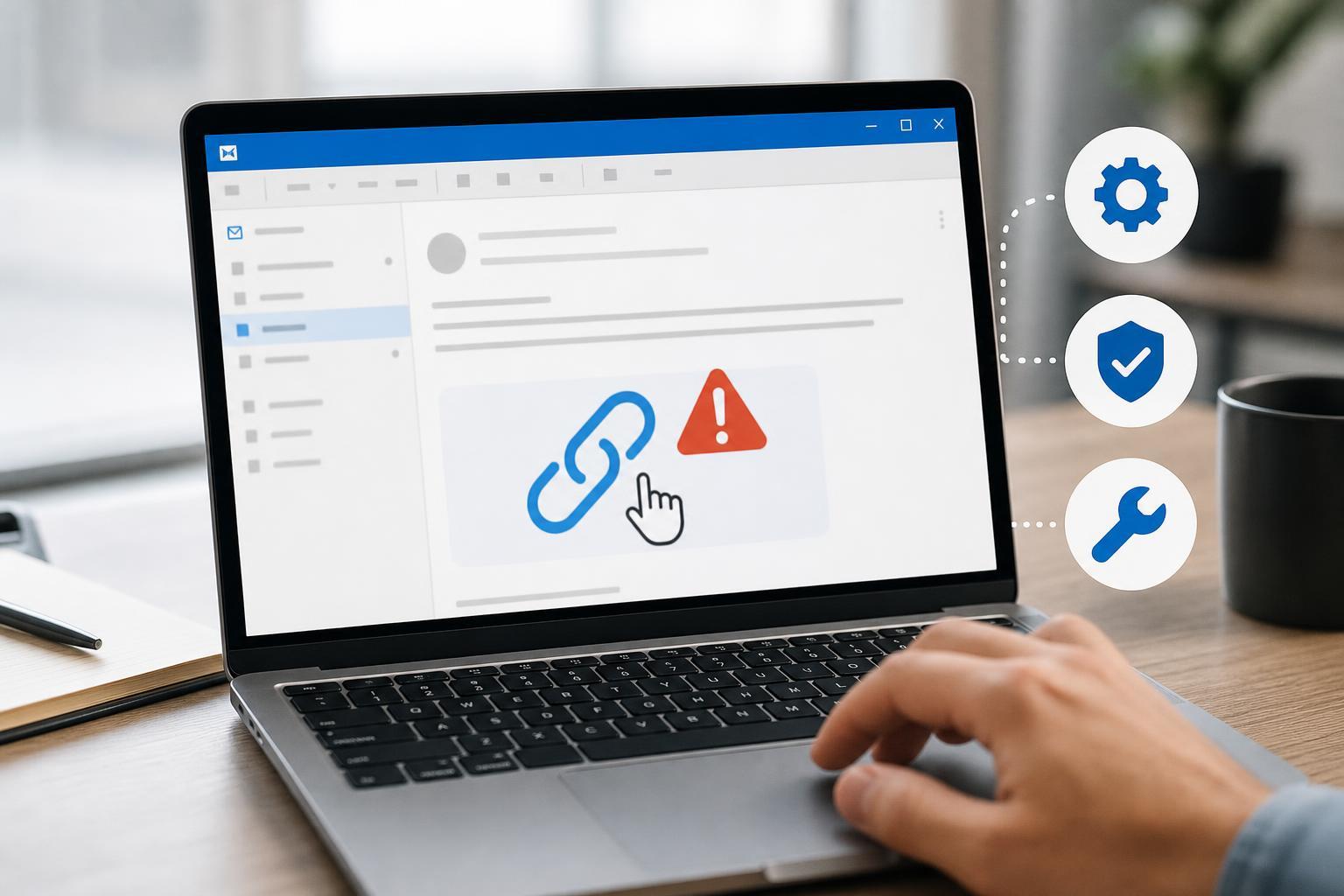
1. Make sure Windows has a default web browser set
Outlook relies on Windows to open web links. If Windows does not have a proper default browser assigned, or if the association is broken, clicking a link may fail or produce an error.
- Open Settings in Windows.
- Go to Apps, then choose Default apps.
- Select your preferred browser, such as Microsoft Edge, Google Chrome, or Firefox.
- Make sure it is set as the default for web-related file types and protocols, especially HTTP and HTTPS.
- Close Settings and try opening a link in Outlook again.
2. Repair Outlook’s link handling by resetting browser and file associations
If a default browser is already set but Outlook still cannot open links, the web protocol association may be damaged. This can happen after updates, browser changes, or system tweaks that affect how Windows handles links.
- Open Settings and go to Apps > Default apps.
- Scroll down and choose Reset all default apps, if you are comfortable reapplying your preferred defaults afterward.
- Set your browser again as the default for HTTP and HTTPS.
- If the problem started after a browser update, try choosing a different browser temporarily to test whether the issue is browser-specific.
- Test a link in Outlook after each change.
3. Check Outlook security settings and add-ins
In some cases, Outlook itself is affected by security settings or add-ins that interfere with link launching. This is more likely if links only fail in Outlook, while links in other apps open normally.
- Start Outlook in Safe Mode to see whether an add-in is causing the issue.
- If links work in Safe Mode, disable add-ins one at a time until you find the one causing the problem.
- Check whether your organization manages Outlook security policies, especially on work computers.
- Make sure Outlook and Windows are fully updated.
- If you use a web browser extension or email scanning tool that integrates with Outlook, test with it turned off temporarily.
When the problem is still there
If none of the three fixes work, the issue may be tied to a damaged Outlook profile, a Windows user profile problem, or a policy set by your workplace. In that case, try creating a new Outlook profile or ask your IT administrator whether link handling is restricted on your account.





