
If spell check is not working in Google Docs, the problem is usually caused by a browser setting, a document language mismatch, or a Google Docs option that has been turned off. The good news is that in most cases you can get it working again without reinstalling anything.
This guide walks through three practical fixes, starting with the most common causes first.
1. Make Sure Spell Check Is Enabled in Google Docs
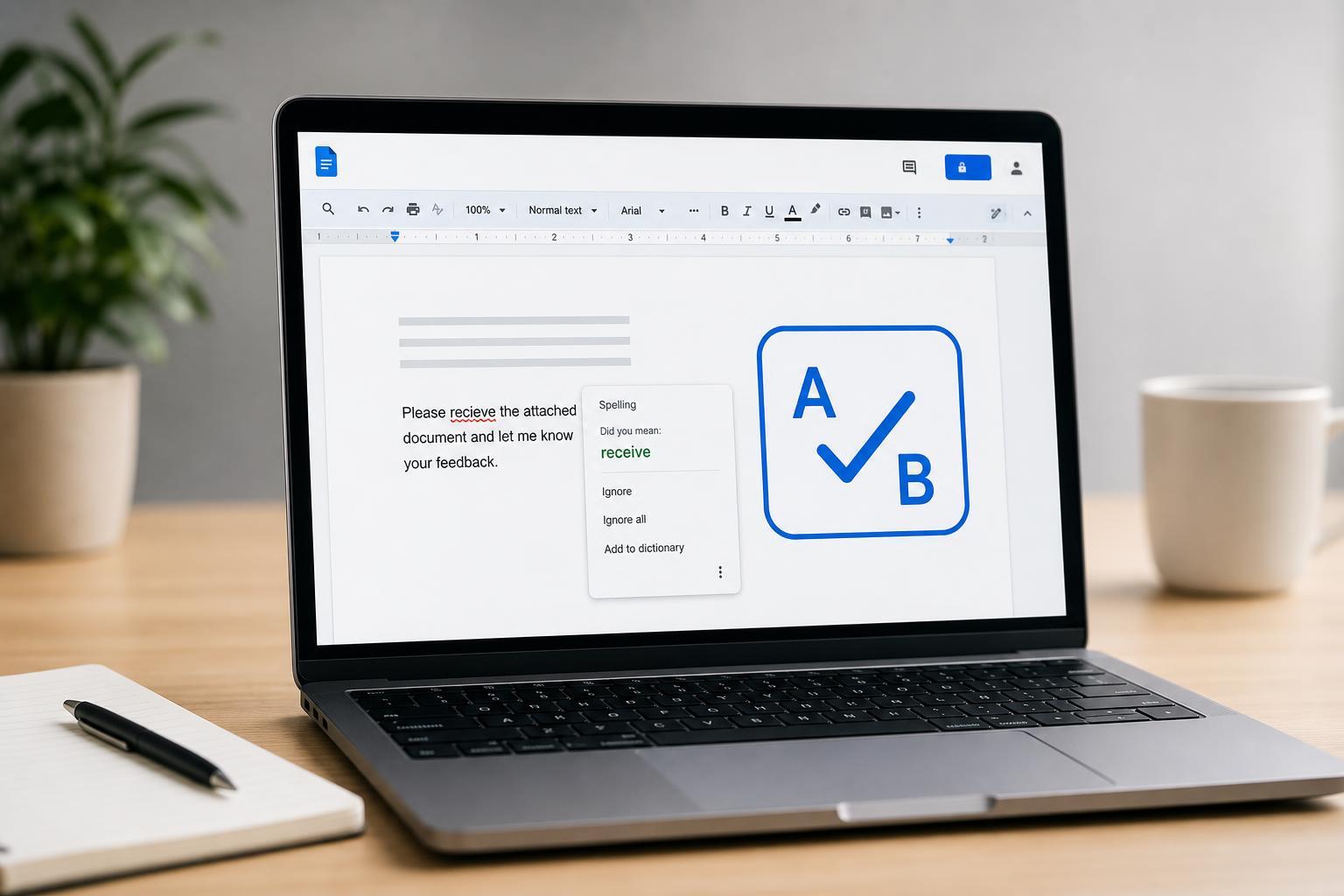
Google Docs has its own spelling and grammar tools, and they can be turned off inside the document. If you are not seeing underlines for misspelled words, this is the first thing to check.
- Open the document in Google Docs.
- Click Tools in the top menu.
- Hover over Spelling and grammar.
- Make sure Show spelling suggestions is turned on.
- If needed, also turn on Show grammar suggestions.
You can also check whether spelling suggestions are disabled at the browser level. In Chrome and other Chromium-based browsers, Google Docs relies on browser support for some editing features, so an extension or browser setting can interfere with how spelling is shown.
2. Check the Document Language
Google Docs spell check works best when the document language matches the language you are writing in. If the file is set to the wrong language, common words may not be flagged correctly, or the wrong spelling rules may be applied.
- Open the Google Docs document.
- Click File in the top menu.
- Select Language.
- Choose the language you are actually using in the document.
- Look again for spelling underlines or right-click suggestions.
This is especially important if you work in more than one language or copied text from another source that preserved a different language setting.
3. Clear Browser Problems That Can Interfere With Google Docs
If spell check still does not work, the issue may be with the browser rather than Google Docs itself. Corrupted cache files, a conflicting extension, or outdated browser data can stop editing features from behaving normally.
- Refresh the document and test again.
- Open the document in a private or incognito window to check whether an extension is causing the problem.
- Disable browser extensions one by one, especially ad blockers, grammar tools, and privacy tools.
- Clear the browser cache if Google Docs still behaves incorrectly.
- Update your browser to the latest version and reopen the document.
Other Things to Check
If none of the three fixes solves it, a few smaller issues may be involved:
- You are editing in a document where spelling suggestions were turned off.
- The text is inside a drawing, image, table, or embedded object that does not behave like normal body text.
- Your browser is blocking scripts or cookies needed for Google Docs features.
- Google Docs is temporarily experiencing a service issue.
What to Try First
For most people, the fastest fix is to check the document language and make sure spelling suggestions are enabled in the Tools menu. If that does not work, test in an incognito window to rule out an extension problem. Those two checks solve a large share of Google Docs spell check issues without any deeper troubleshooting.





