
If your profile picture on iPhone keeps showing the old image, the problem is usually caused by sync delays, the wrong photo source, or an app that has not refreshed properly. The fix depends on where the picture is being used, such as your Apple ID contact photo, Messages, or a third-party app.
This guide covers three practical ways to fix a profile picture that is not updating on iPhone, along with the most likely reasons each fix works.
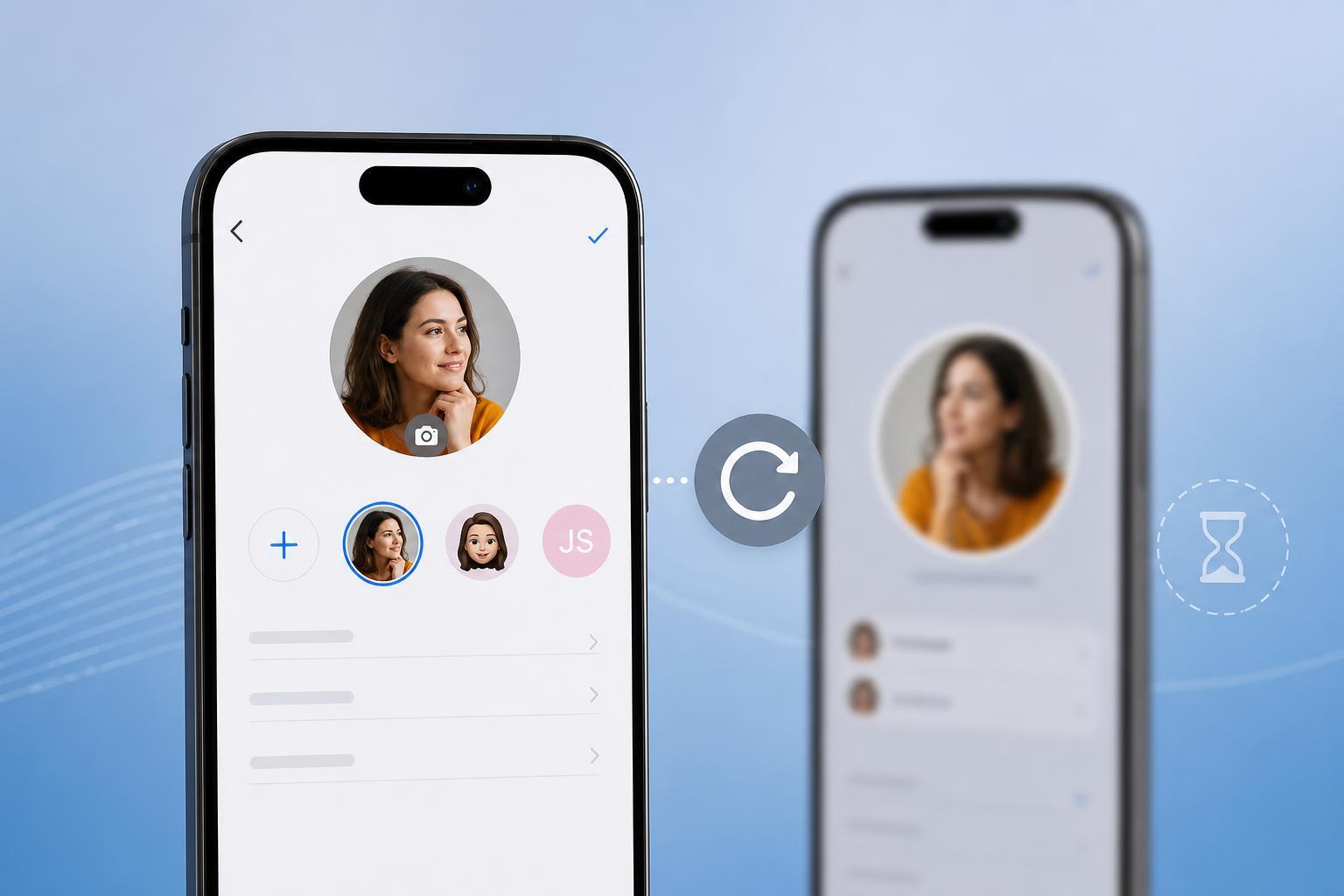
1. Make Sure You’re Changing the Right Profile Photo
On iPhone, there are several different places where a profile picture can appear. If you update the wrong one, it may look like the change did not work even though it did.
- Apple ID / Contact Photo used in Messages and Contacts
- Photo inside a specific app like WhatsApp, Facebook, or Instagram
- Shared name and photo settings for iMessage
- Profile picture saved in a cloud account such as Google or Microsoft
Start by checking where the old image is still showing. If the problem is only in Messages, you may need to update your iMessage contact photo instead of your Apple ID photo. If the problem is inside a third-party app, changing the iPhone contact card will not affect it.
- Open the app or setting where the old picture appears.
- Check whether the photo is tied to your Apple ID, Contacts, Messages, or a separate app account.
- Update the photo in that exact place.
- Wait a minute or two for sync to finish before checking again.
2. Force the Photo to Sync Again
If you updated the correct photo but it still shows the old one, the issue is often a sync delay. iPhone and connected services sometimes keep showing cached contact data until they refresh.
- Open Settings and tap your name at the top.
- Choose Sign-In & Security or the Apple ID area where your profile picture appears.
- Change the photo to a different image, then switch it back to the one you want.
- Open Messages, Contacts, or the app where the picture is wrong and check whether it refreshes.
- If the photo is from an online account, make sure the account is connected and syncing normally.
For Messages, it also helps to check whether your shared name and photo are turned on. If that feature is disabled, other people may not see the updated image even if your phone shows it correctly.
3. Clear the App or Contact Cache by Updating the Source
Some apps keep their own cached version of your profile image. In that case, the simplest fix is to update the picture from the original source rather than only inside the app.
- Edit your iPhone contact card and make sure the photo is saved there correctly.
- If the image comes from Apple ID, update it under your Apple account settings.
- If the picture belongs to a messaging or social app, change it inside that app’s profile settings.
- Close and reopen the app after saving the change.
- If needed, sign out of the app account and sign back in so it reloads your current profile photo.
If the picture still refuses to update in one app but changes everywhere else, that app may be holding onto an old cached version. Reinstalling the app can help in some cases, but only do this if you are sure your login details are available and your data is synced to the cloud.
When the Problem Is Not on Your iPhone
Sometimes the photo is updating correctly on your iPhone, but other people still see the old image. That usually means the issue is on the receiving device or service, not on your phone.
- The other person’s phone is showing an old cached contact photo
- The app on their device has not refreshed yet
- The profile photo is stored in a separate account you do not control
- The app needs time to sync across devices
Which Fix Should You Try First?
If the photo is wrong in Messages, start with the Apple ID or shared contact photo settings. If it is wrong in a third-party app, update the photo inside that app instead. If the picture should already be correct but is still showing the old version, force a sync by changing the image and switching it back, then reopen the app or contact view.
In most cases, the issue comes down to one of three things: the wrong photo source, a sync delay, or an app cache that has not refreshed yet. Once you identify which one applies, the fix is usually quick.





