
iPhone widgets are supposed to show up-to-date information at a glance, but sometimes they get stuck on old data or stop refreshing entirely. That can happen because of network issues, app restrictions, or a problem with the widget itself.
If your widgets are showing outdated weather, calendar events, reminders, or app content, these three fixes are the best place to start.
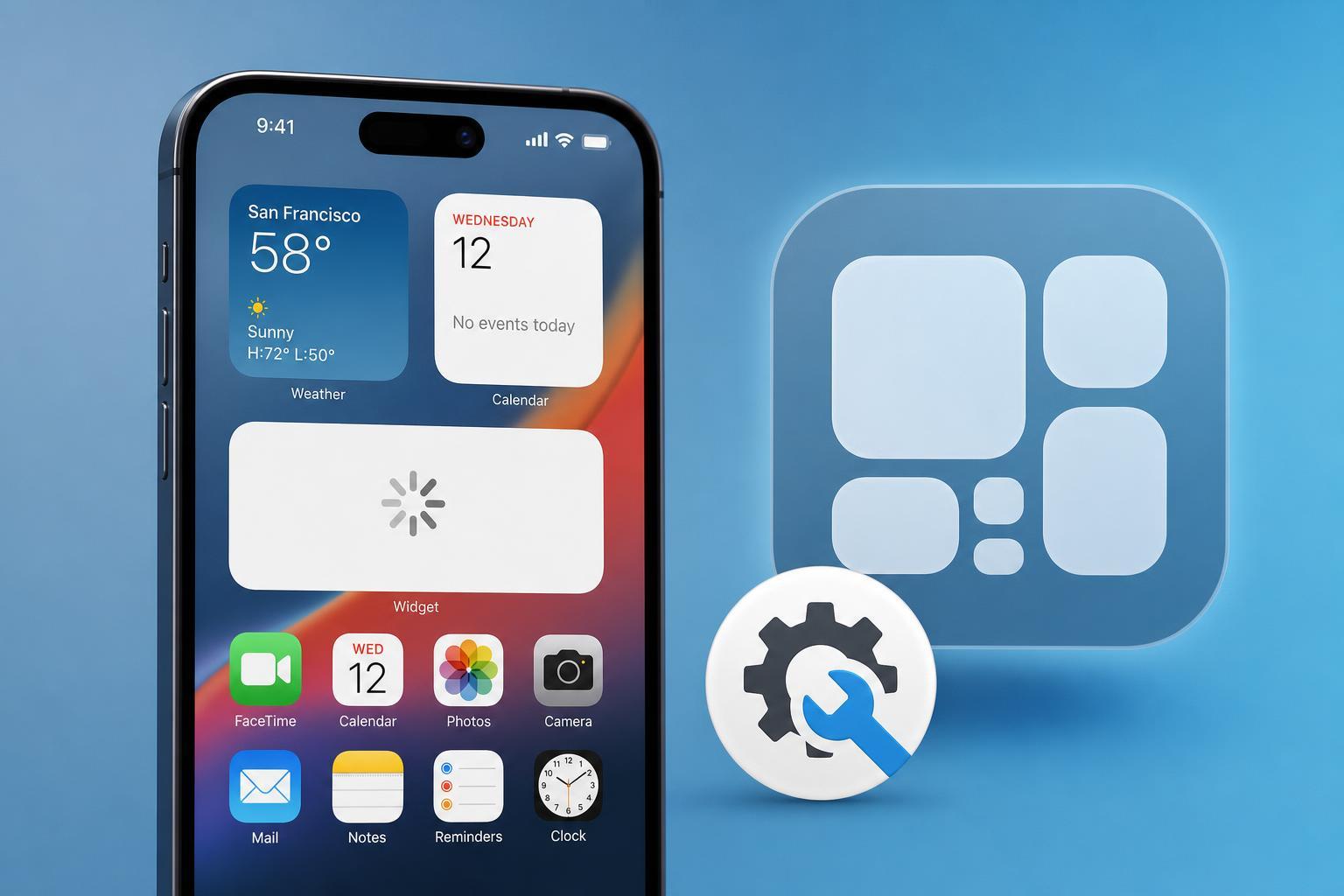
1. Check the App and Widget Permissions
Widgets can only update properly if the app behind them is allowed to run in the background and access the data it needs. If the app is restricted, the widget may still appear on your Home Screen or Lock Screen, but it will not refresh reliably.
- Open Settings and find the app that powers the widget, such as Weather, Calendar, Reminders, or a third-party app.
- Check whether the app has the right permissions, such as location access, contacts access, calendar access, or notifications, depending on the widget.
- Go to Settings > General > Background App Refresh and make sure it is enabled for the app.
- If the widget depends on internet data, confirm that the app is allowed to use mobile data as well as Wi-Fi.
- Open the app once manually to force it to sync, then return to the Home Screen and see if the widget updates.
2. Remove the Widget and Add It Again
If the widget is stuck due to a display glitch or cached data, removing it and adding it again often forces iPhone to rebuild it from scratch. This is one of the quickest fixes and is especially useful when only one widget is affected.
- Touch and hold the widget until the quick actions menu appears.
- Tap Remove Widget.
- If needed, confirm the removal.
- Press and hold an empty area on the Home Screen, then tap the plus button.
- Find the same widget again and add it back to the screen.
- Check whether it begins updating normally after a few minutes.
3. Update iPhone and the App
A widget may stop updating because of a bug in iOS or in the app that provides the widget. Installing the latest updates can fix refresh problems, compatibility issues, and broken widget behavior.
- Open Settings > General > Software Update and install any available iOS update.
- Open the App Store and check for updates to the app that controls the widget.
- After updating, open the app once to let it reconnect to your account or data source.
- Wait a little while and see whether the widget refreshes normally.
When Widget Updates Are Delayed, Not Broken
Some iPhone widgets are not meant to refresh instantly. Apple limits how often widgets can update to protect battery life and performance, so a short delay does not always mean something is wrong. If the widget eventually updates after a few minutes, it may be working as designed.
- Weather and news widgets may update less frequently than the app itself.
- Battery and fitness widgets can depend on paired devices or background sync.
- Calendar and reminders widgets may lag until the app gets background access.
- Third-party widgets may update only when the app is opened or when iPhone allows a background refresh.
If None of These Fixes Work
If every widget is failing to update, the issue may be wider than a single app. In that case, check your internet connection, make sure Low Power Mode is not limiting background activity too aggressively, and confirm that your iPhone still has enough storage for apps to sync normally.





