
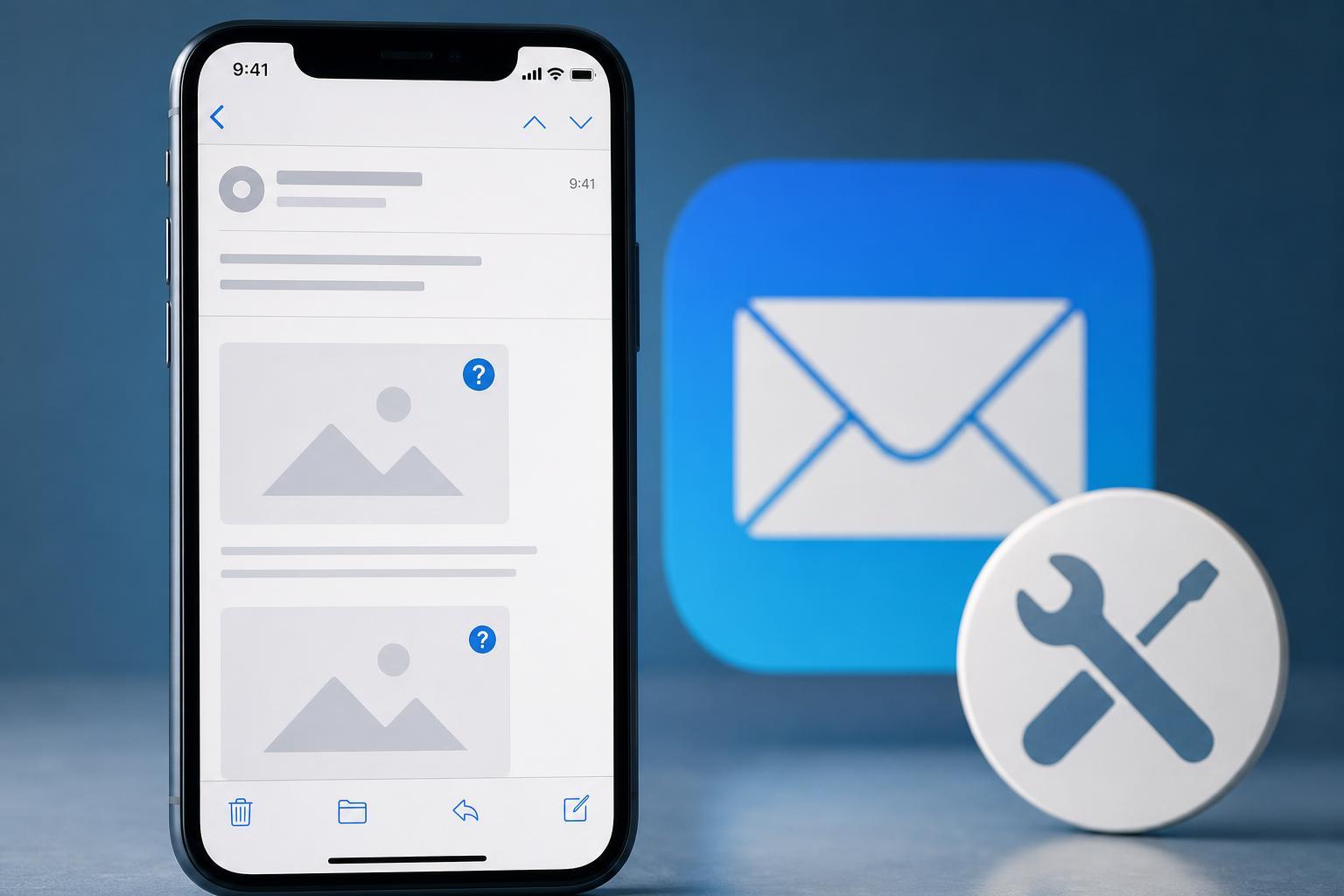
If images are missing in the iPhone Mail app, the problem is often caused by a privacy setting, a weak connection, or an email account issue rather than the message itself. In many cases, Mail is simply not allowed to download remote images automatically.
1. Check Your Internet Connection and Try Loading the Message Again
Mail needs an active internet connection to fetch images that are stored online inside the email. If you are on poor Wi-Fi, switching between Wi-Fi and cellular data, or using a connection with restrictions, images may not appear.
- Open Safari and visit a website to confirm your connection is working.
- If the page does not load properly, switch to a different Wi-Fi network or turn cellular data on.
- Return to the Mail app and reopen the message.
- If the email shows a banner such as 'This message has not been downloaded from the server,' wait a moment and try again when the connection is stable.
2. Allow Mail to Load Remote Images
By default, iPhone can hide remote images to help protect your privacy. When this setting is enabled, Mail does not automatically download images from the sender’s server until you allow it.
- Open the Settings app on your iPhone.
- Scroll down and tap Mail.
- Look for a privacy-related option such as Protect Mail Activity, then turn it off temporarily if you want to test whether it is blocking images.
- Go back to Mail and reopen the email to see whether the images appear.
- If available on your device or account setup, also check for a setting related to remote images or loading content from outside the message.
3. Remove and Re-add the Email Account if Mail Is Glitching
If images still do not load in multiple emails, the account connection itself may be stuck or syncing incorrectly. Re-adding the account can refresh Mail’s connection to the server without changing the messages stored on the provider’s side.
- Open Settings and go to Mail.
- Tap Accounts.
- Select the email account that has the problem.
- If you are comfortable doing so, remove the account from the iPhone.
- Restart the Mail app or your iPhone if needed, then add the account back using the correct sign-in details.
- Open several emails and check whether images now load normally.
If Images Still Won't Load
If the three fixes above do not help, the problem may be with the specific email itself. Some senders use blocked image hosting, expired image links, or message formats that do not display well in Mail. You can also test the same account in another mail app or webmail to see whether the images appear there.
- Open the same email in a different mail app if you use one.
- Sign in to your email in a web browser and check the message there.
- Ask the sender to resend the email in plain HTML if the message seems broken.
- Check for iOS updates if Mail is behaving oddly across multiple messages.
What to Try First
For most people, the fastest order is: confirm the connection, check whether Mail privacy settings are blocking remote images, and then refresh the email account if the problem continues. That approach solves the most common causes without making unnecessary changes.





