
If iCloud Drive is taking up too much space on your iPhone, the problem is usually not that your files are “stuck” in the cloud. More often, the Files app, app-specific downloads, or offline copies are keeping extra data on the device. The good news is that you can usually free up space without deleting your files from iCloud itself.
This guide shows three practical ways to reduce the local storage used by iCloud Drive on an iPhone while keeping your files available online.
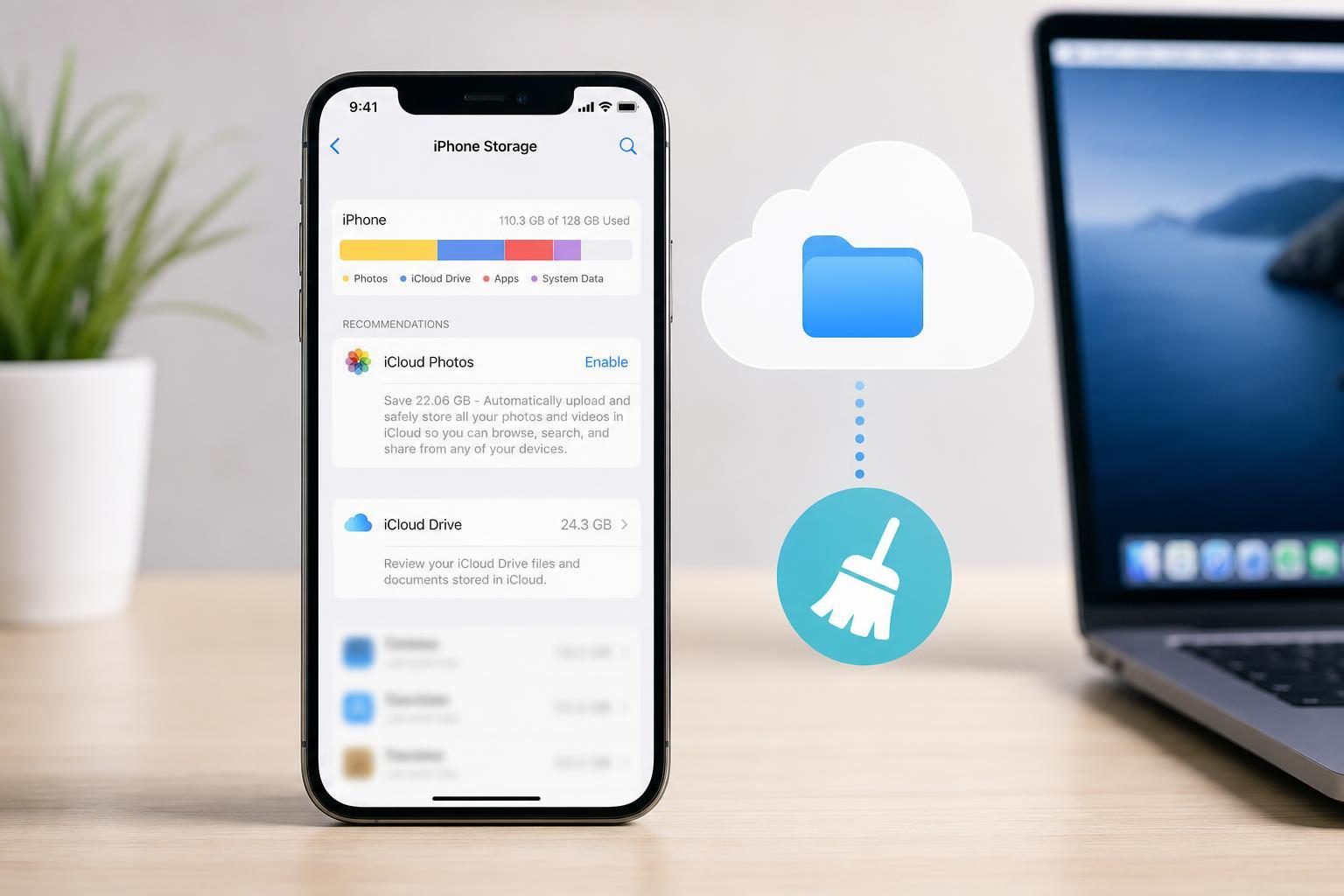
1. Remove Offline Copies from the Files App
iCloud Drive files can be downloaded to your iPhone for offline access. Those copies are stored locally, which means they can use valuable storage even though the files still live in iCloud.
- Open the Files app on your iPhone.
- Tap Browse, then open iCloud Drive.
- Find files or folders that you do not need stored offline.
- Press and hold the file or folder.
- Choose Remove Download or a similar option if it appears.
If you do not see a Remove Download option, the item may not currently be stored offline, or the available menu may vary slightly depending on your iOS version.
2. Check Which Apps Are Saving iCloud Drive Data on the iPhone
Some apps store documents in iCloud Drive or keep their own copies in the Files app. Over time, those app documents can become one of the biggest storage users on the phone.
- Open Settings.
- Tap General, then iPhone Storage.
- Wait for the storage list to finish loading.
- Look for apps that work with iCloud Drive or Files storage, such as document editors, note apps, or file managers.
- Tap an app to review how much space it uses and whether it has downloaded documents or cached files.
- If the app offers a cleanup option, use it to remove local data you no longer need.
For some apps, deleting a local copy inside the app does not delete the cloud version. For others, it may remove the file everywhere. Check the app’s own storage prompts carefully before deleting anything.
3. Turn Off iCloud Drive for Apps That Do Not Need It
If one or more apps are constantly syncing files you do not need on your iPhone, you may be able to stop them from using iCloud Drive altogether. This can reduce background syncing and prevent more files from being downloaded later.
- Open Settings and tap your Apple Account name at the top.
- Tap iCloud.
- Open iCloud Drive.
- Review the apps that use iCloud Drive or saved documents.
- Turn off iCloud Drive access for any app that does not need to sync with your iPhone.
Depending on your iOS version, the controls may appear under Apps Using iCloud or within the app’s own iCloud settings. If you only want fewer local files, you may not need to disable iCloud Drive completely—just remove downloads and limit the apps that keep storing data on the device.
How to Tell Whether the Space Is Really Local Storage or iCloud Storage
A common point of confusion is that iCloud Drive can appear to be “using space” on the iPhone even when the files are actually stored in the cloud. What you are usually seeing is local copies, cached data, or app documents tied to iCloud.
- If storage goes down after removing downloads, the problem was local copies.
- If the files reappear as needed and only take space while you use them, that is normal caching behavior.
- If deleting a file from Files removes it everywhere, it was still synced to iCloud and not just stored locally.
Which Fix Should You Try First?
- Start with Remove Download for large files in the Files app.
- Next, review iPhone Storage to find apps holding onto document data.
- Then disable iCloud Drive access for apps that no longer need to sync on the iPhone.
In most cases, removing offline copies is the fastest and safest fix. If the storage problem keeps coming back, the issue is usually an app that is repeatedly downloading or caching files you do not need on the phone.





