
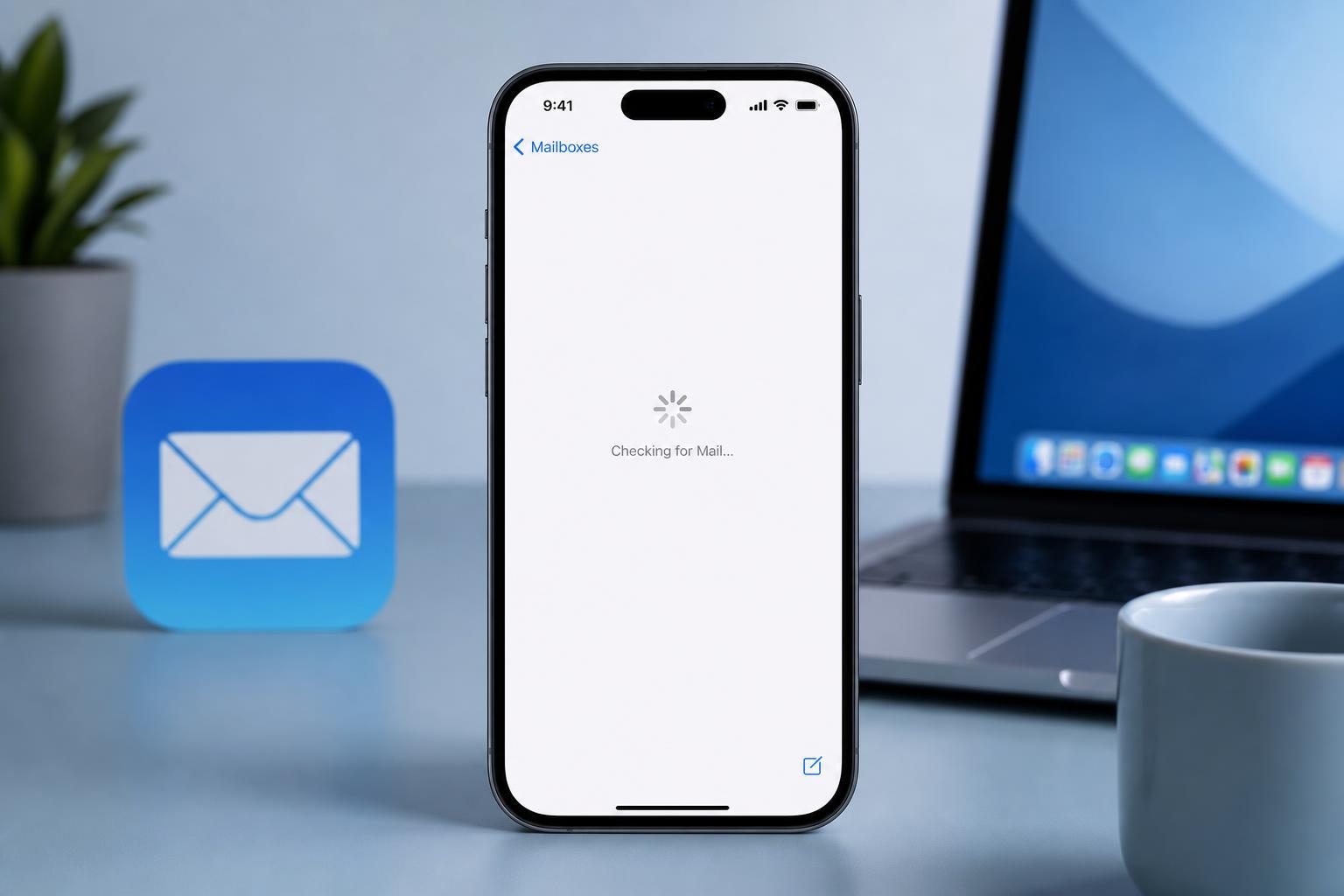
If Apple Mail on your iPhone keeps spinning on “Checking for Mail,” the app is usually having trouble connecting to your email server or syncing new messages. The issue can come from your network connection, account settings, or a temporary Mail app glitch.
The good news is that this problem is often fixable without deleting your account or resetting your iPhone. Start with the simplest checks first, then move to the more targeted fixes below.
1. Check Your Connection and Email Sync Settings
Apple Mail needs a stable internet connection and the right sync settings to fetch new messages. If the iPhone is offline, switching between Wi‑Fi and mobile data or changing Mail fetch behavior can stop Mail from getting stuck.
- Open Safari and try loading a website to confirm your internet connection is working.
- If pages do not load, switch between Wi‑Fi and cellular data to see whether one connection is failing.
- Go to Settings > Mail > Accounts > Fetch New Data.
- Make sure Push is enabled if your email provider supports it.
- If Push is not available, choose a Fetch schedule such as Every 15 Minutes or Manually depending on how often you want Mail to check for new messages.
- Open your email account settings and confirm the account is turned on for Mail sync.
2. Remove and Re-add the Problem Account
If the connection is fine but only one account is stuck on checking for mail, the account itself may need to be refreshed. Re-adding the account often fixes bad sign-in tokens, sync errors, or incorrect server details.
- Go to Settings > Mail > Accounts.
- Select the account that is having trouble.
- Tap Delete Account.
- Go back to Settings > Mail > Accounts and tap Add Account.
- Choose the email provider or select Other if needed.
- Sign in again and let iPhone re-sync the mailbox.
If this account is part of a Microsoft 365, Google Workspace, or other managed service, sign-in problems can also happen when the provider requires an updated login method. Re-adding the account forces iPhone to negotiate the connection again, which often clears the loop.
3. Reset the Mail App’s Local Data and Update iPhone
Sometimes Mail is not the real problem — its local cache or stored message data is. Clearing the app’s local state and making sure iOS is updated can resolve stubborn syncing issues.
- Force close the Mail app from the app switcher.
- Go to Settings > Mail > Accounts and briefly turn the affected account off, then back on.
- If the problem continues, restart your iPhone only after trying the steps above.
- Check for iOS updates in Settings > General > Software Update and install any available update.
- If Mail still gets stuck, remove and re-add the account again after updating iOS.
An iOS update can help if the issue is caused by a known Mail bug, an account compatibility problem, or a networking issue introduced by an older system version. Turning the account off and on can also force iPhone to rebuild the Mail sync connection without fully deleting the account.
How to Narrow Down the Cause
If you want to avoid trial and error, use the symptom pattern to identify the likely cause:
- All email apps are slow or stuck: likely a network or connectivity problem.
- Only one email account is affected: likely an account-specific sync or sign-in issue.
- The problem started after an iPhone update: the Mail app may need an iOS patch or account refresh.
- Mail works on another device but not on the iPhone: the issue is probably local to the phone.
When to Contact Your Email Provider
If none of the fixes help, the issue may be on the mail server side. Contact your provider if you see repeated password prompts, server errors, or missing messages across multiple devices. They can tell you whether the account needs a new app password, a security re-authentication, or a server-side reset.





