
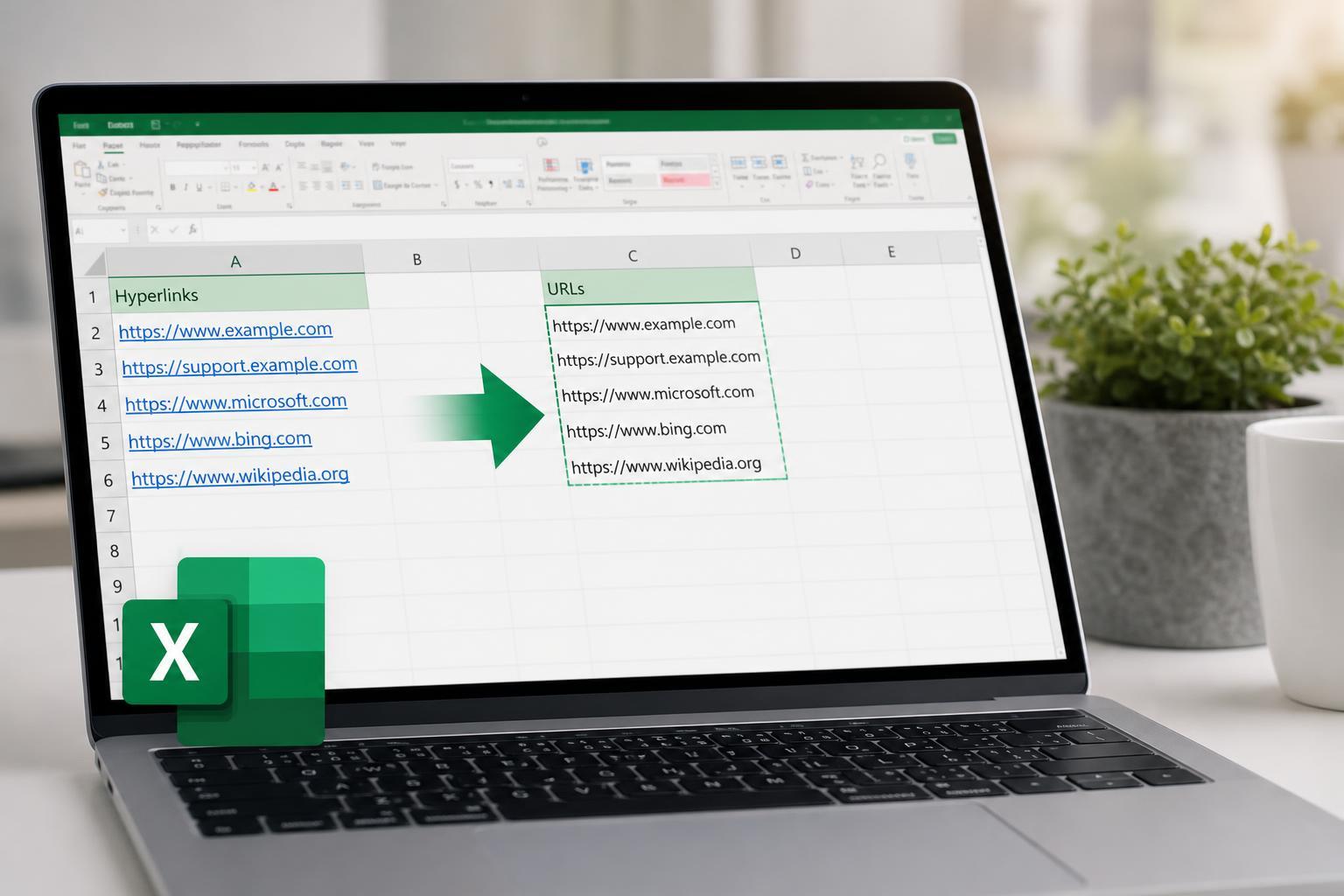
Excel hyperlinks are useful for making spreadsheets easier to navigate, but sometimes you need the underlying web address instead of the clickable text. That can happen when you are auditing links, cleaning imported data, or building a list of destinations from a worksheet full of hyperlinks.
There are a few good ways to extract a URL from a hyperlink in Microsoft Excel. The best method depends on whether the link was created with a formula, inserted manually, or comes from a worksheet you need to process in bulk.
Method 1: Use a Formula for Hyperlinks Created with HYPERLINK()
If the hyperlink was created with Excel’s HYPERLINK function, the destination can usually be recovered from the formula itself. This is the cleanest method because the URL is already part of the formula rather than stored separately in the cell format.
- Click the cell that contains the hyperlink.
- Look at the formula bar to see whether the cell uses the HYPERLINK function.
- If it does, copy the link target from the formula, which is the first argument inside HYPERLINK().
- For example, in =HYPERLINK("https://example.com","Visit site"), the URL is https://example.com.
Method 2: Use a VBA Function to Extract the Address from a Hyperlink Cell
For manually inserted hyperlinks, Excel does not provide a built-in worksheet formula that directly returns the link address. A small VBA user-defined function can read the hyperlink address from the cell and return it to the sheet.
- Press Alt + F11 to open the Visual Basic Editor.
- In the menu, choose Insert > Module.
- Paste the following code into the module: Function GetURL(cell As Range) As String If cell.Hyperlinks.Count > 0 Then GetURL = cell.Hyperlinks(1).Address Else GetURL = "" End If End Function
- Close the Visual Basic Editor and return to the worksheet.
- In a blank cell, enter =GetURL(A1), replacing A1 with the cell that contains the hyperlink.
If the hyperlink points to a web page, the function returns the URL. If the cell has no hyperlink, the result is blank.
Method 3: Extract URLs in Bulk with a Helper Column or Macro
If your workbook contains many hyperlinks, extracting them one at a time is slow. In that case, a helper solution is better. You can fill a formula down a column or use a macro to process every linked cell in a range.
- Use the VBA function from Method 2 in a helper column if you want a simple formula-based approach.
- Enter the function next to the first hyperlink cell.
- Copy the formula down alongside the rest of the link cells.
- If needed, copy the extracted results and paste them as values to keep only the URLs.
If you prefer automation, a short macro can loop through a selected range and write each hyperlink address into an adjacent column. That is especially helpful when the worksheet contains links in a single consistent column.
Which Method Should You Use?
- Use the formula method if the hyperlink was created with HYPERLINK().
- Use VBA if the hyperlink was inserted manually or you need a reusable extractor.
- Use a helper column or macro when you need to process many links quickly.
If you are unsure how the link was created, click the cell and check the formula bar first. If you see HYPERLINK(), you can read the URL directly from the formula. If not, VBA is usually the most reliable option.
Common Limitations to Keep in Mind
- Some hyperlinks point to file paths or internal workbook locations instead of web URLs.
- Display text and link destination are separate, so the visible text may not match the URL.
- Protected workbooks or locked macros can prevent VBA extraction.
- Copied links from other sources may include shortened URLs or tracking parameters.
If your goal is data cleanup, it is worth checking whether you need the full destination exactly as stored or just the readable domain. In many cases, extracting the full URL first makes it easier to standardize the data afterward.
A Simple Workflow for Most Users
- Check whether the hyperlink was created with HYPERLINK().
- If it was, copy the URL from the formula.
- If it was inserted manually, use a VBA function to return the address.
- For many cells, fill the extraction formula or macro output down the column.
- Paste the results as values if you want a permanent URL list.
That approach covers most Excel hyperlink extraction tasks without unnecessary complexity. Once you know whether the link is formula-based or manually inserted, choosing the right method becomes straightforward.





