
Chrome does not offer a single, universal setting that changes every background color in the browser, but you can still adjust the look in a few practical ways. Depending on what you want to change, you can modify the New Tab page, apply a Chrome theme, or use a browser setting or flag that affects how pages are displayed.
This guide explains three useful methods and helps you choose the one that best fits your goal, whether you want a darker interface, a custom color scheme, or a cleaner New Tab page.
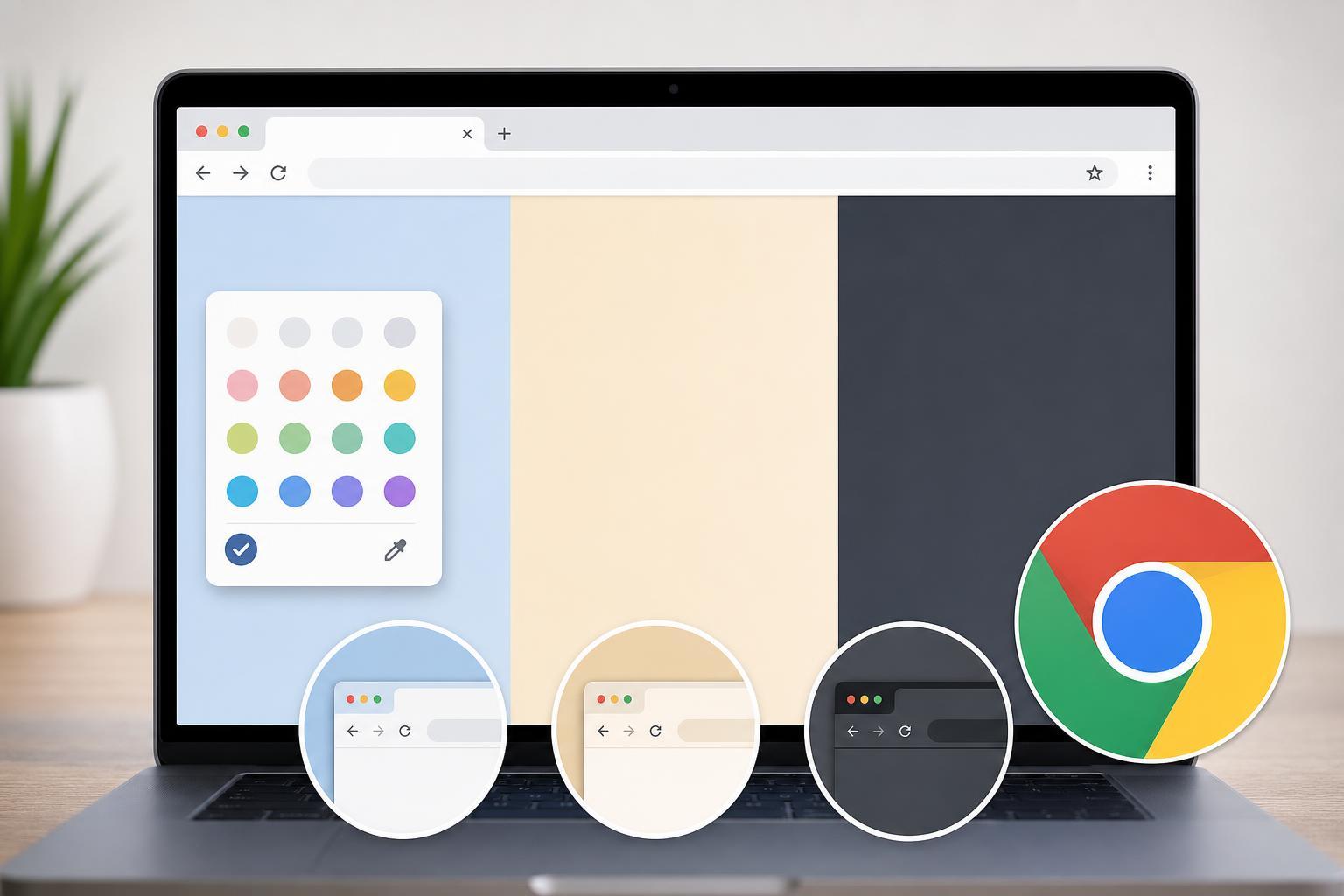
1. Change the New Tab Page Background Color
If you mainly want Chrome to open with a different background when you launch a new tab, this is the easiest option. Chrome lets you customize the New Tab page with built-in colors, background images, and shortcuts.
- Open a new tab in Chrome.
- Click Customize Chrome in the bottom-right corner of the New Tab page.
- Select Background, or open Color and theme depending on your Chrome version.
- Choose a preset color or theme color.
- Confirm the change and open another new tab to see the result.
2. Apply a Chrome Theme
A Chrome theme changes more than just the New Tab page. It can alter the browser frame, tab strip, and other interface elements, which is useful if you want Chrome to look consistently lighter, darker, or more colorful.
- Open Chrome and click the three-dot menu in the top-right corner.
- Go to Settings.
- Select Appearance.
- Click Theme, or choose Open Chrome Web Store to browse themes.
- Pick a theme and apply it to Chrome.
If your goal is to change the default background color of the browser interface itself, themes are usually the closest built-in option. Some themes focus on dark tones, while others use softer neutral colors or brighter accent shades.
3. Use Dark Mode or Force Dark Pages for a Darker Background
If your real goal is a darker default look while browsing, Chrome’s dark mode-related settings may help more than a simple color picker. These options do not change every page in the same way, but they can make Chrome and many websites easier on the eyes.
- Open Chrome Settings.
- Select Appearance.
- Turn on Dark mode if your operating system and Chrome version support it.
- If you want websites to appear darker as well, search Chrome’s settings for dark theme or open the browser’s experimental flags only if you understand the risks.
- Test a few websites to see whether the page colors look readable.
Which Method Should You Use?
- Use New Tab customization if you only want the page you see when opening a new tab to look different.
- Use a Chrome theme if you want the browser interface itself to have a different background color or style.
- Use dark mode options if you want a darker browsing experience overall, especially in low-light conditions.
What Chrome Cannot Do Natively
Chrome does not include a single setting that changes the background color of every webpage to one fixed color. Web pages control their own design, so changing page backgrounds globally usually requires special extensions, accessibility tools, or developer-level settings.
A Practical Alternative for Specific Websites
If your real target is one website rather than Chrome itself, check the site’s own theme or display options first. Many apps and web services now include light mode, dark mode, and custom theme choices that work better than browser-level changes.
For pages without built-in appearance controls, a browser extension designed for color filtering or dark mode may be more effective than Chrome’s standard settings. Just make sure the extension is reputable and only requests the permissions it truly needs.





