
If your microphone is too quiet, too loud, or picking up too much background noise, Windows gives you a few different ways to adjust the input level. The best method depends on whether you want a quick system-wide change or a more precise app-specific adjustment.
1. Change Microphone Volume in Windows Settings
The easiest place to start is the Windows Settings app. This is the quickest way to adjust the main microphone input level for most PCs.
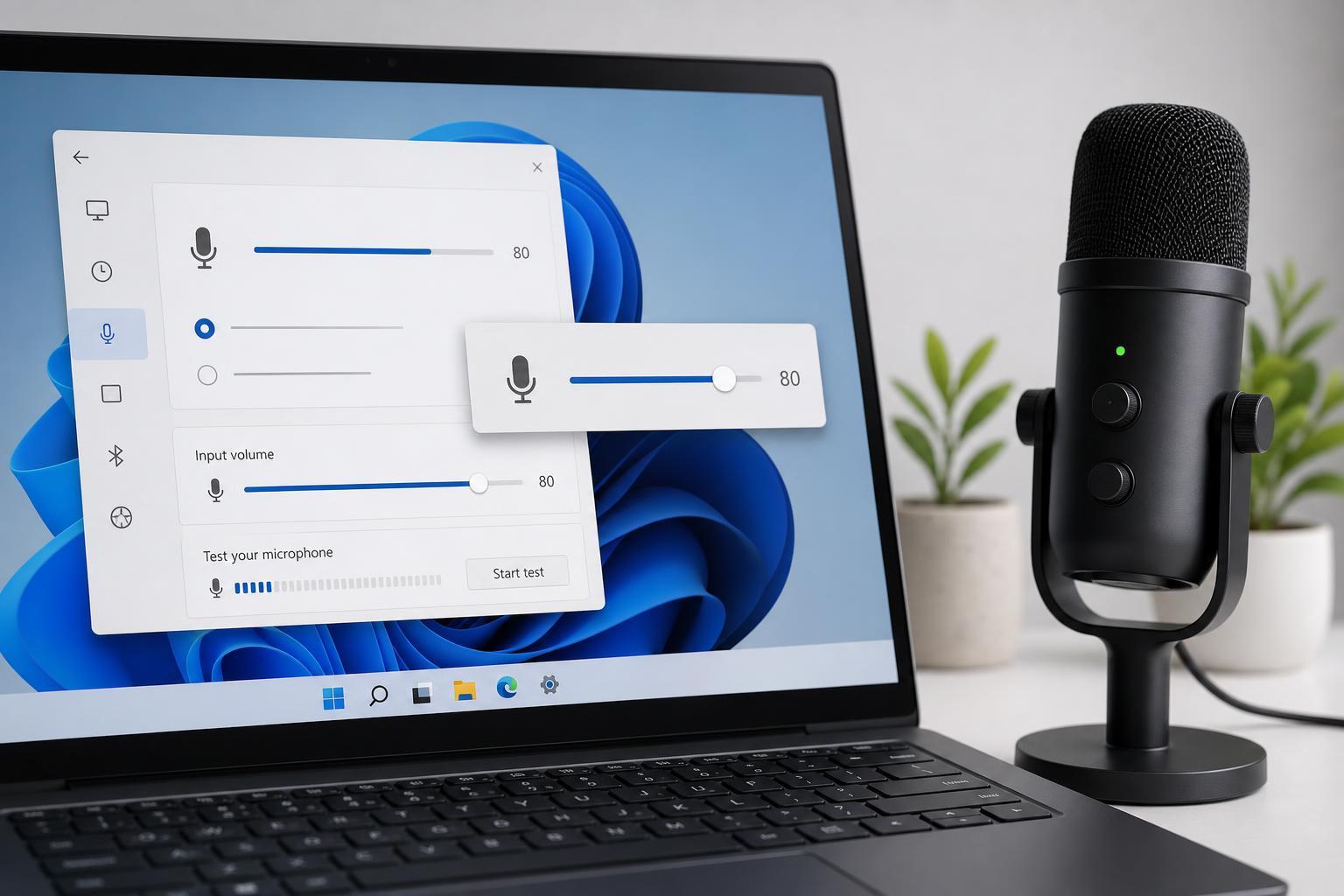
- Press Windows + I to open Settings.
- Go to System, then select Sound.
- Scroll down to the Input section and choose your microphone.
- Use the Input volume slider to raise or lower the microphone level.
- Test your microphone using the input level indicator or a voice app to make sure the level sounds right.
2. Adjust Microphone Levels in the Classic Sound Control Panel
Some microphones still offer more detailed controls in the older Sound control panel. This is useful if the Settings app does not give you enough control or if you want to check microphone boost options.
- Right-click the speaker icon in the taskbar and choose Sound settings or Open sound settings.
- In the related settings area, open More sound settings to launch the classic Sound window.
- Click the Recording tab.
- Select your microphone, then click Properties.
- Open the Levels tab.
- Move the Microphone slider and, if available, the Microphone Boost slider.
- Click Apply, then OK.
3. Change Microphone Volume Inside the App You’re Using
Many apps have their own microphone settings, and these can override or fine-tune the Windows-level input. This is especially important for games, video chat apps, and recording software.
- Discord and similar chat apps often include their own input volume controls and automatic gain options.
- Zoom, Teams, and other meeting apps may let you choose the microphone and adjust sensitivity or input level.
- Recording tools such as OBS or Audacity may have separate input gain meters and controls.
- Games with voice chat may include a microphone slider in their audio or voice settings.
If Windows is set correctly but one app still sounds wrong, the app’s own microphone control is often the missing piece.
How to Tell Which Method You Need
If your microphone is wrong everywhere on the PC, change the Windows input volume first. If only one app has a problem, check that app’s audio settings. If the sound is still weak after that, open the classic Sound panel and look for Microphone Boost or driver-specific options.
When Microphone Volume Changes Do Not Seem to Work
- The wrong input device is selected in Windows or in the app.
- The microphone is muted on the headset, keyboard, or inline cable control.
- The app has its own input sensitivity setting that overrides Windows.
- The device driver is outdated or not fully compatible.
- The microphone hardware itself is too far away or picking up too little signal.
If none of the volume controls seem to make a difference, verify the selected input device first. That is often the reason people think the volume setting is broken when Windows is actually listening to a different microphone.
A Good Starting Point
For most users, the best order is simple: adjust the Windows Sound settings first, check the classic Levels tab if more control is needed, and then fine-tune the app you are using. That approach covers the most common microphone volume problems without changing anything unnecessary.





