
The WindowsApps folder is where Microsoft Store apps and related files are stored. It is protected by Windows, so opening it is not as simple as browsing to a normal folder.
If you need to inspect an app installation, move files for troubleshooting, or check how much space Store apps are using, there are a few safe ways to get in. The exact method you choose depends on whether you want to view the folder, take ownership of it, or just find where it is located.
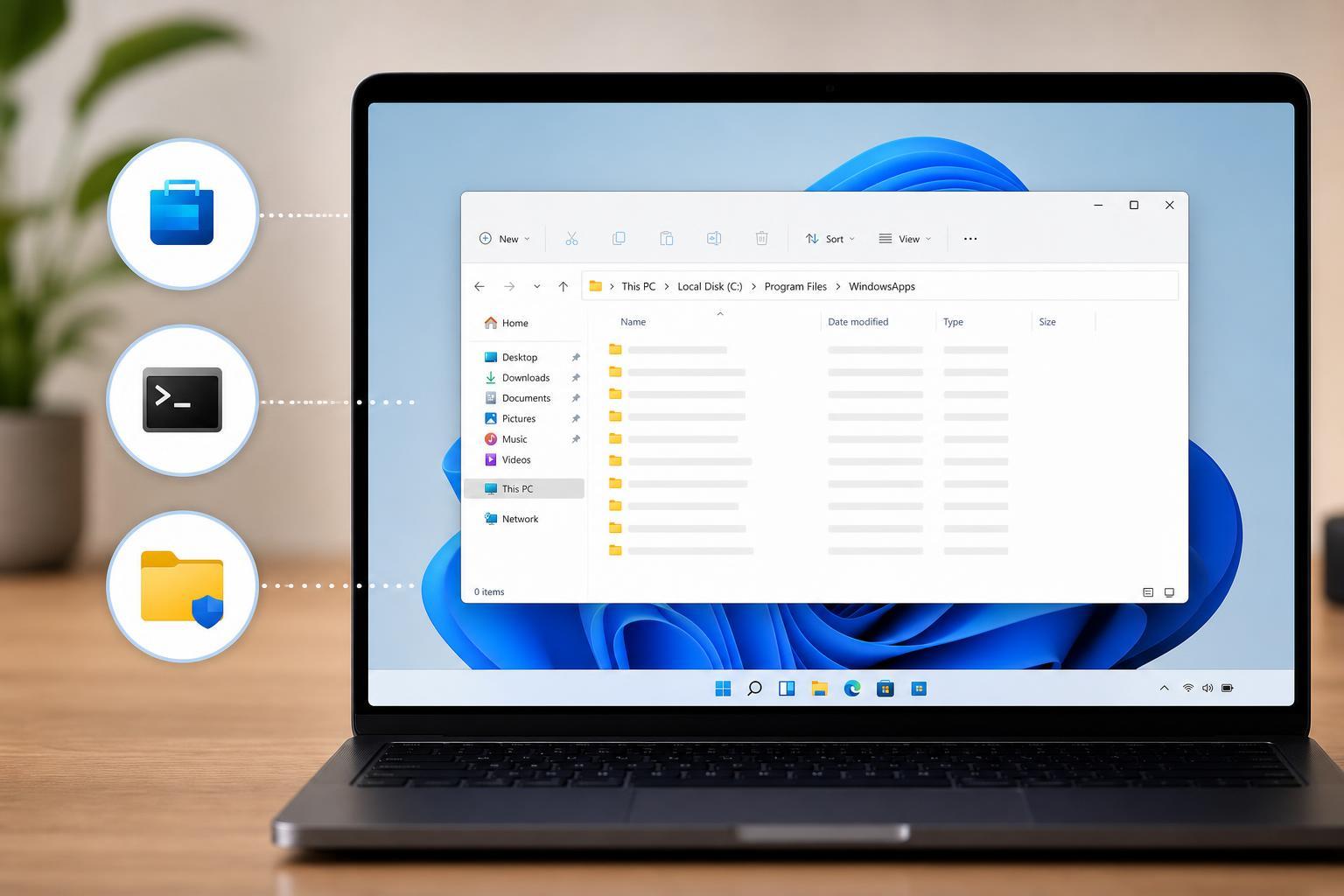
What the WindowsApps Folder Is
WindowsApps is a protected system folder that usually lives inside C:\Program Files. It contains app packages, resources, and support files for apps installed through the Microsoft Store, Xbox app, and some other Windows app frameworks.
Method 1: Open WindowsApps by Taking Ownership in File Explorer
This is the most direct way to access the folder if you need to browse its contents in File Explorer. It changes the folder permissions so your account can open it.
- Open File Explorer and go to C:\Program Files.
- Find the WindowsApps folder. It may be hidden, so you may need to enable hidden items first.
- Right-click WindowsApps and choose Properties.
- Open the Security tab, then select Advanced.
- At the top of the Advanced Security Settings window, look for the Owner field and click Change.
- Type your account name, then click Check Names and select OK.
- Enable Replace owner on subcontainers and objects if it is available, then apply the changes.
- Return to the Security tab and grant your account the permissions you need, such as Read or Full control, if appropriate.
- Open the folder from File Explorer.
Method 2: Access WindowsApps with the Command Line
If you only need to inspect the folder briefly, using an elevated command prompt or PowerShell window can be more convenient than changing permissions through the interface.
- Right-click Start and open Windows Terminal, Command Prompt, or PowerShell as administrator.
- Run a command that lists the folder, such as: dir "C:\Program Files\WindowsApps".
- If access is denied, you may need to adjust ownership or permissions before you can browse deeper into the folder.
- When finished, close the terminal window.
Method 3: Use Folder Properties to Find the Path, Then Open It
Sometimes you do not need to fully unlock WindowsApps right away. You may only need to confirm where it is stored or check how much disk space it uses.
- Open File Explorer and browse to C:\Program Files.
- If the folder is hidden, turn on Hidden items from the View menu.
- Right-click WindowsApps and open Properties.
- Use the General tab to view the folder location, size, and basic information.
- If needed, follow the security steps to gain access afterward.
What to Do If You Still Cannot Open It
If Windows still blocks access after you try one of these methods, the most common reasons are missing administrator rights, folder permissions that were not fully changed, or access being restricted by inheritance from parent folders.
- Make sure you are signed in with an administrator account.
- Confirm that hidden items are enabled in File Explorer.
- Check that ownership was applied to subfolders and objects if you changed it.
- Try opening File Explorer or Terminal with administrator privileges.
- Avoid using third-party permission tools unless you understand exactly what they change.
When You Should Avoid Opening WindowsApps
You usually do not need to open this folder for everyday use. It is best to leave it alone unless you are troubleshooting, checking installed app files, or cleaning up a specific problem.
- You only want to see which apps are installed
- You need to check a specific app version or file path
- You are diagnosing a Microsoft Store installation problem
- You are trying to understand why the folder is using so much storage
A Safer Alternative for Most Users
If your goal is simply to manage apps, Windows Settings and the Microsoft Store are usually better choices than browsing WindowsApps directly. They let you uninstall, repair, reset, or update apps without dealing with protected folder permissions.





