
The iPhone has a clipboard, but it does not have a built-in clipboard manager like some computers and Android phones. That means you can copy and paste text, images, and other content, but you cannot directly view a full clipboard history from iOS settings.
If you want to access what is currently on your clipboard, there are three practical approaches: paste it into an app, use a Shortcuts-based workaround, or rely on a third-party clipboard manager app.
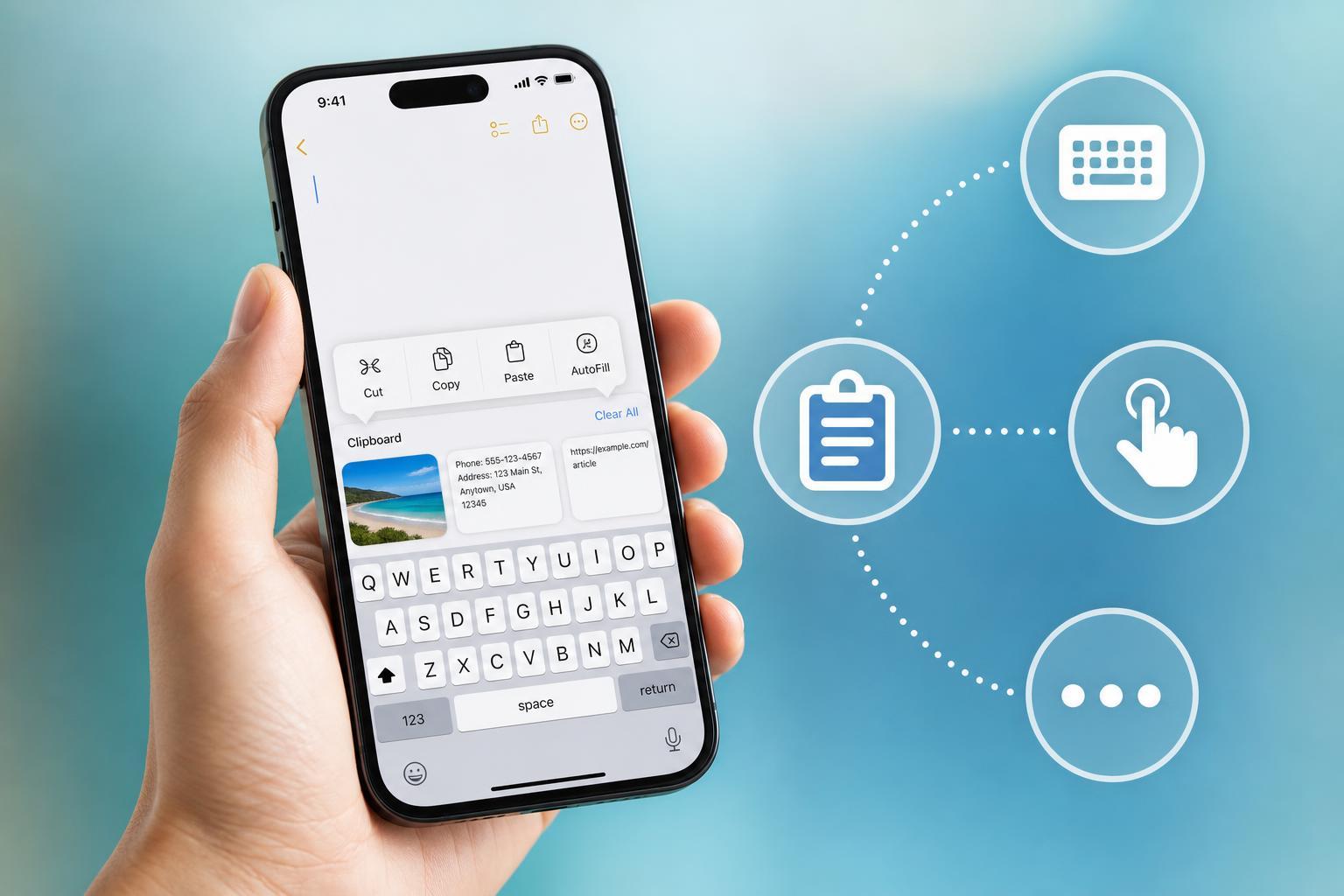
1. Paste the Clipboard Into an App
The simplest way to access the current clipboard on an iPhone is to paste it into Notes, Messages, Mail, or any app that accepts text or images. This is the closest thing iPhone has to a built-in clipboard viewer.
- Open an app where you can enter text, such as Notes.
- Tap in the text field to bring up the editing menu.
- Tap Paste.
- Check what appears in the document or message area.
If you copied text, it will appear as editable text. If you copied an image, it will paste as an image if the app supports it. If nothing pastes, the clipboard may be empty or the copied content may not be compatible with that app.
2. Use the Shortcuts App to Read Clipboard Content
The Shortcuts app can help you see or reuse clipboard contents with a custom workflow. This is useful if you want a quick way to display copied text, save it, or automate part of the process.
- Open the Shortcuts app.
- Create a new shortcut.
- Add the Get Clipboard action.
- Add a Show Result action to display the clipboard content.
- Run the shortcut after copying something to the clipboard.
This method is most effective for text. Some clipboard content, such as images or rich formatting, may not display in a simple readable way depending on the shortcut actions you use.
3. Install a Third-Party Clipboard Manager
If you want clipboard history instead of just the last copied item, a third-party clipboard manager is the best option. These apps can store multiple copied items and make it easier to find something you copied earlier.
- Clipboard history instead of only the latest copied item
- Searchable saved snippets
- Syncing across some Apple devices or platforms, depending on the app
- Faster reuse of repeated text, links, and notes
Before installing a clipboard manager, check its privacy policy, app reviews, and whether it stores data locally or in the cloud. Avoid using clipboard apps for sensitive information unless you trust how the app handles your data.
What iPhone Clipboard Can and Cannot Do
- You can copy and paste content normally across apps
- You cannot open a built-in clipboard history screen in iOS
- The clipboard may be overwritten when you copy something new
- Some apps only accept certain clipboard formats, such as text or images
Which Method Should You Use?
If you only need to check the most recent thing you copied, paste it into Notes or another app. If you want a quick reusable workflow, Shortcuts is a good middle ground. If you need a full clipboard history, a dedicated clipboard manager is the most practical choice.
For most iPhone users, the first method is enough. The other two are mainly useful if you copy and reuse content often or need better control over pasted items.





