
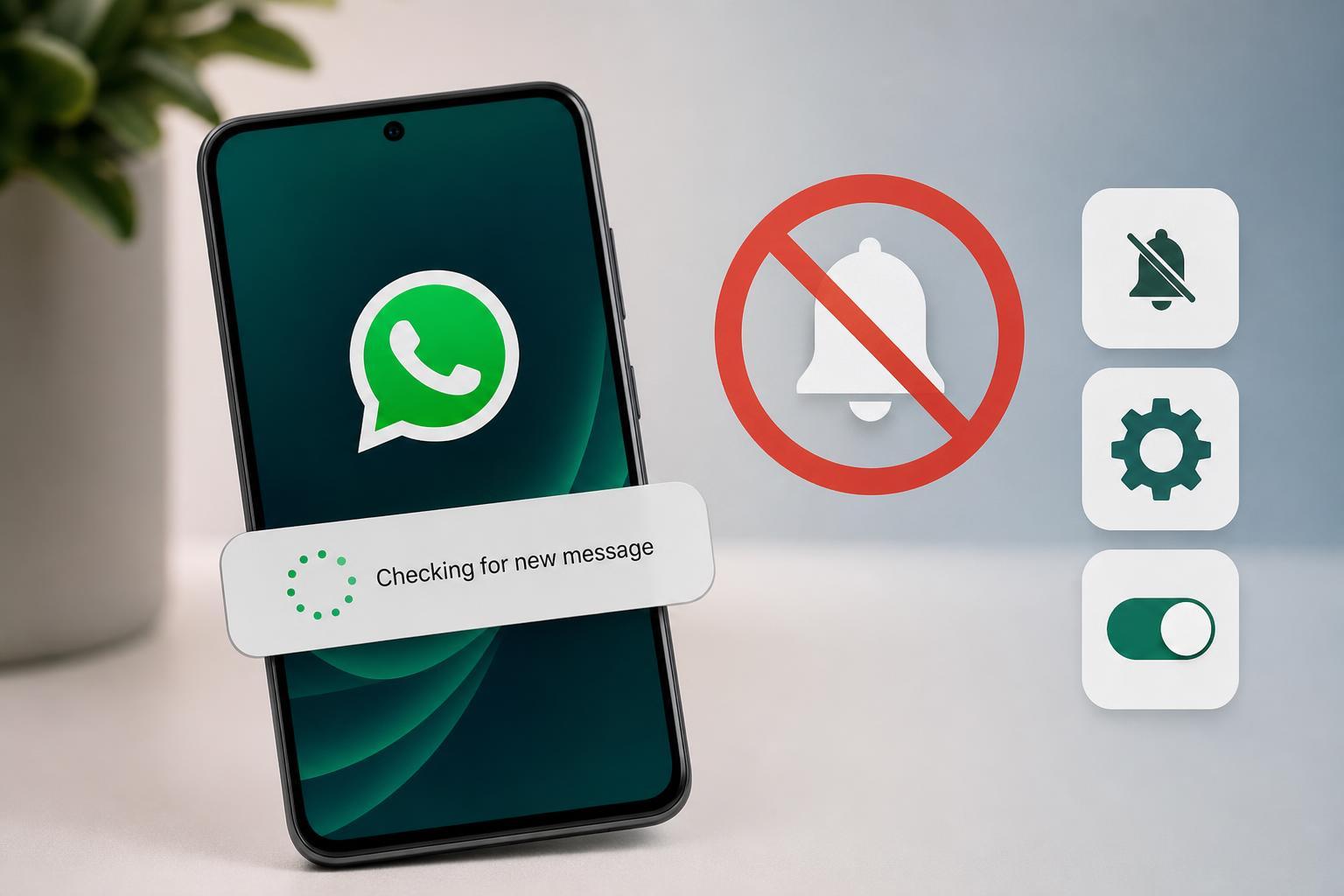
If WhatsApp notifications on your Android phone keep showing “Checking for new message” instead of the actual message preview, the app is usually having trouble fetching messages in the background. This can happen because of notification settings, battery optimization, or a connection problem between WhatsApp and your phone.
The good news is that this issue is often fixable without resetting your phone. These three methods cover the most common causes and should help you get normal WhatsApp notifications back.
1. Turn On WhatsApp’s Notification Access and App Notifications
If WhatsApp cannot show notifications correctly, the first thing to check is whether Android is still allowed to deliver them. Sometimes notification permissions are disabled for the app, or specific notification categories such as message alerts are turned off.
- Open Settings on your Android phone.
- Tap Apps or Apps & notifications.
- Find and open WhatsApp.
- Tap Notifications and make sure notifications are allowed.
- Check that message notifications, group notifications, and other relevant categories are turned on.
- If you use notification access controls, make sure WhatsApp is not being restricted there as well.
2. Remove Battery Optimization or Background Restrictions
Android’s battery-saving features can stop WhatsApp from running properly in the background. When that happens, the app may delay syncing new messages, which can cause notifications to hang on “Checking for new message.”
- Open Settings and go to Apps.
- Select WhatsApp.
- Tap Battery or Battery usage.
- Change the app to Unrestricted, or turn off battery optimization for WhatsApp.
- Also check Mobile data and Wi-Fi settings for the app if your phone has a background data restriction option.
- If your phone has a Device care, Battery, or App power management menu from the manufacturer, make sure WhatsApp is not being put to sleep.
3. Check WhatsApp’s Connection, Sync, and App Data
If notification settings are correct and battery restrictions are not the issue, the problem may be related to WhatsApp’s connection to your phone or its local app data. A weak network, broken sync state, or outdated app install can keep notifications from updating properly.
- Make sure your phone has a stable internet connection, preferably by testing both Wi-Fi and mobile data.
- Open WhatsApp and check whether messages are actually arriving in the app.
- Update WhatsApp from the Google Play Store if an update is available.
- If the problem continues, go to Settings > Apps > WhatsApp > Storage and clear cache first.
- If clearing the cache does not help, back up your chats before taking more drastic steps such as reinstalling the app.
Other Things That Can Help
- Check that WhatsApp is not muted for individual chats or groups.
- Make sure Data Saver is not blocking background activity.
- Confirm that Date and time are set automatically on your phone.
- If you use a third-party cleaner or task manager app, test WhatsApp without it.
- Sign out of linked devices only if you suspect sync problems across multiple sessions.
Which Fix Should You Try First?
Start with WhatsApp notifications, then move to battery optimization, and finally check connection and app data. In most cases, one of these three areas is responsible for the “Checking for new message” notification problem on Android.
If the issue keeps returning after you fix it, your phone’s power management settings are probably overriding WhatsApp in the background. On some Android models, that setting is hidden in the manufacturer’s battery or app protection menu rather than in the standard Android settings.





