
Bluetooth usually uses very little power on Android, but in some situations it can drain battery faster than expected. If your phone seems to lose charge when Bluetooth is enabled, the problem is often caused by connected devices, constant scanning, or a Bluetooth-related app or system setting.
This guide covers three useful ways to reduce Bluetooth battery drain on Android, starting with the simplest checks and moving to deeper fixes if the battery problem keeps coming back.
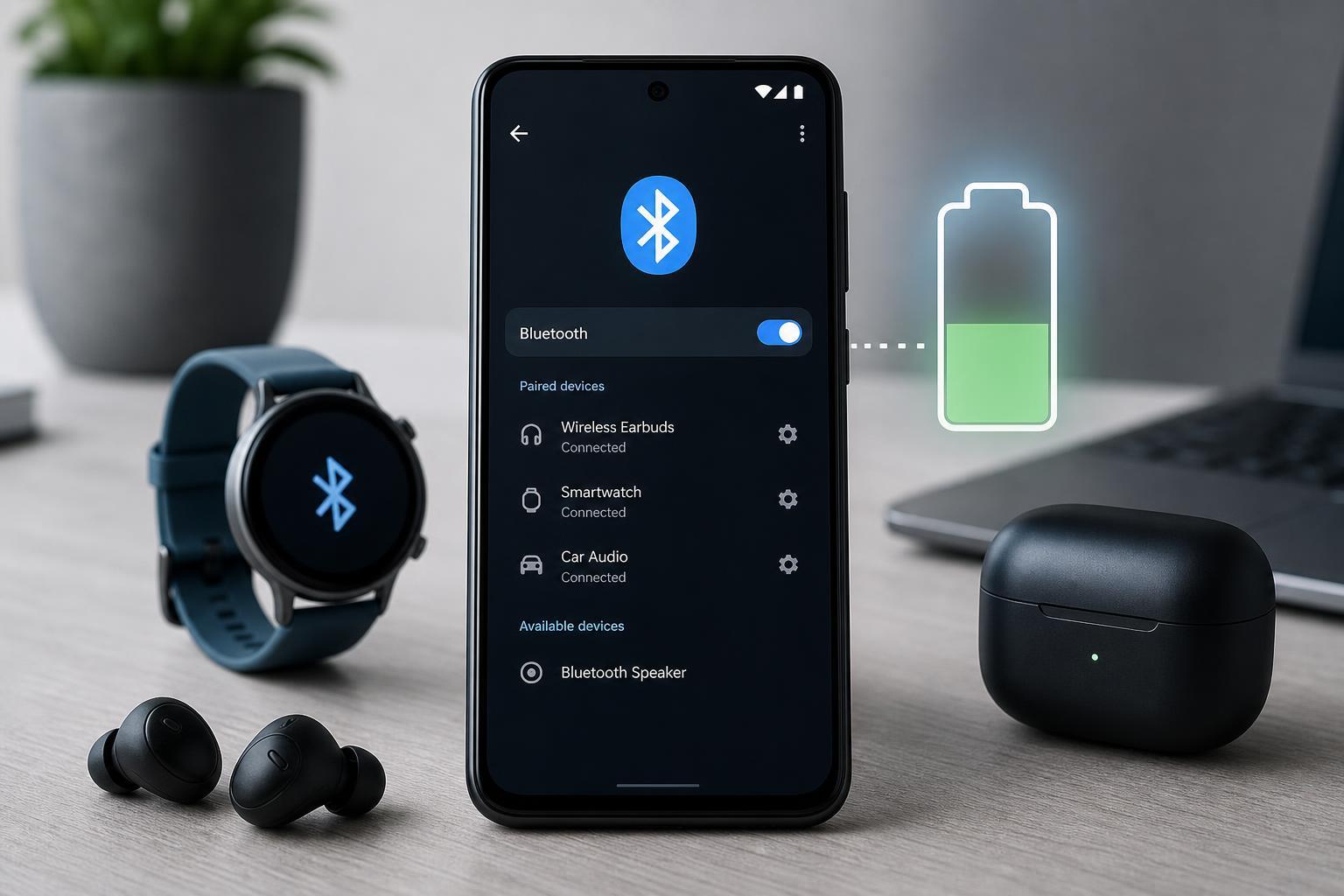
1. Turn Off Bluetooth Scanning and Nearby Device Scanning
Even when Bluetooth is switched off, some Android phones keep scanning for nearby devices to improve location accuracy or make pairing faster. That background scanning can use extra power, especially if your phone is constantly in range of earbuds, watches, trackers, or other accessories.
- Open Settings on your Android phone.
- Tap Location or search for scanning options in Settings.
- Look for Bluetooth scanning, Nearby device scanning, or similar options.
- Turn off any scanning features you do not need.
- If you use Bluetooth only occasionally, turn Bluetooth off when you are not actively using it.
2. Disconnect Devices You Are Not Actually Using
A connected accessory can cause more drain than Bluetooth itself. Smartwatches, fitness bands, earbuds, game controllers, car systems, and trackers may keep a connection active in the background, and some devices reconnect repeatedly if the signal is weak.
- Open Bluetooth settings on your phone.
- Review the list of paired and connected devices.
- Disconnect anything you are not using right now.
- If one device seems to cause unusual drain, unpair it and pair it again later to test.
- Keep the phone closer to the accessory if the connection is weak, since constant reconnecting can waste power.
- Old earbuds with a poor battery or unstable connection
- A smartwatch that syncs constantly in the background
- Car audio systems that reconnect repeatedly
- Nearby accessories that your phone keeps trying to rediscover
3. Reset Bluetooth and Network Settings if the Problem Keeps Returning
If Bluetooth drain continues even after you stop scanning and remove problematic devices, the Bluetooth configuration may be corrupted. Resetting Bluetooth or network settings can clear bad pairing data, stuck connections, or background connection behavior that keeps the radio active.
- Open Settings.
- Search for Reset, System, or General management, depending on your phone.
- Choose Reset network settings or Reset Wi-Fi, mobile & Bluetooth.
- Confirm the reset.
- After the reset, pair only the Bluetooth devices you actually use and test battery life for a full day if possible.
How to Tell Whether Bluetooth Is Really the Cause
Before spending time on deeper troubleshooting, check whether Bluetooth is actually responsible. Some battery apps and phone settings show how much power Bluetooth has used compared with the screen, mobile signal, and other apps. If Bluetooth appears high only when a specific accessory is connected, that accessory is probably the main issue.
- Battery drain is worse only when one accessory is connected
- Drain continues even when Bluetooth is on but nothing is paired
- The phone gets warmer near a watch, earbuds, or car system
- Battery improves quickly when Bluetooth is turned off
When a Factory Reset or Service Visit May Be Needed
If Bluetooth still drains battery after you have disabled scanning, tested your accessories, and reset network settings, the issue may be caused by a deeper software bug, a failing battery, or a hardware problem with the phone's wireless components. At that point, a factory reset may be worth considering if other problems are also happening.
If the battery is draining unusually fast even with Bluetooth off, the problem may not be Bluetooth at all. In that case, the next step is usually to check battery health, app activity, signal strength, and recent software changes.





