
Corrupt drivers can cause crashes, missing devices, poor performance, and strange hardware behavior in Windows 11 and Windows 10. The good news is that you can often fix the problem without reinstalling Windows. In this guide, you’ll learn three practical ways to repair corrupt drivers and get your PC working normally again.
Signs a Driver May Be Corrupt
Before you start, it helps to recognize the symptoms. A corrupt driver is often the reason when a device suddenly stops working after an update, starts showing errors in Device Manager, or causes repeated blue screens.
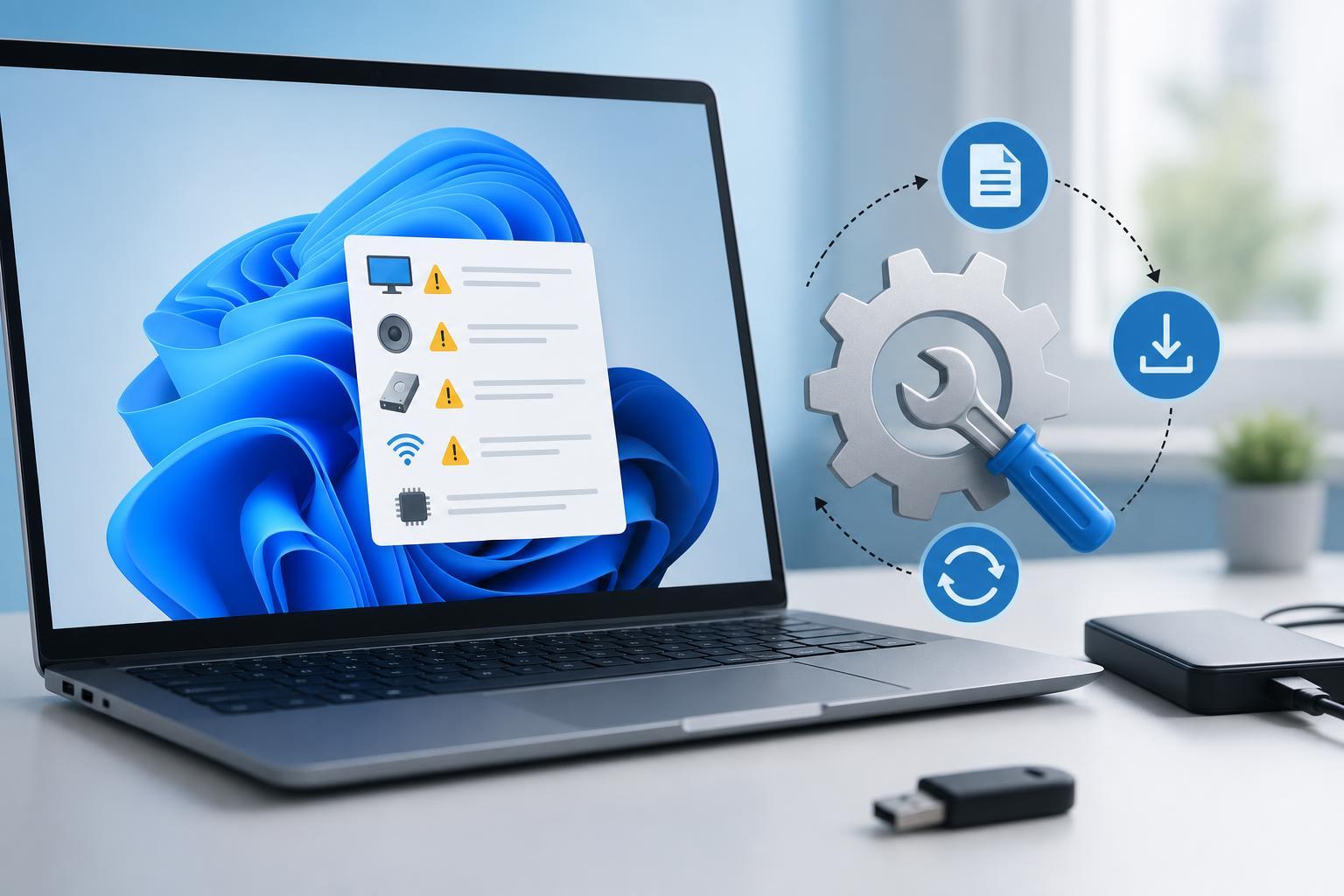
- A device disappears from Windows or shows a warning icon in Device Manager
- Blue screen errors mention a specific driver file
- A device works intermittently or behaves differently after a restart
- Windows says the driver could not be loaded or installed correctly
- Audio, network, display, or USB hardware starts failing without obvious hardware damage
1. Reinstall the Corrupt Driver from Device Manager
The simplest fix is often to remove the broken driver and let Windows install it again. This works well when the installed driver files are damaged or the current installation is incomplete.
- Right-click the Start button and open Device Manager.
- Find the device that is causing problems.
- Right-click the device and choose Uninstall device.
- If you see an option to delete the driver software for this device, use it only if you plan to install a fresh copy afterward.
- Restart your PC or use the Action menu to scan for hardware changes.
- Check whether Windows reinstalled the device correctly.
2. Update or Roll Back the Driver
If the driver is not completely broken but is unstable or incompatible, updating it can replace damaged files and fix bugs. If the issue started right after a recent update, rolling back to the previous version may be the faster solution.
- Open Device Manager and right-click the affected device.
- Select Update driver and choose Search automatically for drivers.
- If Windows does not find a better driver, download the latest version from the device or PC manufacturer’s support page.
- Install the downloaded driver and restart if prompted.
- If the problem began after an update, open the device’s Properties window, go to the Driver tab, and select Roll Back Driver if the option is available.
3. Use Built-in Windows Repair Tools
If several drivers seem affected or Windows is showing broader system errors, the issue may go beyond one device driver. Windows includes repair tools that can fix system files and help clear out corruption that affects drivers too.
- Open Command Prompt or Windows Terminal as an administrator.
- Run System File Checker by typing: sfc /scannow
- If Windows reports problems it could not fix, run: DISM /Online /Cleanup-Image /RestoreHealth
- Restart after the repairs finish and test the affected hardware again.
SFC checks protected system files, while DISM repairs the Windows image used to restore those files. These tools are especially useful when driver problems are tied to damaged Windows components rather than the driver package alone.
When to Check for Hardware Problems
If reinstalling, updating, and repairing Windows do not help, the device itself may be failing. Loose cables, damaged ports, failing storage, bad RAM, or a defective peripheral can all look like driver corruption.
- The same problem happens on another PC
- The device disconnects physically or only works in one port
- Windows repeatedly reinstalls the driver but the fault returns
- The device fails even after a clean driver install
- You see storage errors, random freezes, or other signs of hardware instability
How to Avoid Driver Corruption in the Future
Once you have fixed the problem, a few habits can reduce the chance of it happening again. Keep drivers updated from trusted sources, avoid installing random driver tools, and be cautious with system-cleaning utilities that claim to “repair” everything automatically.
- Use Windows Update for routine driver updates when appropriate
- Get graphics, chipset, audio, and network drivers from the PC or device manufacturer
- Create a restore point before major driver or BIOS changes
- Avoid unofficial driver download sites
- Do not force-install drivers meant for a different Windows version or hardware model
Which Fix Should You Try First?
If one device is broken, start by uninstalling and reinstalling that driver in Device Manager. If the problem began after a recent update, try rolling back the driver. If several hardware-related errors are appearing at once, run SFC and DISM to repair Windows system files. If none of those steps help, focus on the hardware itself.





