
If photos you deleted on your iPhone keep showing up again, the problem is usually caused by syncing rather than the phone ignoring your delete request. In most cases, the photo is still stored in iCloud, another Apple device, or the Recently Deleted album.
This guide walks through the three most effective fixes, starting with the most common cause: photo syncing across Apple devices.
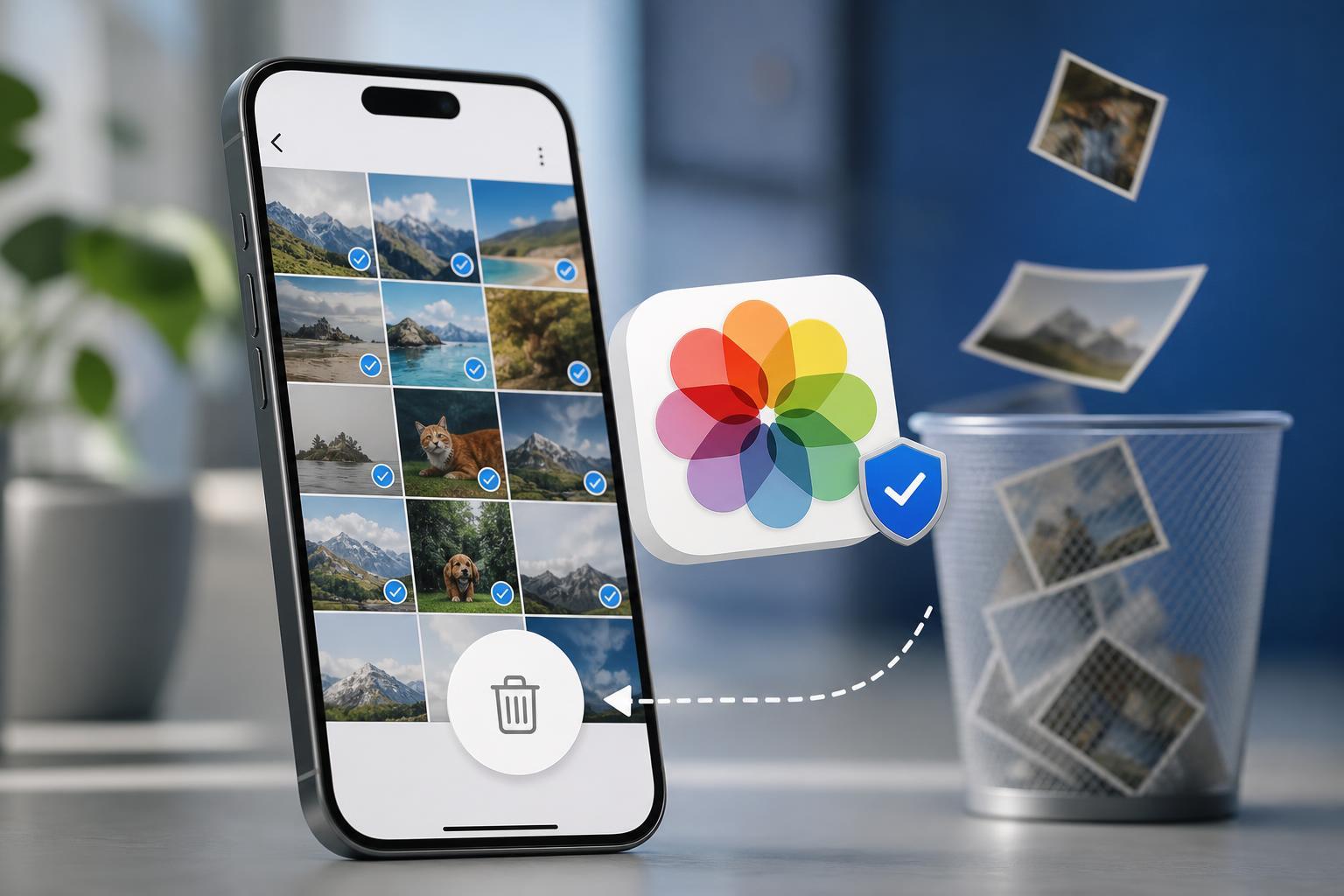
1. Make Sure the Photo Was Deleted Everywhere, Not Just on One Device
If you use iCloud Photos, deleting a picture on your iPhone also deletes it from every device signed in to the same Apple ID. The reverse is also true: if another iPhone, iPad, or Mac still has the photo and later syncs, it can appear to come back.
- Open the Photos app on each Apple device you use.
- Check whether the photo is still present on another device.
- Delete it from every device that is signed in to the same Apple ID.
- Connect the device to Wi-Fi and give it time to finish syncing.
- Reopen Photos on your iPhone and check whether the image is still there.
2. Check the Recently Deleted Album
Deleted photos are not removed immediately. Apple keeps them in the Recently Deleted album for a short period so you can recover them if needed. If a photo is still in that album, it may look like it returned even though it was never permanently erased.
- Open the Photos app.
- Tap Albums.
- Scroll to Recently Deleted under Utilities.
- Use Face ID, Touch ID, or your passcode if prompted.
- Check whether the photo is still there and remove it permanently if needed.
3. Fix iCloud Photos Sync Problems
Sometimes the photo is not truly back from the dead — the Photos app is showing a version that was not fully synced. A stalled upload, weak connection, or temporary iCloud issue can make deleted items reappear until sync finishes correctly.
- Make sure your iPhone is connected to Wi-Fi.
- Open Settings and tap your Apple ID name.
- Go to iCloud, then Photos.
- Confirm that iCloud Photos is turned on if you want library syncing enabled.
- Leave the iPhone on Wi-Fi and power for a while so Photos can finish syncing changes.
- If the problem keeps happening, check whether another device is repeatedly re-uploading the same photo.
If the Photo Still Comes Back
If you have checked Recently Deleted, confirmed the photo is gone from every Apple device, and waited for sync to settle, the issue may be caused by a specific app or backup workflow restoring it. For example, a third-party cloud service, a messaging app, or a restored backup can reintroduce older photos.
- Check whether the photo exists in another cloud service such as Google Photos or OneDrive.
- Review any recent iPhone restore or device migration.
- Look for apps that automatically save images back to the Camera Roll.
- Sign out of iCloud only if you understand the effect it will have on your photos and backups.
How to Prevent It from Happening Again
The easiest way to avoid repeat deletions is to know where your photos are actually stored. On an iPhone, that usually means checking iCloud Photos, other Apple devices, and any backup apps before assuming a photo is permanently gone.
- Delete unwanted photos from every synced Apple device.
- Empty Recently Deleted when you are sure you do not need the images.
- Be cautious with third-party photo backup apps that may restore images later.
- Keep track of which cloud service is managing your library.





