
If your iPhone speaker works for music, videos, or notifications but goes silent during calls, the problem is often caused by call audio routing, a blocked speaker grille, or a setting that is sending call audio somewhere else. The good news is that you can usually narrow it down quickly.
This guide covers three fixes that are worth trying first, in the right order, so you can figure out whether the issue is software, settings, or a hardware problem.
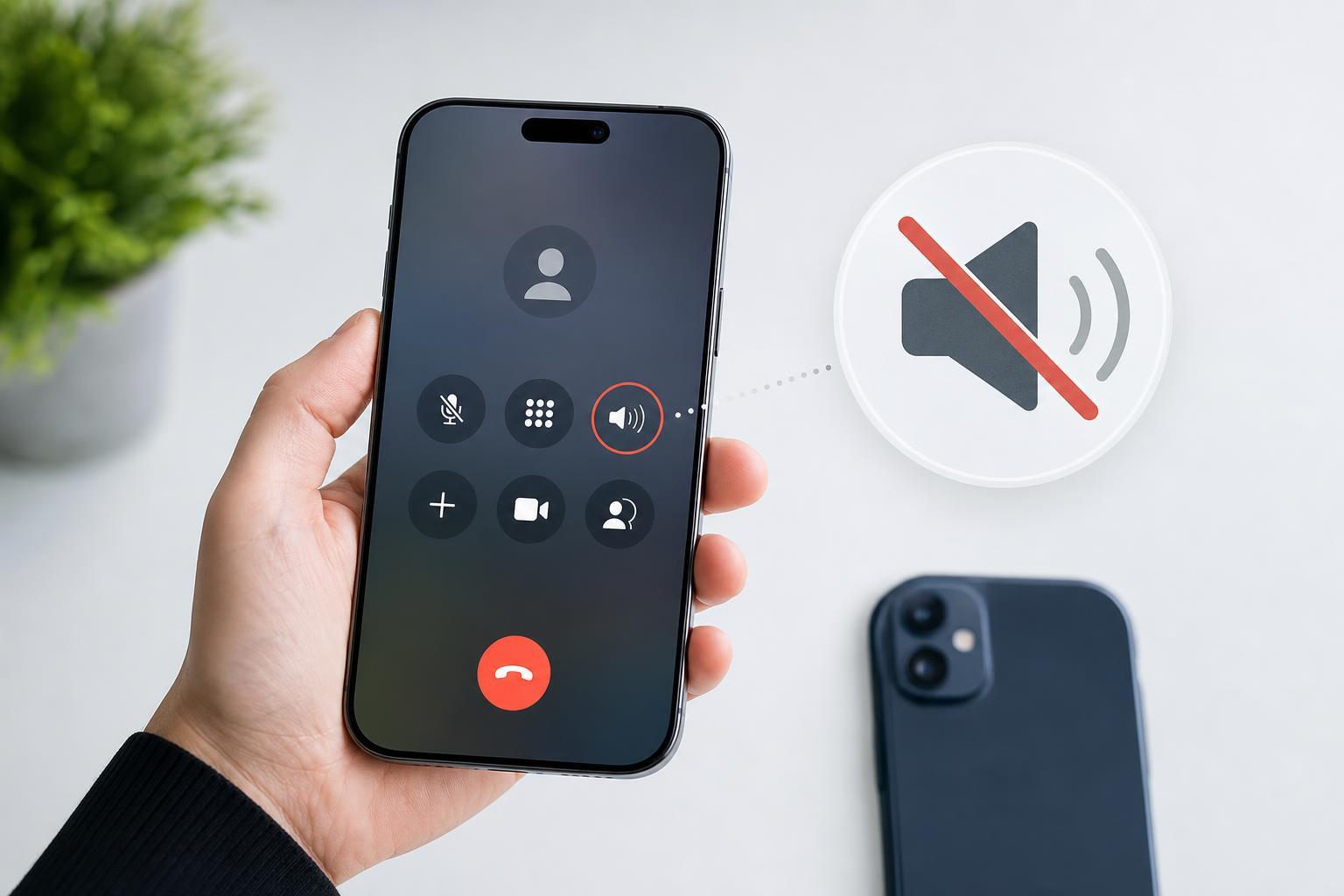
1. Check Where Call Audio Is Being Sent
During a call, iPhone can send audio to the handset earpiece, speakerphone, Bluetooth devices, or connected accessories. If the audio is being routed somewhere unexpected, it can seem like the speaker is not working even when it is.
- Start a phone call and look at the call screen.
- Tap the Audio button if it appears, or open the speaker options during the call.
- Select Speaker to send the call through the loudspeaker.
- If you use Bluetooth headphones, a car system, or a smartwatch, disconnect them and test the call again.
- If the sound returns, the issue was audio routing rather than the speaker itself.
2. Clean the Speaker and Check for Blockage
If call audio is quiet, muffled, or cuts out only on the loudspeaker, debris may be blocking the speaker grille. Pocket lint, dust, case edges, and screen protectors can all reduce sound quality.
- Remove the case and any accessory that could be covering the speaker area.
- Inspect the speaker grille at the bottom of the iPhone for dust or debris.
- Gently clean the grille with a soft, dry brush or a clean, dry toothbrush.
- Avoid using sharp objects, liquids, or compressed air at close range.
- Test another call after cleaning to see whether the volume or clarity improves.
3. Check Sound and Accessibility Settings
Some iPhone settings can make call audio seem broken when the speaker is actually working. A low ringer and alert volume, sound balance issue, or accessibility adjustment can make calls very hard to hear.
- Open Settings and go to Sounds & Haptics.
- Increase the ringer and alert volume if it is very low.
- Go to Settings > Accessibility > Audio & Visual.
- Make sure the audio balance slider is centered.
- If Mono Audio is enabled, test with it both on and off to see whether the sound changes.
- If you use Call Audio Routing, check that it is set to Automatic unless you intentionally changed it.
How to Tell If It Is a Hardware Problem
If call audio still does not work after checking routing, cleaning the speaker, and reviewing settings, the speaker itself may be damaged. Signs of a hardware issue include crackling, very low volume, sound that cuts in and out, or no sound at all even after a careful test.
- Speaker works in some apps but not during calls
- Sound only works when the phone is held at a certain angle
- Audio becomes distorted at higher volumes
- Calls are silent even when speakerphone is enabled
- The problem started after the phone was dropped or exposed to moisture
When to Get Help
If none of the three fixes helps, the problem may need professional repair. Apple Support or an authorized repair provider can test the speaker, microphone, and audio circuitry to confirm whether the issue is software-related or hardware-related.





