
If Dolby Vision is not working on your Amazon Fire TV Stick 4K, the problem is usually not the stick itself. In most cases, the issue comes from the TV’s HDMI settings, the Fire TV’s display output, or the content you are trying to watch.
This guide covers three fixes that solve the problem most often, starting with the quickest checks and moving to the settings that matter most for Dolby Vision.
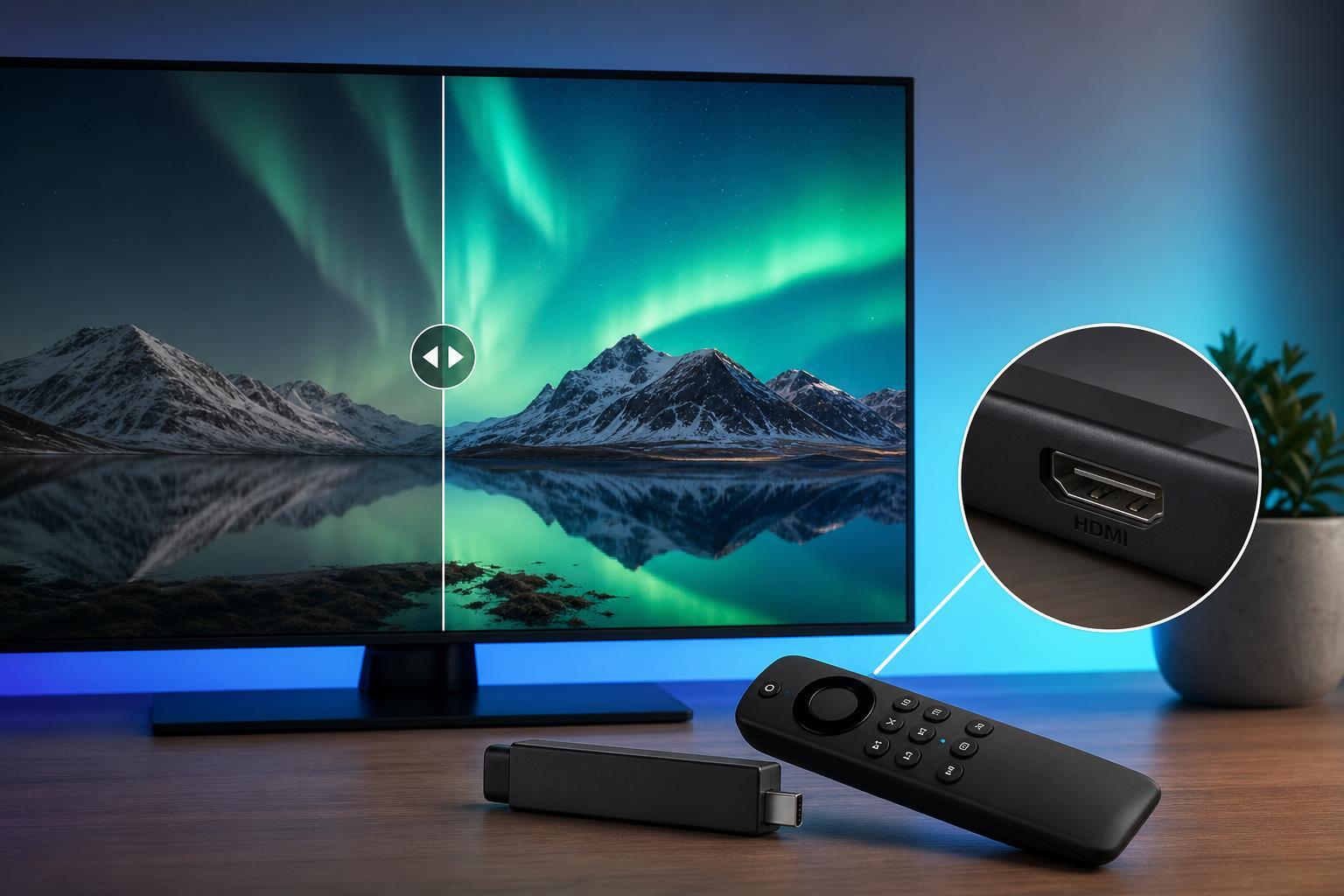
1. Make Sure the TV’s HDMI Port Supports Dolby Vision
Dolby Vision needs more than a 4K connection. Your TV must support Dolby Vision on the specific HDMI port the Fire TV Stick 4K is using, and that port may need enhanced mode or a similar setting enabled.
- Check your TV manual or on-screen input settings to confirm which HDMI ports support Dolby Vision.
- Move the Fire TV Stick 4K to a different HDMI port if the current one does not support Dolby Vision.
- Open your TV’s picture or input settings and enable the enhanced HDMI format, UHD color, or HDMI deep color option for that port.
- If your TV uses an HDMI extender or switch, connect the Fire TV Stick directly to the TV for testing.
2. Set the Fire TV Stick 4K to Match the Best Display Mode
If the Fire TV Stick is forcing the wrong output mode, Dolby Vision may not appear even when the TV supports it. The display settings should be set to automatic detection, and the highest available resolution should be selected only if your TV supports it properly.
- Go to Settings on the Fire TV home screen.
- Open Display & Sounds.
- Select Display.
- Set Video Resolution to Auto or the highest option your TV supports reliably.
- Run the display setup or calibration option if available on your Fire TV software version.
- If you see a Dolby Vision setting in the TV’s display choices, make sure it is allowed rather than disabled by a manual resolution override.
After changing the setting, launch a title that is known to support Dolby Vision. Some Fire TV menus or apps will still show only HDR or 4K unless the content itself actually includes Dolby Vision metadata.
3. Check the App, Title, and HDMI Signal Path
Even if your TV and Fire TV Stick are configured correctly, Dolby Vision will not show up unless the app and the specific video title support it. Some services offer Dolby Vision only on certain plans, devices, or playback versions.
- Confirm the movie or show is listed as Dolby Vision or HDR10/Dolby Vision in the app’s details.
- Update the streaming app from the Amazon Appstore if it has not been refreshed recently.
- Sign out of the app and sign back in if the service is not recognizing your playback entitlement.
- Remove HDMI splitters, older AV receivers, or capture devices from the signal path while testing.
- Try a different Dolby Vision title to rule out a problem with one specific stream.
What to Expect After the Fix
When Dolby Vision is working correctly, your TV should usually show a Dolby Vision indicator briefly when playback begins. The exact message varies by brand, but you should see a clear change in picture mode or HDR format.
If none of these fixes help, the remaining causes are usually firmware-related or hardware-related. At that point, checking for Fire TV updates, updating TV firmware, or testing the stick on another Dolby Vision TV can help narrow down whether the issue is with the streaming device or the display.





