
Background apps can run even when you are not actively using them, which can waste battery, use memory, and send data in the background. In Windows 11, there are a few different ways to limit or disable them depending on how much control you want.
This guide shows three practical methods you can use to stop background apps in Windows 11, from blocking individual apps to limiting them more broadly.
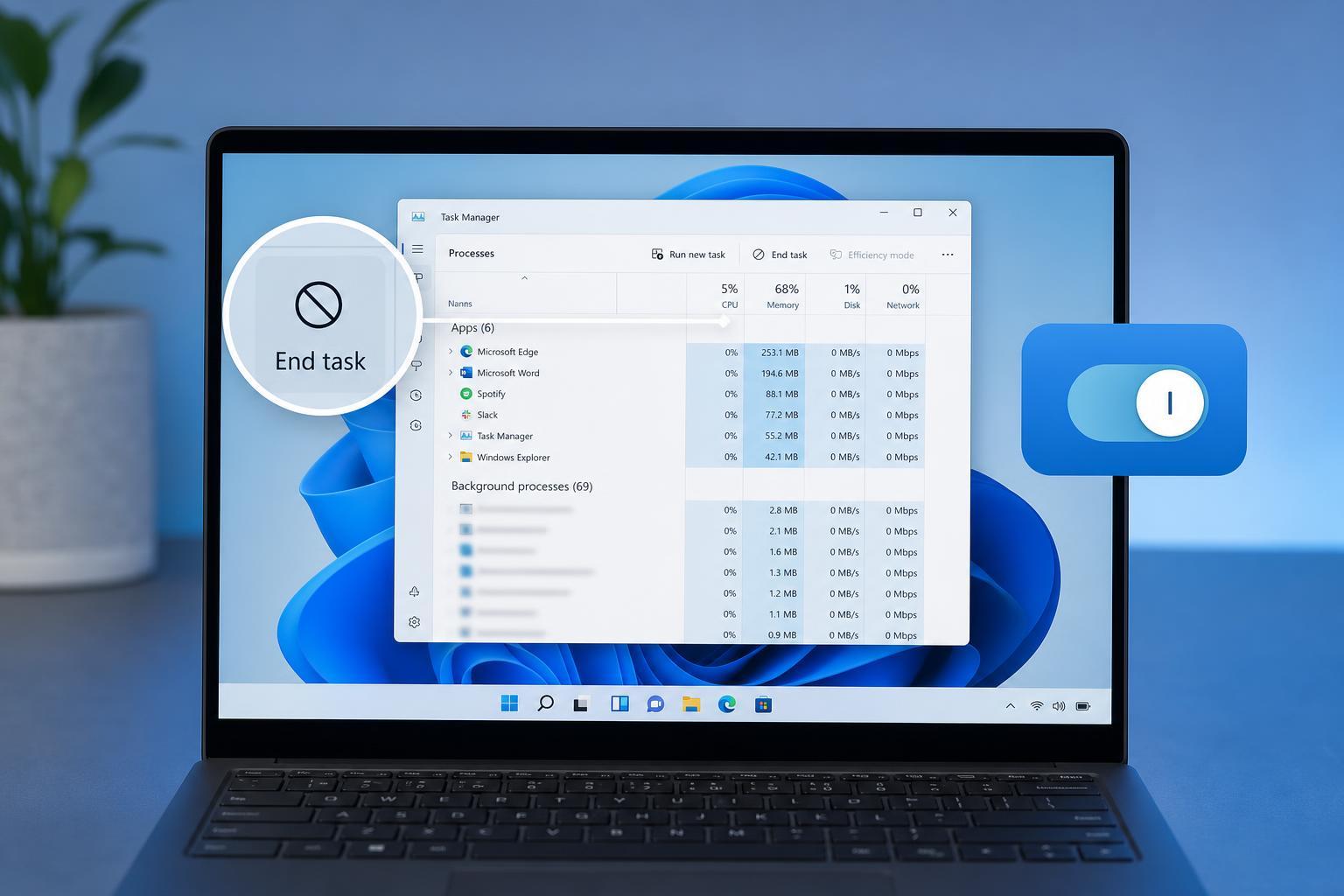
1. Disable Background Apps from Windows 11 App Settings
This is the simplest option if you only want to stop a specific app from running in the background. Not every app offers the same controls, but many Microsoft Store apps do.
- Open Settings by pressing Windows + I.
- Go to Apps, then select Installed apps.
- Find the app you want to change and click the three-dot menu next to it.
- Choose Advanced options, if available.
- Under Background apps permissions, set the app to Never.
If you do not see Advanced options or Background apps permissions, that app may not support this setting. In that case, try one of the other methods below.
2. Use Battery Settings to Reduce Background Activity
If you are mainly trying to save battery on a laptop, Windows 11 includes power-related controls that can reduce background activity automatically.
- Open Settings.
- Go to System, then select Power & battery.
- Open Battery saver or Battery usage, depending on what you want to adjust.
- Turn on Battery saver when you want Windows to reduce background activity.
- Check which apps are using the most battery and adjust their background behavior where possible.
3. Stop Apps from Running at Startup
Some apps do not run constantly in the background, but they do launch automatically when Windows starts. Turning off startup apps can make your PC feel lighter and reduce background activity right away.
- Right-click the taskbar and open Task Manager.
- Select the Startup apps section on the left.
- Look through the list for apps you do not need right away.
- Right-click an app and choose Disable, or select it and use the Disable button at the top.
This does not always stop every background process connected to the app, but it often prevents the app from using resources as soon as you sign in.
Which Method Should You Use?
- Use app background permissions if you only want to stop one Store app.
- Use Battery saver if your main goal is better laptop battery life.
- Use Startup apps if the program opens automatically when Windows starts and you do not need it right away.
How to Tell If a Background App Is Worth Disabling
If you are not sure where to start, look for apps that use a lot of memory, CPU, network, or battery but are not essential to your daily use. Common examples include chat apps, cloud sync tools, launchers, and helper utilities.
- Messaging or email apps you do not need live alerts from
- Cloud storage apps that you only use occasionally
- Game launchers you rarely open
- Software updaters and vendor utilities
- Trial apps or preinstalled apps you never use
Leave system tools, antivirus software, and anything required for your hardware to function alone unless you know exactly what it does.
A Good Place to Start
If you want the quickest improvement, disable startup apps first. If you are on a laptop and want longer battery life, turn on Battery saver next. If a specific app still keeps running in the background, check its app permissions in Settings and set it to Never where available.





