
Windows 11 keeps a clipboard history so you can reuse recently copied text, images, and other items. That is convenient, but it also means sensitive information can stay available longer than you want. If you need to clear it, Windows gives you a few straightforward ways to do it.
This guide shows three practical ways to clear clipboard history in Windows 11, from removing a single item to wiping the full history at once.
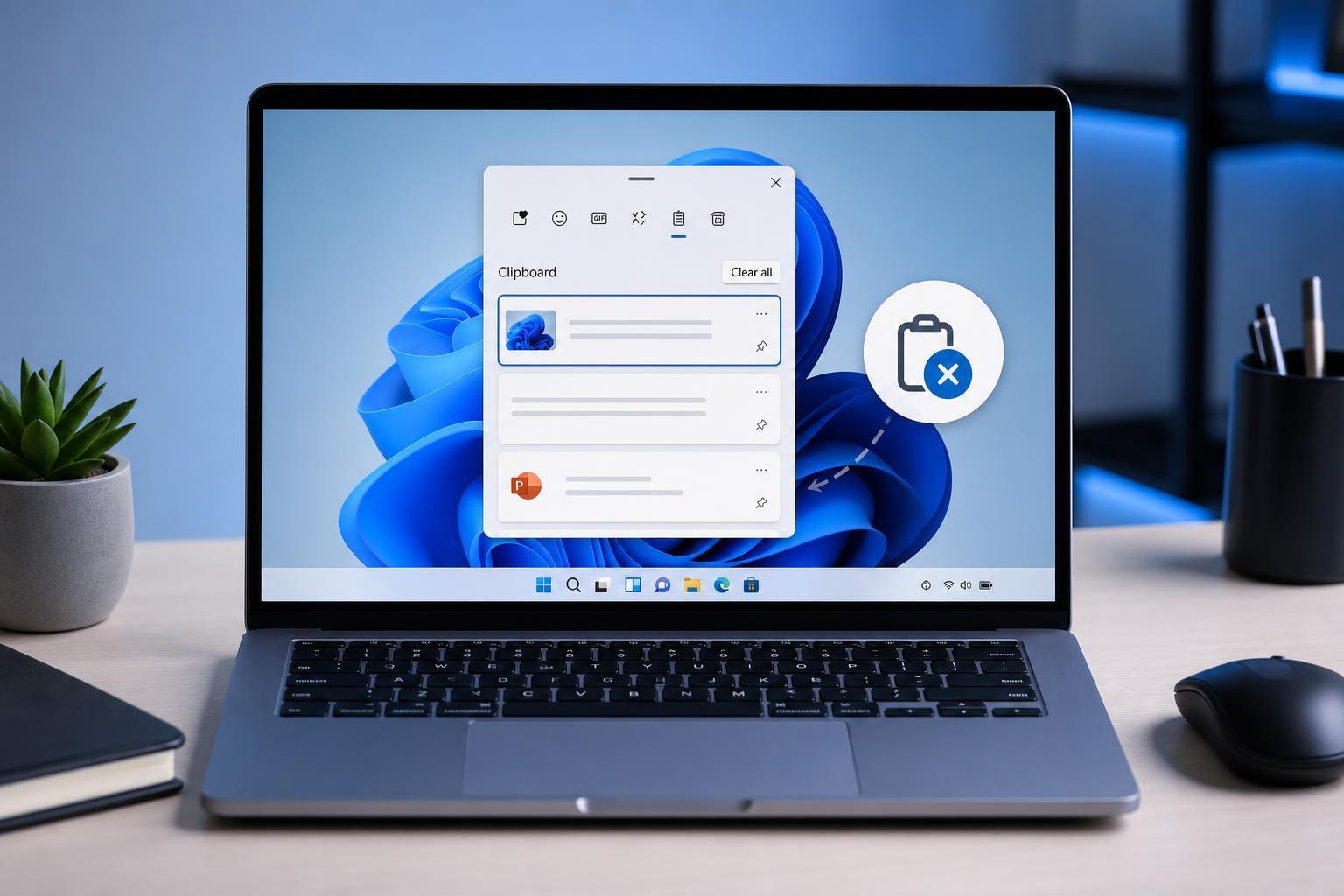
1. Delete a Single Clipboard Item
If you only want to remove one copied item, this is the quickest option. It is useful when you accidentally copied something private, such as a password, address, or code snippet.
- Press Windows + V to open Clipboard history.
- Find the item you want to remove.
- Click the three-dot menu next to that item.
- Select Delete.
2. Clear All Clipboard History from Settings
If you want to remove everything stored in clipboard history, Windows 11 includes a clear-all option in Settings.
- Open Settings with Windows + I.
- Select System.
- Click Clipboard.
- Under Clear clipboard data, click Clear.
3. Turn Off Clipboard History to Prevent It from Saving Items
If you do not want Windows 11 to keep a clipboard history at all, you can turn the feature off. This is the best long-term option if you rarely use it or prefer more privacy.
- Open Settings.
- Go to System > Clipboard.
- Turn Clipboard history off.
Which Method Should You Use?
- Use Delete if you only need to remove one sensitive item.
- Use Clear in Settings if you want to wipe the whole clipboard history right now.
- Turn Clipboard history off if you want Windows to stop saving copied items altogether.
What Happens After You Clear Clipboard History?
After you clear clipboard history, the items saved by Windows are removed from the history list. However, the current clipboard may still hold the most recently copied item until you copy something else. If you need to make sure nothing important remains, copy a harmless item such as a short piece of text after clearing.





