
Adjusting brightness on an external monitor in Windows 10 is not always as straightforward as changing a laptop screen. In many cases, the monitor controls its own brightness, while Windows only helps if the display and drivers support it.
This guide covers the three most reliable ways to change external monitor brightness in Windows 10, plus what to do if the brightness option is missing.
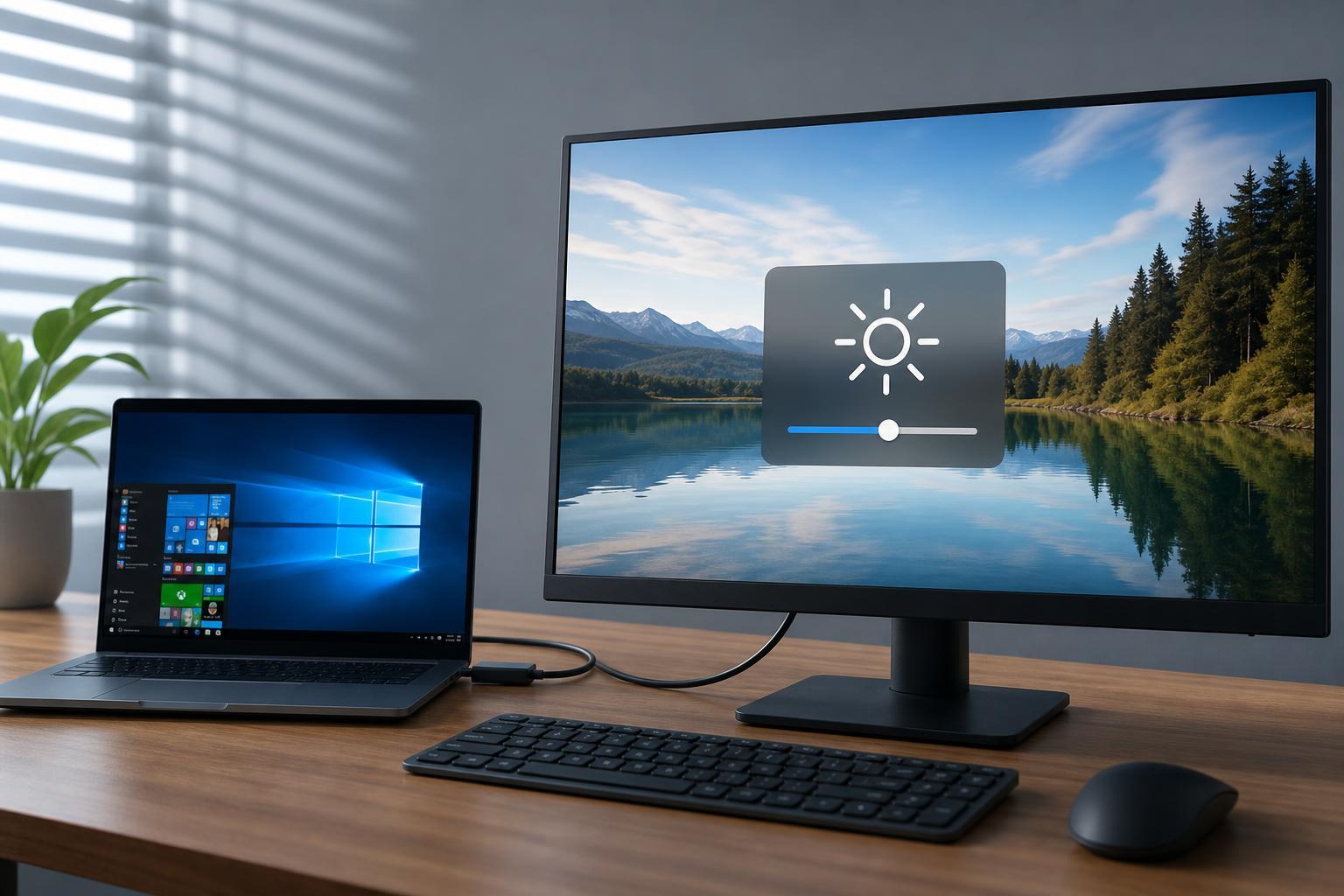
1. Use the Monitor’s Built-In Buttons or OSD Menu
The most reliable way to change brightness on an external monitor is usually through the monitor itself. Most displays have physical buttons, a joystick, or a touch-sensitive panel that opens the on-screen display (OSD) menu.
- Press the monitor’s menu or joystick button.
- Open the Picture, Display, or Brightness section.
- Lower or raise the brightness level.
- Save the setting if the monitor asks you to confirm.
This works because the monitor is handling its own backlight or panel brightness directly, independent of Windows.
2. Try Windows 10 Display Settings if the Monitor Supports It
Windows 10 can sometimes control brightness on external monitors, but only if the monitor, graphics adapter, and connection support that feature. This is more common with some USB-C, laptop dock, or portable display setups than with standard HDMI or DisplayPort monitors.
- Right-click the desktop and select Display settings.
- Select the external monitor if more than one display is connected.
- Look for a brightness slider in the settings page.
- Move the slider to the level you want.
If you do not see a brightness slider, Windows is probably not able to control that display directly. That does not mean anything is broken; it just means the monitor is expected to be adjusted with its own controls.
3. Use Your Monitor or GPU Control Software
Some monitor manufacturers provide software that lets you adjust brightness, contrast, and other picture settings from Windows. This is especially useful if the physical buttons are hard to reach or the monitor has an awkward menu.
- Dell Display Manager
- Lenovo Display Control Center or monitor utilities
- LG OnScreen Control
- BenQ Display Pilot
- ASUS DisplayWidget and similar tools
Depending on your hardware, graphics software from Intel, NVIDIA, or AMD may also offer display-related controls, but brightness control for an external monitor is less common there than in the monitor’s own utility.
What to Do If Brightness Cannot Be Changed
If none of the above methods work, the issue is usually a limitation of the monitor connection or the display hardware rather than Windows 10 itself.
- Check whether the monitor menu has a locked mode or a dimmed picture preset.
- Try a different cable or port, especially if you are using a dock or adapter.
- Look for a firmware or driver update from the monitor manufacturer.
- Confirm that the display is not in HDR or another picture mode that reduces manual brightness control.
- If it is a portable monitor, check whether brightness is controlled by the monitor buttons rather than Windows.
Which Method Should You Use First?
- Use the monitor’s own buttons first, because that works on the widest range of external displays.
- If the monitor supports it, use Windows 10 Display settings for a quicker software-based adjustment.
- Install the manufacturer’s monitor utility if you want easier control from the desktop or manage multiple displays often.
For most desktop setups, the monitor menu is the correct answer. Windows brightness controls are helpful when available, but they are not guaranteed on every external display.
A Quick Way to Tell Whether Windows Can Control It
If you open Display settings and see a brightness slider for the external monitor, Windows can control it. If you only see resolution, orientation, and scaling options, brightness is probably managed by the monitor itself.





