
Some websites automatically serve the desktop version when you browse on an iPad, even when the mobile layout would be easier to use. In Safari on iPadOS, you can usually switch to the mobile view with a few taps, or set Safari to prefer the mobile site for a specific page.
This guide explains the best ways to open sites in mobile mode in Safari on iPadOS, along with when each method works best and what to do if a site keeps ignoring your choice.
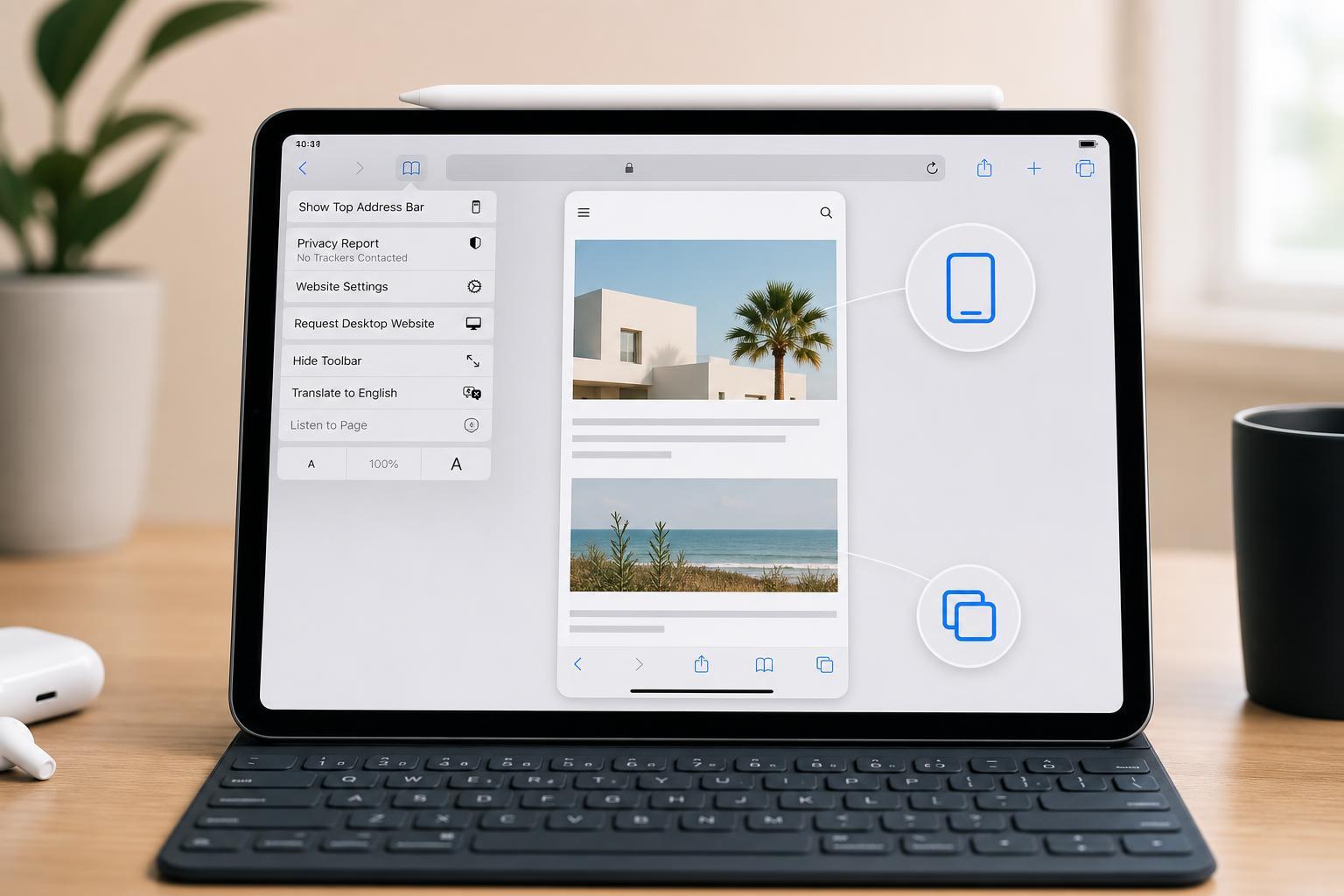
1. Use Safari’s Request Mobile Website Option
The quickest method is to ask Safari to reload the page in its mobile version. This works well on many sites that offer separate desktop and mobile layouts.
- Open the website in Safari on your iPad.
- Tap the page settings button in the address bar.
- Choose Request Mobile Website.
- Wait for the page to reload in mobile mode.
2. Set Safari to Prefer the Mobile Version for That Site
If a site keeps opening in desktop mode every time you visit it, Safari may let you change the site-specific setting so it remembers your preference.
- Open the website in Safari.
- Tap the page settings button in the address bar.
- Look for Website Settings or a similar option.
- Change the site to use the mobile version if the option is available.
- Reload the page if Safari does not do it automatically.
3. Clear the Site’s Saved Data If It Keeps Forcing Desktop View
Some websites store a view preference in cookies or other saved site data. If the mobile version never appears, clearing that site’s data can remove the setting that keeps forcing desktop mode.
- Go to Settings on your iPad.
- Open Safari.
- Tap Advanced, then Website Data.
- Search for the site name if available.
- Remove the website data for that site, then return to Safari and open it again.
- Use Request Mobile Website again if needed.
When Safari Still Shows the Desktop Site
Not every website offers a true mobile version. Some sites use responsive design, which means the same page changes layout based on screen size rather than switching between separate mobile and desktop pages.
- The site may not have a separate mobile version at all.
- The site may use responsive design and simply look similar on iPad.
- The page may detect iPadOS and intentionally serve desktop content.
- The site may be testing a fixed desktop layout that cannot be changed from Safari.
Which Method Should You Try First?
Start with Request Mobile Website because it is the simplest and least disruptive option. If Safari keeps reverting to desktop mode on the same site, try changing the site-specific setting. If nothing changes, remove the site’s stored data and try again.
- Best quick fix: Request Mobile Website
- Best for repeated visits: site-specific Website Settings
- Best for stubborn sites: clear that website’s saved data





