
If your Bluetooth earbuds, speaker, car stereo, or other accessory connects to your iPhone only after you manually choose it, the problem is usually caused by pairing settings, a weak remembered connection, or a device that is no longer being selected as the default connection.
In most cases, you can fix the issue with just a couple of steps. The first method reconnects the accessory cleanly, and the second removes and rebuilds the pairing so your iPhone can treat it like a fresh trusted device again.
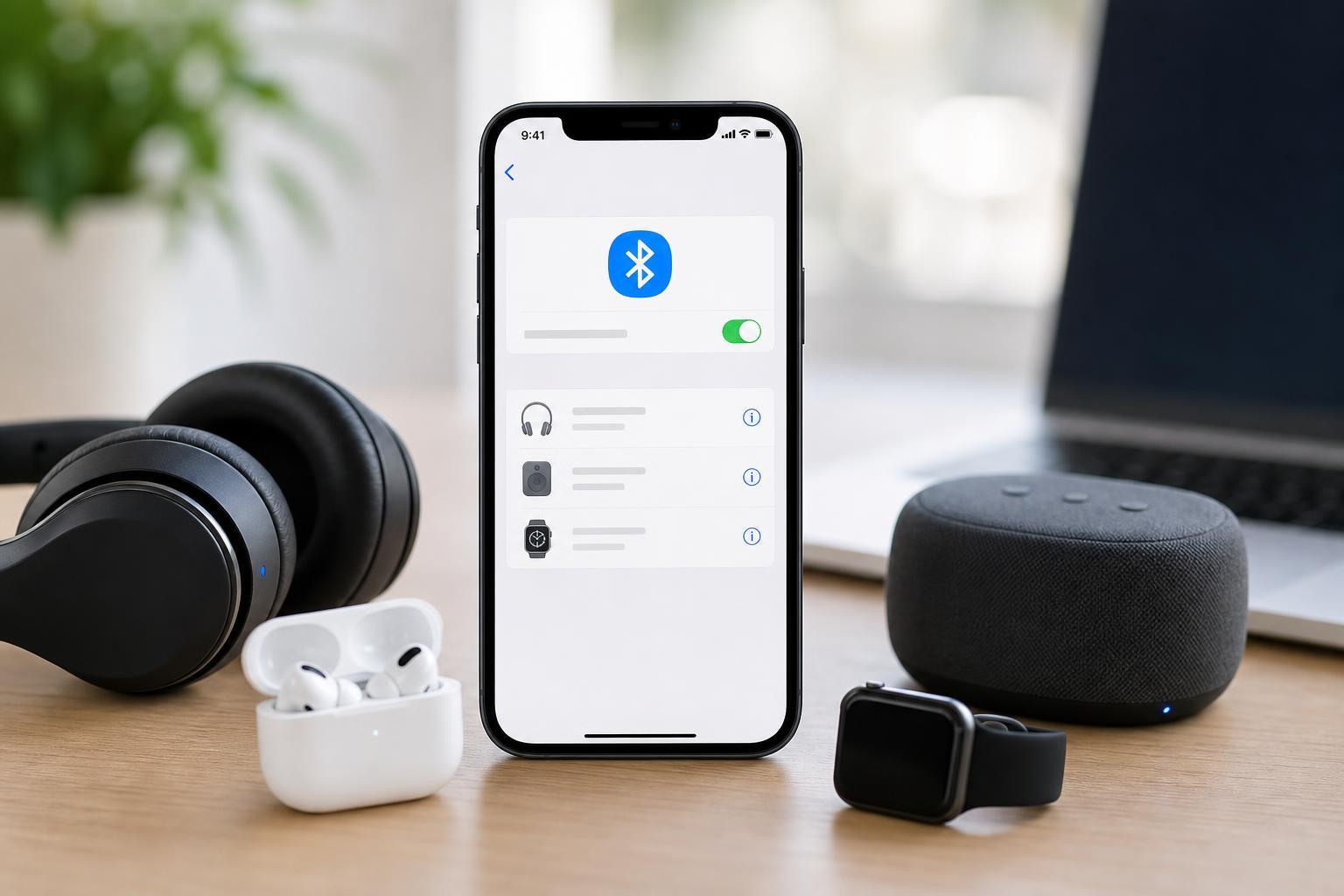
1. Reconnect the Bluetooth Device the Right Way
Before deleting anything, try forcing a fresh connection between the iPhone and the accessory. This can fix situations where the device is paired but not being automatically handed off by iOS.
- Open Settings on your iPhone and tap Bluetooth.
- Find the device in the My Devices list.
- Tap the information button next to it, then choose Disconnect if that option is available.
- Turn the accessory off for a few seconds, then turn it back on.
- If needed, tap the device name again to reconnect it manually.
If the device now reconnects normally, test it again later after locking the iPhone and waking it up. Some accessories only reconnect automatically after they have been powered on in the right order, especially car systems and older headphones.
2. Forget the Device and Pair It Again
If reconnecting does not help, remove the accessory from the iPhone and pair it again from scratch. This is the most effective fix when the saved Bluetooth profile is corrupted or the device remembers the connection incorrectly.
- Go to Settings > Bluetooth.
- Tap the information button next to the problem device.
- Select Forget This Device and confirm.
- Put the accessory into pairing mode again.
- On the iPhone, wait for the device to appear in the Bluetooth list, then tap it to pair.
After pairing again, check whether the device reconnects automatically the next time you turn Bluetooth off and on, move out of range and back, or power-cycle the accessory. If it works after a fresh pairing, the old connection profile was likely the cause.
If It Still Will Not Auto-Connect
If the problem continues after both fixes, the issue may be on the accessory side rather than the iPhone. Many Bluetooth devices have their own memory limits, firmware quirks, or connection priorities.
- Check whether the accessory has its own app and look for a firmware update.
- Make sure the accessory is charged, because some devices stop auto-connecting when battery is low.
- Test the same accessory with another phone to see whether the issue follows the device.
- If it is a car stereo or speaker, check whether it is already connected to another paired device nearby.
- Confirm that Bluetooth is enabled on the iPhone and that no Focus or low-power behavior is interfering with how you are testing it.
Which Fix Should You Try First?
Start with the simple reconnect method if the device used to work and only recently stopped reconnecting on its own. If that does not solve it, forget the device and pair it again. That approach fixes most cases where an iPhone recognizes the accessory but does not restore the connection automatically.





