
If your iPhone Lock Screen widgets are missing, the problem is usually caused by a setting issue rather than a hardware fault. In most cases, the widgets are either disabled in the current Lock Screen setup or the app no longer has permission to show them properly.
This guide covers two fixes that solve the issue for most people and explains what to check if the widgets still refuse to appear.
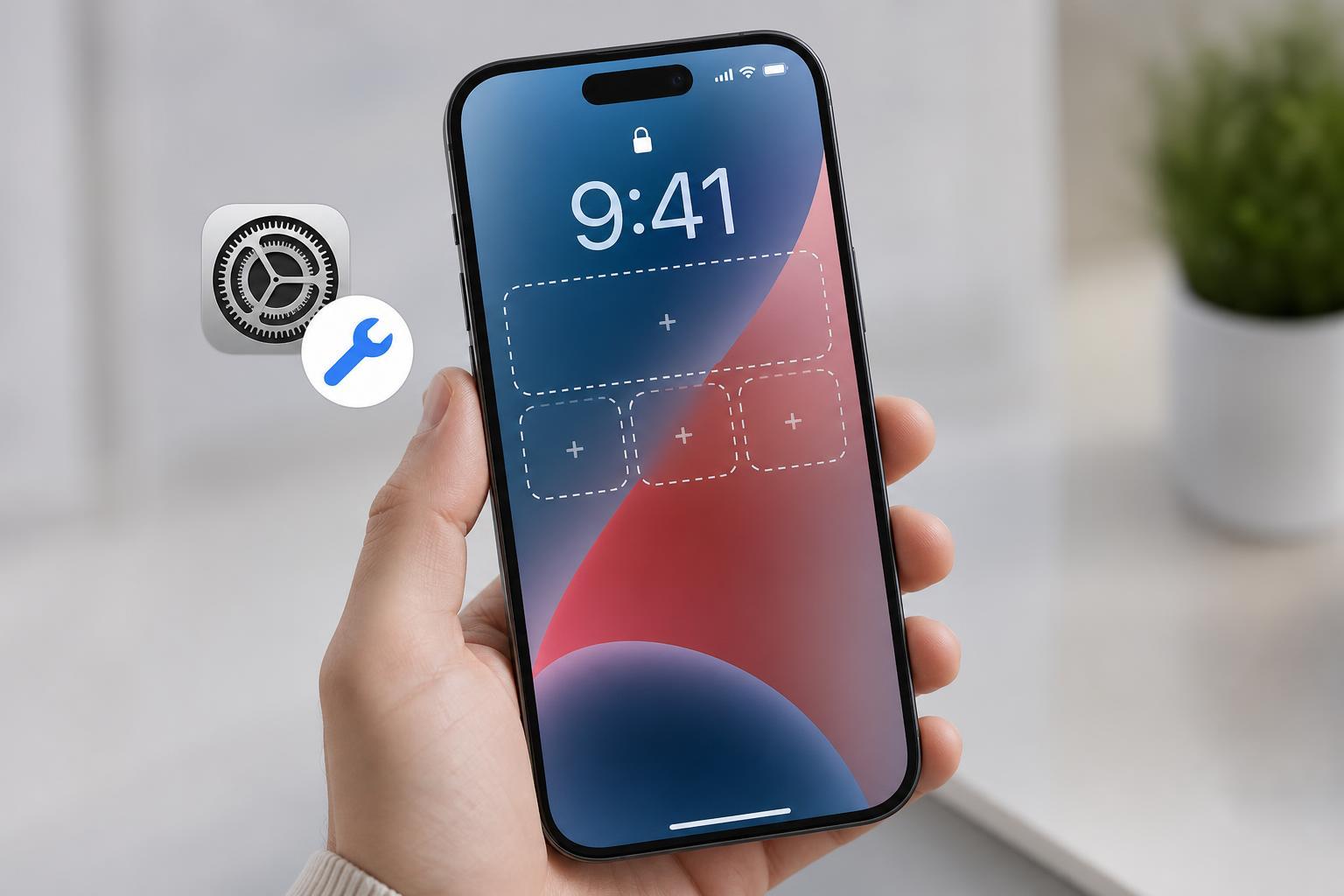
1. Make Sure Widgets Are Added to the Correct Lock Screen
Lock Screen widgets are tied to a specific Lock Screen profile, not to the iPhone globally. If you change wallpapers or switch Lock Screens, the widgets may disappear because the new Lock Screen does not have them configured.
- Press and hold the Lock Screen until the wallpaper gallery appears.
- Tap Customize on the Lock Screen you want to edit.
- Select the Lock Screen option, not Home Screen.
- Tap the widget area below the clock.
- Add the widgets you want from the available app list.
- Tap Done to save the changes.
2. Check the App Permissions and Update the Widget App
If a widget still does not show up, the app itself may not be allowed to refresh data or may be outdated. Widgets rely on the app’s permissions and background access to display current information.
- Open Settings and go to the app that provides the widget, if it appears in the list.
- Check that any relevant permissions are enabled, such as Location, Contacts, Notifications, or Background App Refresh.
- Open the App Store and update the app if an update is available.
- If the widget still does not appear, remove the widget from the Lock Screen and add it again after the app is updated.
If the Widgets Still Won’t Appear
If neither fix works, the issue may be tied to iOS itself, the widget app, or a Lock Screen customization glitch. Try opening the app once, checking for an iOS update, and confirming that Screen Time or device management settings are not limiting widget behavior.





