
If your hard drive is plugged into an Android TV but nothing appears, the problem is usually one of two things: the connection is not supplying enough power or the TV cannot read the drive’s file system. The good news is that you can often fix this without buying new hardware.
This guide covers the two most effective fixes for a hard drive not showing up on Android TV, along with a few quick checks that help you confirm which problem you are dealing with.
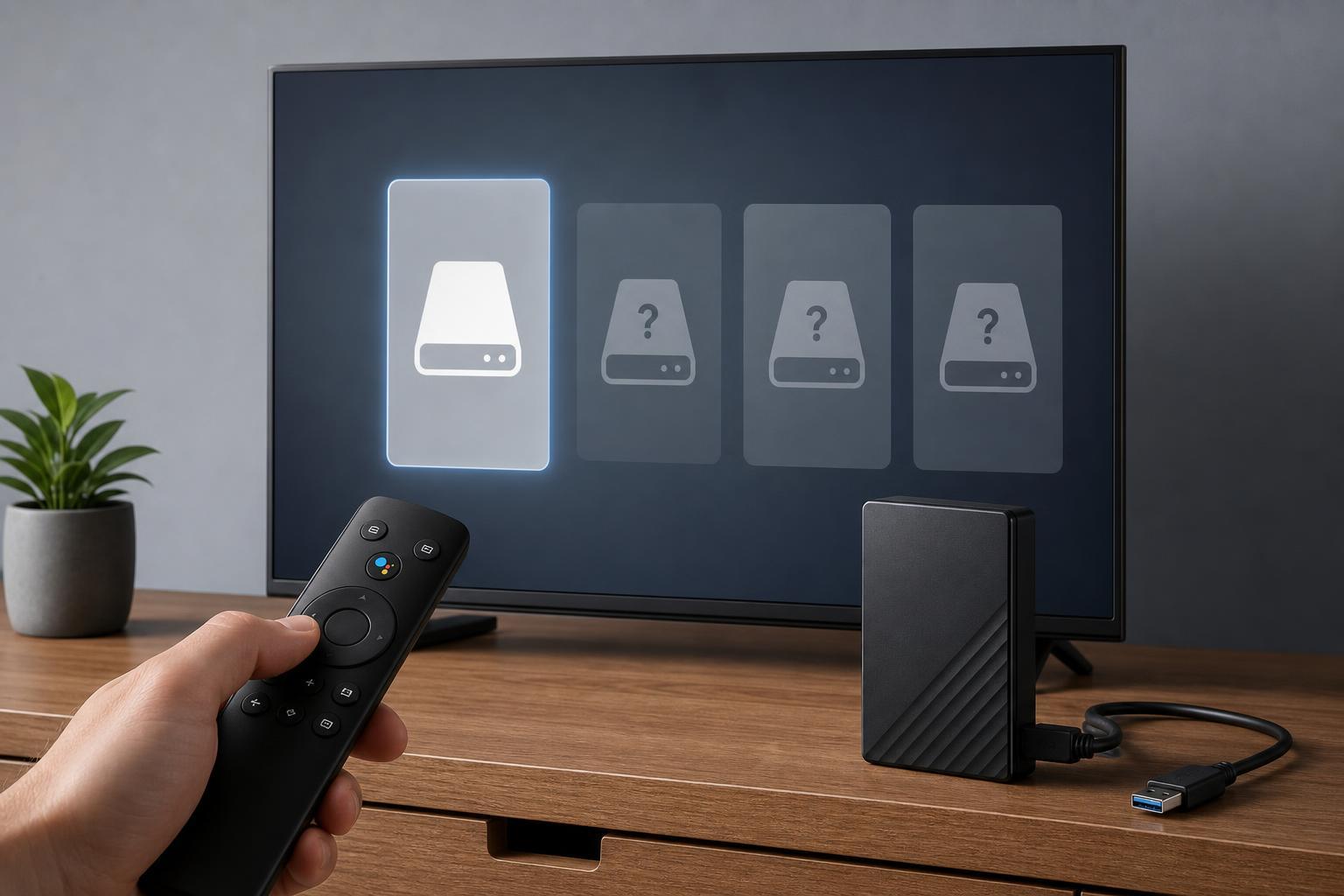
1. Check the Connection and Power Supply
Android TV boxes and TVs can be surprisingly picky about external drives. If the drive does not get enough power, it may spin up on a PC but fail to appear on the TV at all. This is especially common with 2.5-inch portable drives and larger spinning hard drives.
- Unplug the hard drive and connect it directly to the Android TV’s USB port, not through a weak USB hub or adapter.
- If the drive has its own power adapter, make sure it is connected and turned on.
- Try a different USB port on the TV or Android TV box.
- Use a different USB cable if the drive is detachable, since a damaged cable can prevent the drive from being detected.
- If possible, test the drive on another device to confirm that the drive itself still works.
2. Reformat the Drive to a TV-Compatible File System
If the connection is fine but the drive still does not appear, Android TV may not support the file system on the drive. Many TVs handle FAT32 and sometimes exFAT, but support for NTFS and other formats can vary by manufacturer and model.
- Connect the hard drive to a Windows PC or Mac.
- Back up any files you want to keep.
- Check the current file system if you are unsure what it is formatted as.
- Reformat the drive to a file system your Android TV supports, such as exFAT or FAT32 if the drive is small enough.
- Safely eject the drive, then reconnect it to the Android TV and check whether it appears.
If the Drive Still Does Not Appear
If neither fix works, the problem may be with the drive enclosure, the USB port on the TV, or a hardware issue with the drive itself. At that point, test the drive on a PC, try a different enclosure if it is a removable drive, or check your TV manual for supported storage formats and size limits.
- The drive works on a PC but not on Android TV: likely compatibility or power delivery
- The drive does not work anywhere: possible drive failure
- The TV detects smaller flash drives but not the hard drive: likely insufficient power for the larger drive
- Only one USB port fails: the TV port may be faulty
For most users, checking power first and then fixing the file system solves the problem quickly. Those two steps address the most common reasons an Android TV will not show an external hard drive.





