
Moving Samsung Notes to an iPhone is a little trickier than copying files between two phones, because Samsung Notes is designed to work best inside Samsung’s own ecosystem. Still, there are a couple of reliable ways to get your notes onto an iPhone depending on whether you want a one-time transfer or ongoing access.
In most cases, the best approach is to export your notes into a format iPhone can open, or sync them through a cloud service you can access on both devices. The right method depends on how many notes you have, whether they include images or handwriting, and whether you need editable text or just a readable copy.
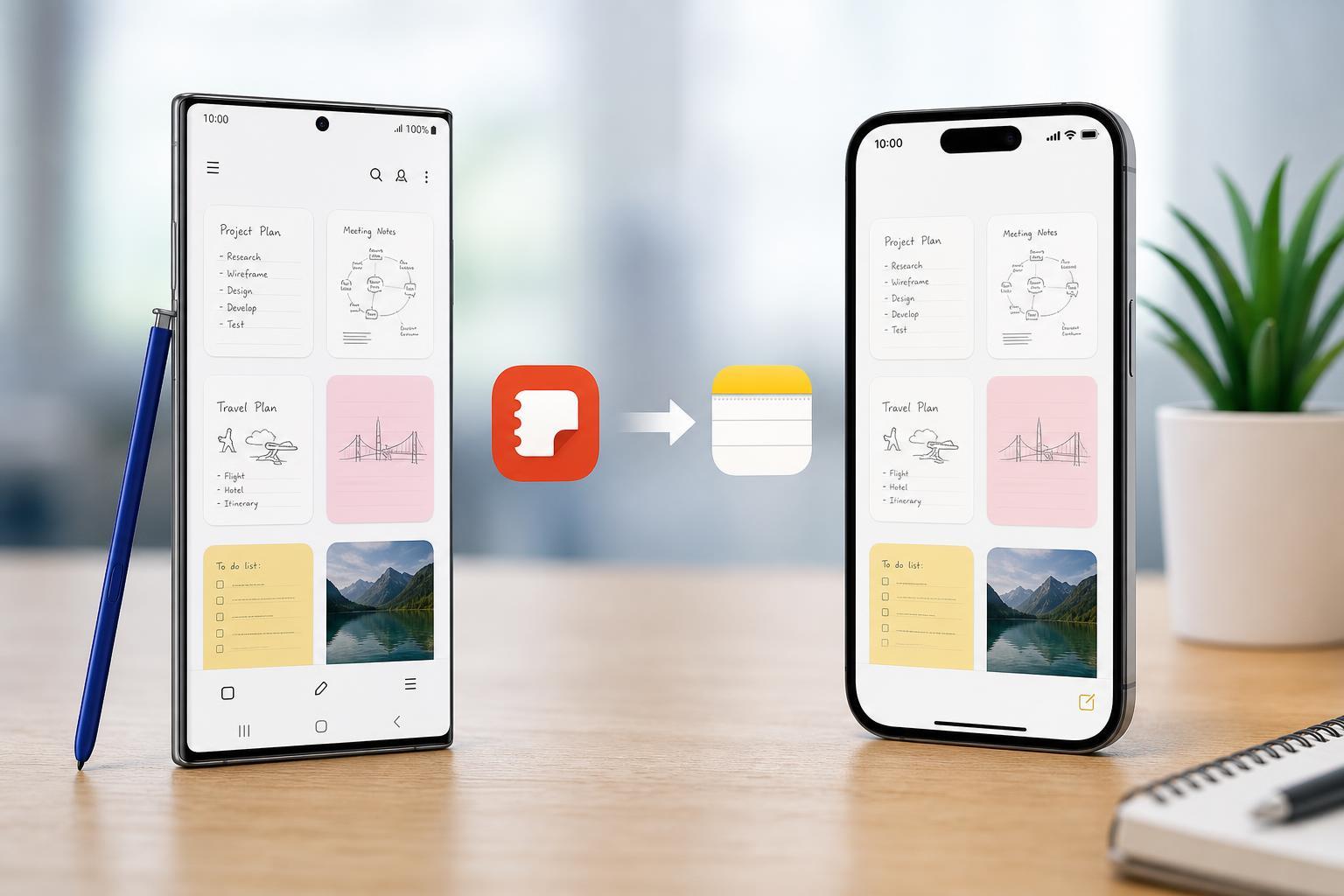
Method 1: Export Samsung Notes and Open Them on iPhone
If you only need to move a few important notes, exporting them is usually the simplest option. This works well when you want to keep a readable copy on your iPhone without worrying about account syncing or third-party app support.
- Open Samsung Notes on your Samsung phone and select the note you want to move.
- Tap the menu or share option, then look for Export or Save as file, depending on your Samsung Notes version.
- Choose a format such as PDF, TXT, or Microsoft Word if available.
- Save the exported file to your phone or upload it to a cloud service such as Google Drive, OneDrive, or email it to yourself.
- Open the file on your iPhone using the Files app, Mail app, or the cloud app where you saved it.
PDF is usually the safest choice if the note contains formatting, drawings, or handwriting. Text-based formats are better if you want to copy and edit the content on the iPhone later, but not every note will export cleanly into an editable form.
Method 2: Sync Notes Through a Cloud Service You Can Access on iPhone
If you want access to your notes on both phones, a cloud-based workaround is often better than exporting each note manually. This is especially useful if you plan to keep using the notes as references rather than moving them only once.
- On your Samsung phone, open Samsung Notes and check whether your notes can be synced with a Samsung account or another supported cloud option.
- If syncing is available, make sure the account is signed in and note syncing is enabled.
- For notes that cannot sync directly, copy or export them into a cloud service that works on iPhone, such as OneDrive, Google Drive, or iCloud Drive.
- Install the matching app on your iPhone and sign in with the same account.
- Open the note files from the cloud app or the Files app on your iPhone.
This method is not as seamless as true app-to-app syncing, but it is often the most practical way to keep your notes available across both devices. It also makes it easier to move a larger collection of notes without sending each one by email.
Which Method Should You Use?
- Use export to PDF or another file format if you only need a few notes or want the safest way to preserve the original layout.
- Use cloud storage if you want ongoing access to notes from both phones.
- Use editable text formats only when the note is mostly plain text and you plan to reuse the content on the iPhone.
- Use PDF when notes include handwriting, sketches, checklists, or formatting you do not want to lose.
Common Problems When Moving Samsung Notes
Some notes may not transfer perfectly, especially if they include Samsung-specific formatting, handwriting layers, or attached images. If a note looks different after export, try a different file format before assuming the note is damaged.
- A note exports with missing formatting: try PDF instead of a text-based format.
- The file will not open on iPhone: save it to Files, then open it from there or install the cloud app you used.
- Handwritten notes look flattened: this is normal when exporting to PDF, but it should still preserve the visual content.
- Large notes are slow to upload: split them into smaller files or use a more stable Wi-Fi connection.
A Practical Final Tip
Before moving everything, test the process with one note first. That lets you confirm the format opens correctly on your iPhone and helps you choose the best method before transferring a larger batch.





