
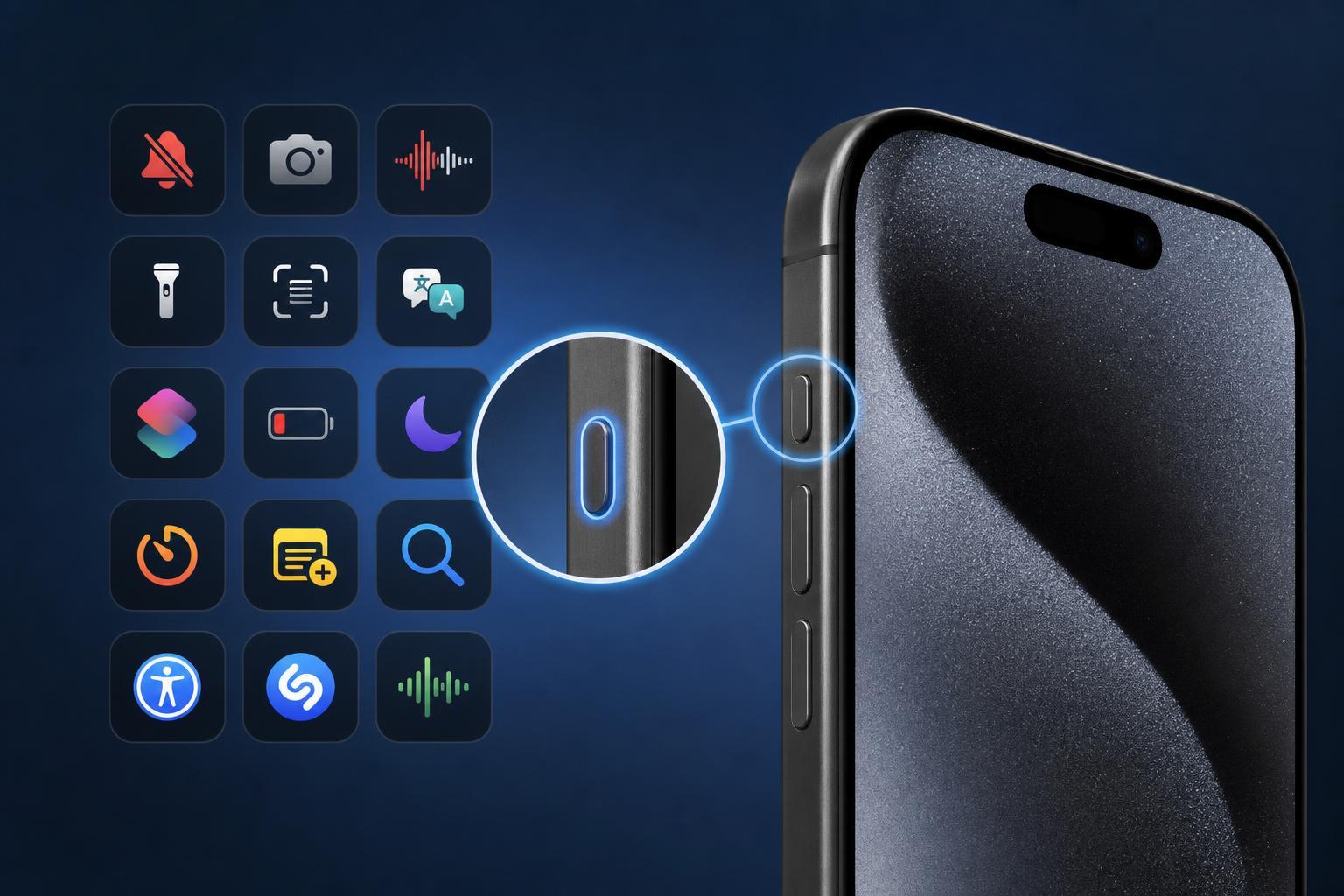
The Action Button on iPhone 15 Pro can do much more than open the camera or turn on the flashlight. If you assign it to the right Shortcut, it can save time, reduce taps, and make everyday tasks feel much faster.
This guide covers 15 genuinely useful shortcut ideas for the Action Button, along with a few suggestions on which ones make the most sense for different types of users.
What Makes a Good Action Button Shortcut?
The best Action Button shortcuts are the ones you use often enough to matter, but not so often that they are easier to reach from the Home Screen. In practice, that usually means quick actions, small automations, or controls that would otherwise take several taps in an app or in Control Center.
1. Open the Camera in the Mode You Use Most
If you take a lot of photos or videos, a camera shortcut is one of the most practical Action Button options. Instead of opening the Camera app and switching modes manually, you can send yourself straight into photo, portrait, selfie, video, or another preferred mode.
2. Turn the Flashlight On or Off
The flashlight is one of the simplest and most useful Action Button assignments. It is fast, reliable, and does not require you to think about what app or screen you are on. If you often use your iPhone as a torch, this shortcut is hard to beat.
3. Start a Voice Memo
A Voice Memos shortcut is useful when you want to record an idea, a reminder, a meeting note, or a spoken thought without opening the app first. This is one of the better options for students, writers, and professionals who capture thoughts on the move.
4. Toggle Silent Mode or a Focus Mode
If you do not want the Action Button tied to hardware controls only, you can use it to switch between useful states such as Work Focus, Sleep Focus, or Do Not Disturb. That makes the button more valuable than simply toggling silent mode if your routine changes throughout the day.
5. Open a Specific App
A shortcut that launches one app can be surprisingly practical if there is an app you open constantly. Examples include Messages, Notes, WhatsApp, Spotify, ChatGPT, Maps, or your banking app. This is especially helpful if the app is buried in folders or not on your first Home Screen page.
6. Start Navigation to Home or Work
If you commute often, a shortcut that opens maps directions to your home, workplace, or another common destination can save time every day. You can launch the route directly without typing the address or digging through recent searches.
7. Send a Text to One Person
A messaging shortcut can jump straight to a conversation or even prefill a message. That is useful for a spouse, family member, coworker, babysitter, or anyone you contact regularly. You can make it as simple as opening the chat or as specific as sending a preset reply.
8. Start a Timer
A timer shortcut is more useful than it sounds. It can be handy for cooking, workouts, study sessions, parking, laundry, or quick reminders. If you use the same countdown often, the Action Button makes it much easier to start it instantly.
9. Create a Reminder Quickly
A shortcut that adds a reminder can help you capture tasks before you forget them. You might send it to a specific list, set a due time, or prompt yourself for a task name. This works especially well if you think of tasks while walking, driving, or in the middle of something else.
10. Start a Workout or Fitness Tracking Shortcut
If you use Fitness or a workout app often, the Action Button can help you begin tracking faster. You can use it for a single workout type, a favorite app, or a shortcut that asks which workout you want to start.
11. Control Smart Home Devices
The Action Button can become a simple home control shortcut, such as turning on lights, locking the front door, or running a scene. This is particularly useful if you already use HomeKit or another smart home platform and want one action that handles a routine task.
12. Scan a QR Code or Open a Scanner Shortcut
If you often scan QR codes for Wi-Fi, menus, tickets, or login prompts, a scanner shortcut can make the process much faster. Instead of hunting for the Camera app or a separate scanner app, the Action Button can take you straight there.
13. Translate Text or Start a Translation Shortcut
A translation shortcut can be helpful when traveling or communicating in another language. Depending on how you build it, it can open Translate, let you speak a phrase, or translate copied text more quickly than navigating the app manually.
14. Toggle Low Power Mode or Other System Settings
Some people prefer the Action Button to manage settings they toggle often, such as Low Power Mode, personal hotspot, orientation lock, or a Bluetooth-related action. These can be useful if you regularly switch between power-saving and performance modes or share internet on the go.
15. Use a Shortcut Menu for Multiple Actions
If you cannot decide on one action, a menu shortcut is often the smartest choice. The Action Button can trigger a Shortcut that then asks what you want to do, such as opening the camera, starting a timer, toggling the flashlight, or launching a favorite app.
How to Choose the Right Shortcut for You
- Think about the action you perform most often in a hurry, not the one that sounds most impressive.
- Choose something that is faster from the Action Button than from Control Center, Spotlight, or the Lock Screen.
- Avoid actions that need a lot of follow-up taps unless you build a good shortcut menu.
- If you share your phone with other people sometimes, pick a shortcut that will not accidentally trigger something private or disruptive.
- Test your choice for a few days before deciding whether to keep it or switch it.
Best Shortcut Types for Different Users
- For photographers: Camera shortcut
- For commuters: Maps or navigation shortcut
- For busy households: Smart home controls
- For students: Voice Memos or Reminders
- For travelers: Translation or QR scanner
- For minimalists: Flashlight or Focus mode toggle
- For power users: A custom menu with several actions
A Few Shortcuts Worth Avoiding
Not every shortcut is a good fit for the Action Button. Very long automations, actions that fail often, or shortcuts that require a lot of confirmation can make the button feel slower than simply opening an app manually.
Choosing the Right Option
The best Action Button shortcut is not necessarily the most advanced one. It is the one that solves a real annoyance in your daily routine and works reliably every time you press it. For many people, that means a simple shortcut like camera, flashlight, voice memo, or focus mode. For others, a custom menu is the most useful setup of all.





