
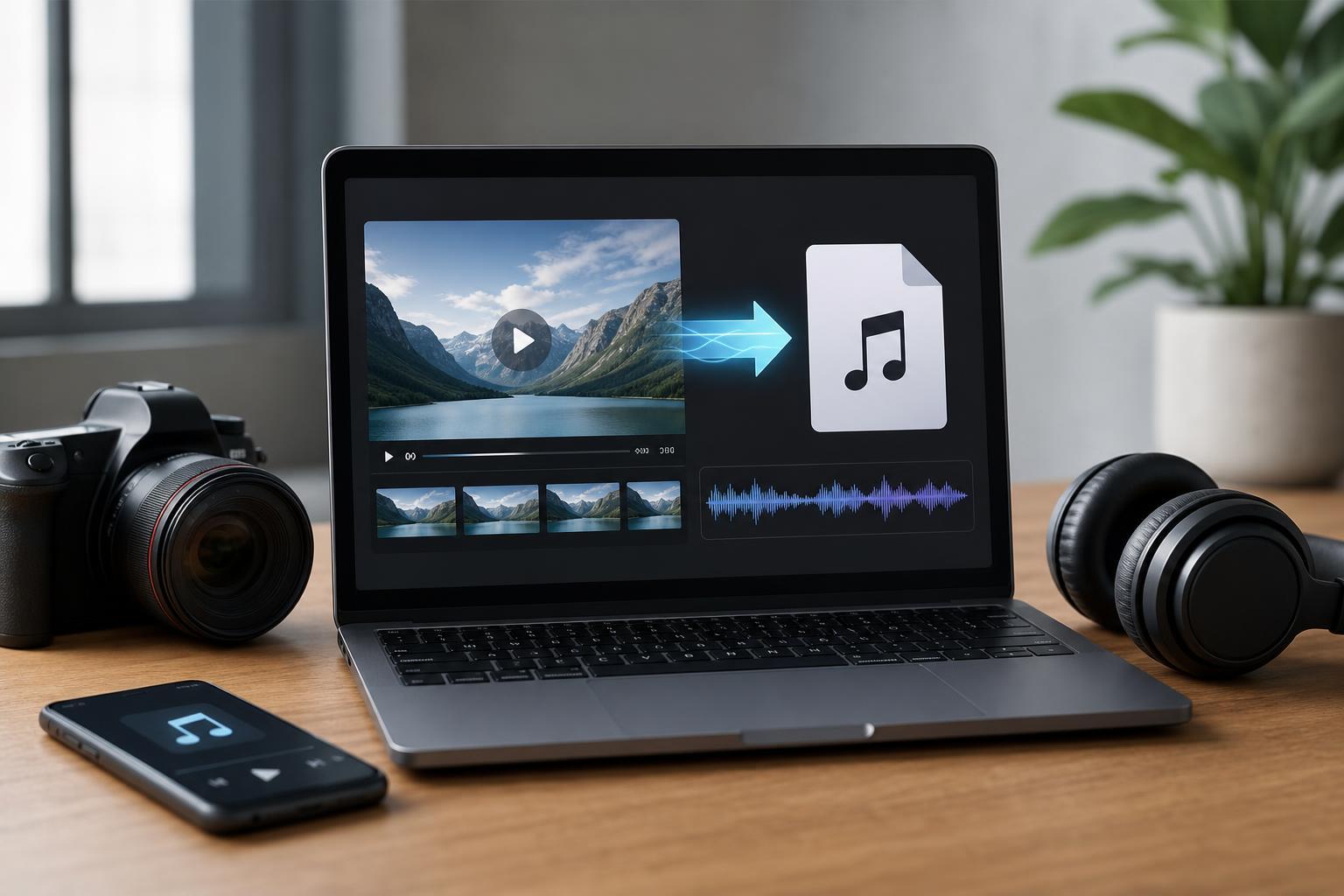
If you have a video file but only need the soundtrack, speech, music, or sound effects, you do not always need paid software to pull the audio out. There are plenty of free tools that can extract audio from video quickly, whether you want a simple one-click converter or a more flexible editor.
This guide covers 13 free tools for ripping audio from video, along with what each one is best for, so you can choose the easiest option for your device and workflow.
1. VLC Media Player
VLC is better known as a media player, but it can also convert video files into audio-only formats. It is a good choice if you already have it installed and want a no-cost way to extract audio without learning a separate editor.
2. Audacity
Audacity is a free audio editor that can import video files through supported workflows and let you export the audio in the format you want. It is especially useful if you plan to trim, clean up, or edit the soundtrack after extracting it.
3. HandBrake
HandBrake is a free video transcoder that can remove the video track and output an audio-only result in certain workflows. It is more commonly used for video conversion, but it can still be helpful when you want to process a file efficiently.
4. FFmpeg
FFmpeg is a powerful command-line tool that can extract audio from almost any video format you throw at it. It is not the easiest option for beginners, but it is one of the most flexible and reliable tools available.
- Install FFmpeg on your system.
- Open a terminal or command prompt.
- Run a command that maps the audio stream from the video into a new audio file.
- Choose an output format such as MP3, AAC, WAV, or FLAC depending on your needs.
5. Avidemux
Avidemux is a free video editor that can cut and save media without fully re-encoding in some cases. That makes it a useful lightweight option when you want to remove the video portion or save audio-related content with minimal fuss.
6. Shotcut
Shotcut is a free, open-source video editor that can export audio from a project after you load a video. It gives you more editing control than a basic converter, which is helpful if you need to cut a specific section before saving the soundtrack.
7. OpenShot
OpenShot is another free video editor that makes it easy to import video, trim it, and export media in a usable form. It is a friendly choice if you prefer a graphical interface and do not want to work from the command line.
8. FreeConvert
FreeConvert is a browser-based conversion tool that can extract audio from uploaded video files. It is convenient if you only need a quick conversion and do not want to install anything locally.
9. CloudConvert
CloudConvert is another web-based converter that supports many file types and can turn video into audio-only formats. It is especially handy when you want a polished interface and broad format support.
10. Convertio
Convertio is a straightforward online tool for turning video into audio without installing software. It is useful for quick, occasional jobs where convenience matters more than advanced control.
11. Media.io
Media.io provides a browser-based conversion workflow that can extract audio from video files and export common audio formats. It is easy to use and well suited to simple conversions.
12. Any Video Converter Free
Any Video Converter Free is a desktop app that can convert video files into audio formats while also offering other conversion features. It is a good middle ground between beginner-friendly software and more advanced tools.
13. Format Factory
Format Factory is a long-running free conversion tool for Windows that can process media into different formats, including audio-only outputs. It is useful if you often deal with mixed media files and want one app to handle several file types.
How to Choose the Right Tool
The best tool depends on how often you need to extract audio, how comfortable you are with software, and whether the file is sensitive or large.
- Use VLC if you want a simple local tool and already have it installed.
- Use Audacity if you want to edit the audio after extracting it.
- Use FFmpeg if you need fast batch conversions or exact control over the output.
- Use an online converter if you only need a quick one-time conversion and the file is not sensitive.
- Use a full video editor like Shotcut or OpenShot if you want to trim the clip first before exporting audio.
What Format Should You Export To?
The best output format depends on what you plan to do with the audio afterward.
- MP3: Best for broad compatibility and smaller file sizes.
- WAV: Best for uncompressed audio and editing.
- AAC or M4A: Good for efficient compression with decent quality.
- FLAC: Best if you want lossless audio and do not mind larger files.
A Few Practical Tips Before You Convert
Before extracting audio, check whether the video contains multiple audio tracks, because some tools will only grab the default track unless you choose otherwise. If the file is very large, a desktop tool is usually more reliable than an online converter.
Which Tool Should You Start With?
If you want the simplest answer, start with VLC for a local desktop option or a browser-based converter if the file is small and not private. If you need more control, FFmpeg and Audacity are the strongest free options, while Shotcut and OpenShot are better when the audio needs trimming before export.





