
If your iPhone is burning through mobile data faster than you expect, the issue is usually a mix of background activity, app behavior, and media settings. The good news is that iPhone includes several built-in controls that can cut data use without making the phone hard to use.
This guide walks through 10 practical ways to limit cellular data usage on iPhone, from quick settings changes to app-specific controls that make the biggest difference.
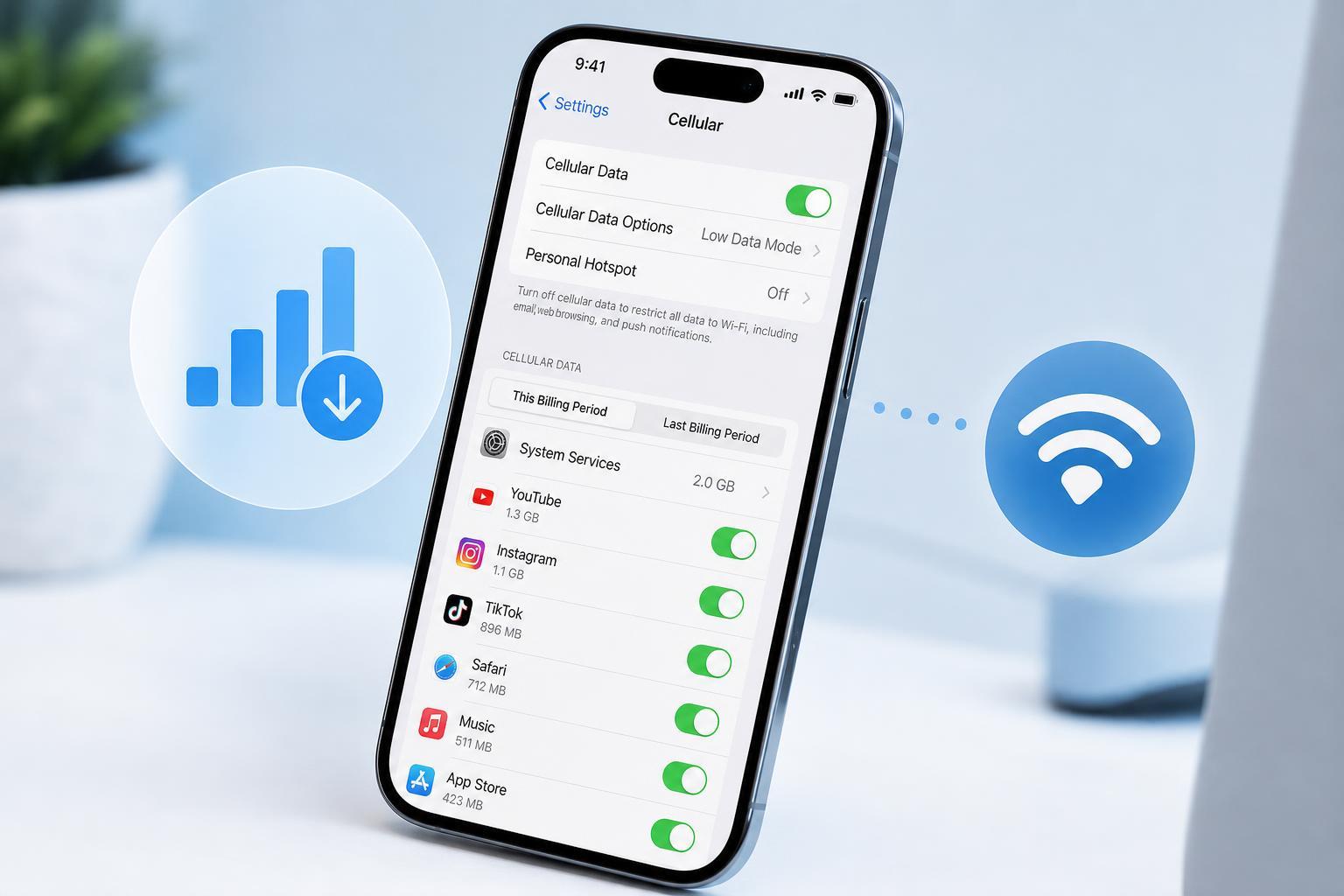
1. Turn Off Cellular Data for Apps You Don’t Need on Mobile
The most direct way to save data is to stop specific apps from using cellular data altogether. This works well for apps you only need at home or on Wi-Fi, such as large streaming services, cloud backup tools, or games that download a lot of content.
- Open Settings.
- Tap Cellular or Mobile Service.
- Scroll through the app list.
- Turn off cellular access for apps you want to restrict.
2. Use Low Data Mode
Low Data Mode tells iPhone and some apps to reduce background activity and network-heavy behavior. It can help slow down automatic updates, background sync, and other nonessential transfers when you are on mobile data.
- Open Settings.
- Tap Cellular or Mobile Service.
- Tap Cellular Data Options.
- Turn on Low Data Mode.
3. Stop Automatic App Updates Over Cellular
App updates can be surprisingly large, and they may download without you noticing if cellular access is enabled. Limiting updates to Wi-Fi keeps your mobile data focused on things you actually want to do while away from home.
- Open Settings.
- Tap App Store.
- Under Cellular Data, turn off Automatic Downloads if available.
- If you see App Downloads or App Updates options, set them to Wi-Fi only or disable cellular use.
4. Disable Wi-Fi Assist if It Uses Too Much Data
Wi-Fi Assist can switch to cellular data when your Wi-Fi signal is weak. That is useful for preventing interruptions, but it can also consume mobile data without being obvious.
- Open Settings.
- Tap Cellular or Mobile Service.
- Scroll to the bottom of the list.
- Turn off Wi-Fi Assist.
5. Limit Background App Refresh
Background App Refresh allows apps to update content in the background so they feel current when you open them. That convenience can cost data, especially for social apps, news apps, and services that sync frequently.
- Open Settings.
- Tap General.
- Tap Background App Refresh.
- Choose Off, or limit it to Wi-Fi only if that option is available on your iPhone and iOS version.
6. Reduce Streaming Quality for Music and Video
Streaming video and high-quality audio are among the biggest data users on a phone. If you stream often, lowering quality can make a major difference without changing how you use the apps.
- Lower playback quality in apps like YouTube, Netflix, Disney+, or other video services.
- Set music apps to use lower-quality streaming on cellular.
- Avoid downloading or streaming in HD unless you really need it.
- Use offline downloads over Wi-Fi before leaving home.
7. Stop Photos and Cloud Backups from Using Cellular Data
Photo syncing, iCloud backups, and other cloud services can use a lot of data in the background. If your iPhone backs up or uploads media while you are away from Wi-Fi, your usage can climb quickly.
- Open Settings.
- Tap Photos to check whether cellular uploading is enabled for any photo services you use.
- Open Settings, tap your name, then tap iCloud to review backup-related options.
- Check individual cloud apps such as Google Photos, OneDrive, Dropbox, or similar services for cellular upload settings.
8. Use Offline Downloads for Maps, Music, and Video
When you know you will be away from Wi-Fi, downloading content ahead of time is one of the easiest ways to avoid cellular use. This is especially helpful for travel, commuting, and long days outside.
- Download playlists in music apps before leaving home.
- Save video episodes or movies for offline viewing.
- Download maps for areas you visit often.
- Sync documents and files in advance so you do not need to open cloud services on mobile data.
9. Check Which Apps Use the Most Data
iPhone can show which apps have used cellular data, which helps you find the main offenders instead of guessing. This is useful if your data usage seems high but you are not sure why.
- Open Settings.
- Tap Cellular or Mobile Service.
- Look through the app list and usage totals.
- If an app looks unusually high, review its settings or restrict its cellular access.
10. Reset Cellular Data Statistics and Watch Usage More Closely
If you want a clearer picture of how fast you are using data, reset the cellular usage counters at the start of your billing cycle. That makes it easier to compare your usage to your monthly allowance.
- Open Settings.
- Tap Cellular or Mobile Service.
- Scroll to the bottom.
- Tap Reset Statistics at the start of your billing cycle.
Extra Habits That Help Save Data
A few everyday habits can make the settings above even more effective. These are not complicated, but they often make the biggest long-term difference.
- Avoid streaming HD video on mobile unless necessary.
- Use Wi-Fi for large app downloads and system updates.
- Turn off auto-play in social media apps when possible.
- Close or restrict apps that constantly refresh content.
- Prefer message apps that send compressed media on cellular.
Which Settings Make the Biggest Difference?
If you only want to change a few things, start with app-specific cellular access, Low Data Mode, and background refresh. Those three changes usually cut the most unnecessary data without affecting essential phone functions too much.
If you stream a lot of music or video, app quality settings and offline downloads may have an even bigger impact. For people on very limited plans, turning off Wi-Fi Assist and cloud uploads on cellular can be just as important.
When to Check With Your Carrier
If your iPhone data usage still seems unusually high after changing these settings, your carrier account can help confirm whether the usage is real and which billing period it belongs to. That is useful if you suspect your phone and your carrier are showing different totals.





